
Windows and Mac utilities don’t exactly go hand in hand; while Microsoft has become platform-agnostic, Apple has yet to embrace releasing its apps on other platforms. I can use Office 365 and other popular Windows programs on Mac, but the vice versa is not easy. However, it seems that Apple recently had a change of heart and made iCloud available on Windows 11/10. I use iCloud on my MacBook, and it would be great if I could access it on Windows. Let’s walk you through a detailed guide to setting up iCloud on Windows 11/10.
I use iCloud on my MacBook, and it would be great if I could access it on a Windows PC. Let’s walk you through a detailed guide to setting up iCloud on Windows 11/10.
How to use iCloud on Windows 11 PC
1. Download and Install
Needless to say, you need to download the software and install it; however, it’s very important where you download the file, since unknown sources can be riddled with malware and other attacks.
TIP: This post will help you if you see Your computer is missing Media features when downloading, installing, setting up, or updating iCloud for Windows
2. Logging In
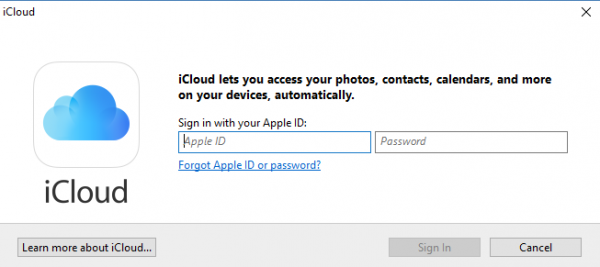
Signing up is pretty easy and is similar to how one does on their Mac or iPad. Before signing in, ensure that you have an Apple ID that is up and working. Sign in to the service using the same username and ID you use on your other Apple devices.
3. Initial Setup and Sync
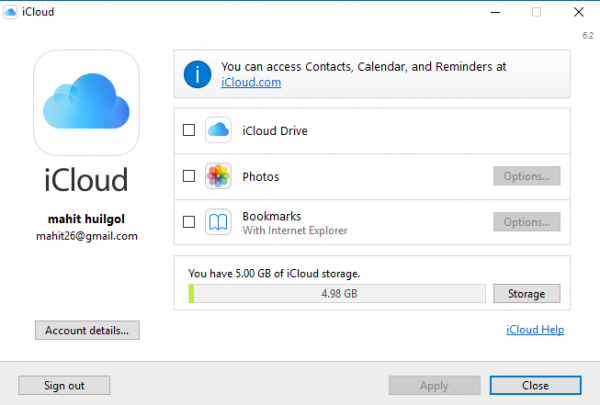
As with all the other Cloud services, I am wary of what syncs and what shouldn’t. This is extremely important, as otherwise unnecessary data will also be downloaded, creating a mess in your directory.
Thankfully, Apple iCloud asks you about the different types of files you may want to sync; select the ones you really require by checking them in the tick boxes, then click on Apple.
Currently, iCloud for Apple supports iCloud Photos, iCloud Drive and also bookmark syncing. It can also integrate calendars, contacts and other items using Outlook on Windows.
4. Adding iCloud to the File Explorer
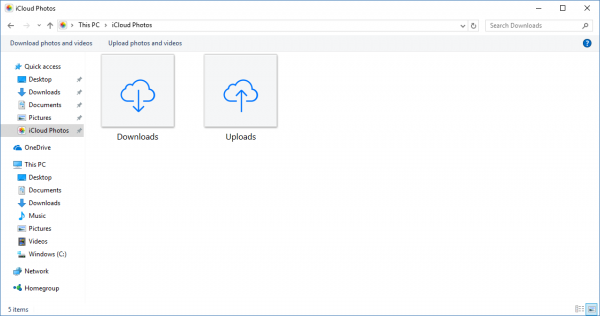
Now comes the caveat: iCloud doesn’t get automatically added to File Explorer. iCloud will be in the main User folder, which makes accessing it inconvenient.
Navigate to the file directory on File Explorer, select the folder iCloud Drive and right-click. Now select “Pin to Quick Access, ” and this will leave you with a permanent shortcut in the File Explorer. One can also search for iCloud in the search bar and pin it to the Quick Access taskbar.
I tried finding iCloud on the Microsoft Store only to realize later that the software can only be downloaded from the Apple Support website link.
Read: How to create a new Apple ID for free?
