
If you want to add your own music to iTunes on Windows or want to use iTunes as a music organizer and player, here is how you can do that. You can import music, create a playlist, import/export playlists, etc., with the help of this guide.

If you have an iOS device and want to organize music on it or transfer files from your Windows PC to it, iTunes is the best option. It is made by Apple to manage your device on your Windows computer. However, you can use it as a dedicated music player as well. If you already use it for managing songs on your iOS device, you can take advantage of this functionality.
Before getting started, you must create a folder with all the songs you want to import into iTunes. Otherwise, you will have to pick one song at a time, which might take a long time.
How to add your own music to iTunes on Windows PC
To add your own music to iTunes on Windows 11/10, follow these steps:
- Open iTunes on your computer.
- Click on the File menu.
- Choose Add File to Library.
- Choose a song you want to import.
- Select the Add Folder to Library option.
- Choose the folder of songs to import.
To learn more about these steps, continue reading.
First, you need to open iTunes on your computer and click on the File menu visible on the top menu bar. Then, you have two options – Add File to Library and Add Folder to Library.
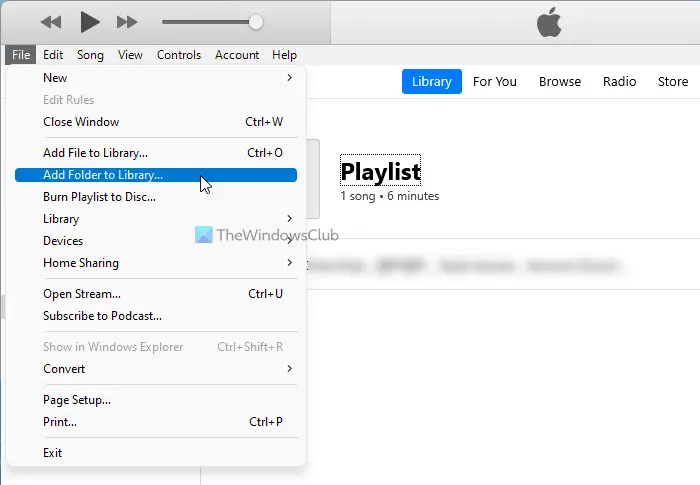
If you want to import a single song, choose the Add File to Library option and select the song.
However, if you created a folder with your desired songs and want to import them all, you can choose the Add Folder to Library option.
At times, you might want to listen to a few songs out of hundreds. In such times, you can create a playlist of your favorite songs.
Read: How to identify this Song?
How to create a playlist in iTunes on Windows
To create a playlist in iTunes on Windows, follow these steps:
- Open iTunes on your computer.
- Go to the Songs tab.
- Right-click on a song.
- Choose Add to Playlist > New Playlist.
- Name the playlist.
- Repeat the same steps but choose the playlist.
Let’s check out these steps in detail.
First, you need to open iTunes on your computer. Then, switch to the Songs tab on the left side and right-click on a song you want to add to a playlist.
Choose Playlist > New Playlist.
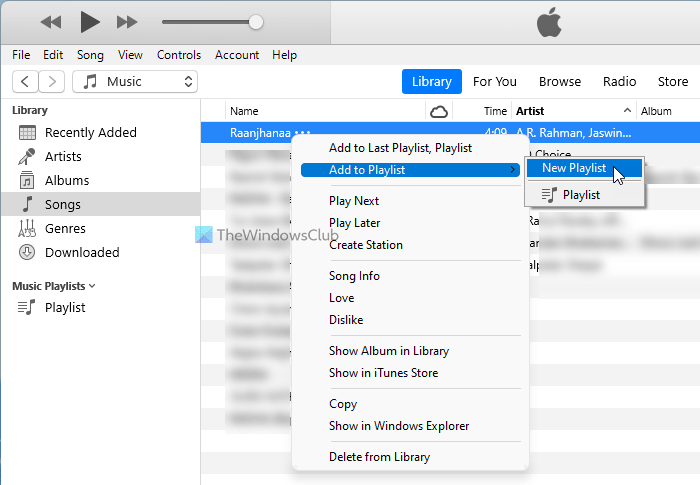
Since you haven’t created any playlists before, you need to select this option. However, if you created a playlist previously, you can find its name here.
However, for first-time users, you are required to enter a name for your playlist so you can recognize it in the future.
Once done, you can repeat the same steps to add new songs to the playlist.
How to import and export playlist from iTunes on Windows
To import and export playlists from iTunes on Windows, follow these steps:
- Open iTunes on your PC.
- Click on the File option.
- Select Library > Export Playlist.
- Select a location > click the Save button.
- Choose Library > Import Playlist.
- Select the playlist > click the Open button.
Let’s learn more about these steps.
First, you need to open iTunes on your PC and click on the File menu in the top menu bar. Then, click the Library option.
Here you can find two options – Import Playlist and Export Playlist. If you want to export the playlist from iTunes, you need to choose the Export Playlist option. Then, choose a location where you want to save and click the Save button.
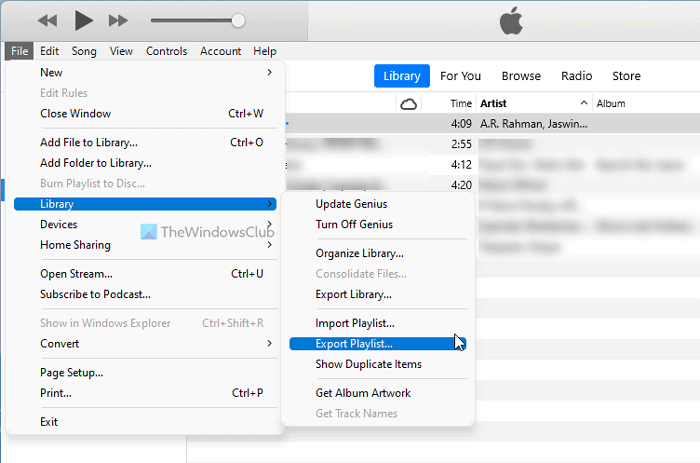
On the other hand, if you already have a playlist and want to import it into iTunes, you can click the Import Playlist option, select the playlist, and click the Open button.
For your information, if you want to migrate a playlist from one computer to another, you must copy all the songs. Otherwise, you might fail to import the playlist on the new computer.
That’s all! Hope this guide helped.
How do I add songs to the iTunes library?
To add songs to the iTunes library, you need to follow the aforementioned steps. First, open iTunes on your Windows PC, go to File > Add File to Library, or Add Folder to Library. Then choose the song or music folder based on the option you selected. Once done, you can find all your contents in the Songs tab visible on the left side.
Why won’t iTunes let me add music to my library?
Although there is no limit to adding music to your iTunes library, some glitches can prevent you from doing so. In such situations, you can rename the music folder first to see if that resolves the issue. If not, it is recommended to uninstall and reinstall iTunes.
