What do you do when you find that your Windows Live Messenger is giving out errors and you are at your wits end to resolve them. The simplest solution is to uninstall and re-install it. But if you still continue to get errors, try this.
Windows Live Messenger Errors
A regular issue faced is the dreaded “Another version of the product is already installed”, “Your computer has a newer version of MSN Messenger than the one you are trying to install”, ““Your computer has a newer version of Windows Live Messenger than the one you are trying to install”, “The feature you are trying to use is on a network resource that is unavailable” and similar messages. And you are unable to update.
Additionally, in some cases the installer can’t be found in the Control Panel’s Programs applet or has become damaged with a Catastrophic failure (0x8000ffff) error or the Windows Installer is prompting for a missing .msi file which you can’t find anymore. Or you keep getting Errors 8007007e, 810003d, etc…
There are fixes for all these problems, but they’re complicated and can be frustrating to some people.
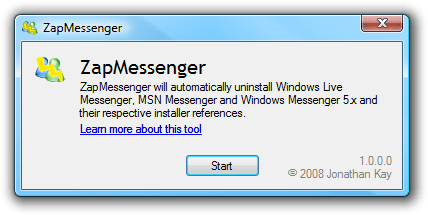
You can solve most Messenger install, reinstall, update and uninstall issues with ZapMessenger. It is a small app developed by an MVP.
ZapMessenger
Just download the zip and run the executable. No installation is required. Please note that the .NET Framework 2.0 or above is required, which you can install from Microsoft if you don’t already have it. The Framework has been on Windows Update for quite some time now.
Your personal data however, won’t be touched.
You can download it from its Home Page.
Related errors: