
In certain situations, you might want to allow others to run only programs you specify on your computer. What you need is the Group Policy Editor (which is available in Professional and above versions) in Windows 11 or Windows 10.
Run only specified Windows Applications
To open Group Policy Editor, press the Start button, type gpedit.msc, and press Enter.
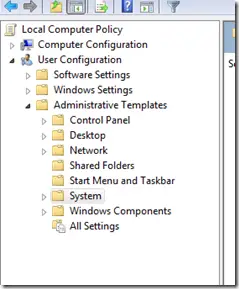
Explore down to User Configuration > Administrative Templates > System in the left pane.
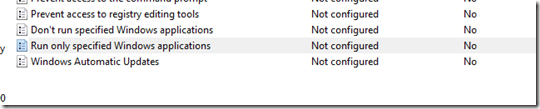
Now double click Run only specified Windows Applications.
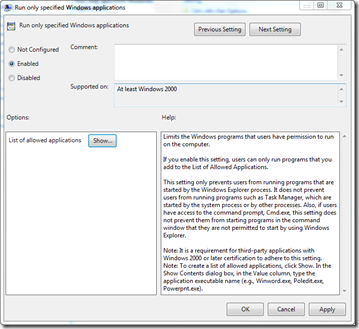
From the checkbox, select Enabled. To set the allowed applications, click Show from under Options.
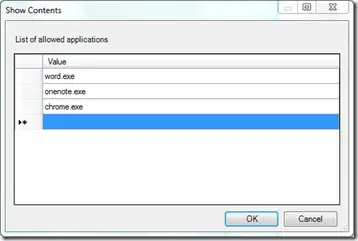
Now click right next to the star (*) under Value and enter the name of the applications which you want to run. For example if you want to run Firefox, enter firefox.exe.
This setting will limit the Windows programs that users have permission to run on the computer. If you enable this setting, users can only run programs that you add to the List of Allowed Applications.
Click OK and you are done. Now the user will only be able to open the programs you specify this way.
Read: How to block EXE files from running using Group Policy
Do note that this setting only prevents users from running programs that are started by the Windows Explorer process. It does not prevent users from running programs such as Task Manager, which are started by the system process or by other processes. Also, if users have access to the command prompt, Cmd.exe, this setting does not prevent them from starting programs in the command window that they are not permitted to start by using Windows Explorer.
Incidentally, you might want to check out Windows Program Blocker, a free App or Application blocker software to block software from running on Windows 10/8/7.
How to prevent users from installing programs and how to prevent Anyone from Uninstalling Metro Applications may also interest you.

