
Some Windows users are experiencing a strange problem. After installing Windows Update or upgrading their Windows with a Feature Update, they observed that their device was showing ‘Limited Connectivity’ error in WiFi status, and they couldn’t access the internet until they reconnected. I realized this is a common issue. In some cases, even resetting the device and starting over didn’t help. After following some forums, I thought of giving some suggestions, one of which I found on Microsoft Answers.

A “Limited WiFi connection” issue in Windows 11 usually means your device is connected to the router but not reaching the internet properly.
Fix Limited WiFi connection problem in Windows 11
To resolve this issue, restart your router and PC and see if that makes the problem go away. If this does not help, open Windows Settings > Network & Internet > Wi-Fi > Manage known networks, select your network, and click Forget. Then reconnect with the password and see if that helps.
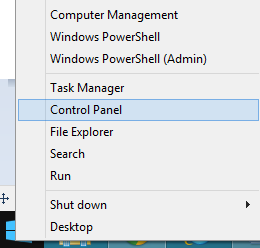
If it does not, create a system restore point. Then right-click the ‘Start’ button to access the ‘Control Panel’ option and select it.
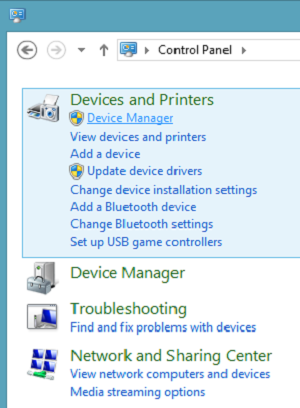
Next, chose ‘Device Manager’ option.
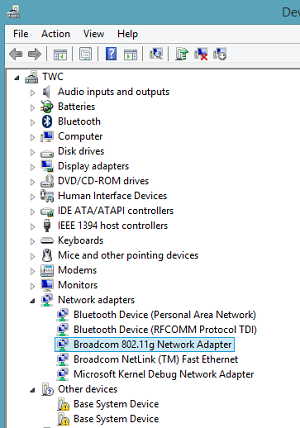
Next select ‘Network Adapters’ and under it, you will find a Wi-Fi controller listed. Select it.
Double-click the controller to open the adapter’s Properties window and switch to the ‘Drivers’ tab.
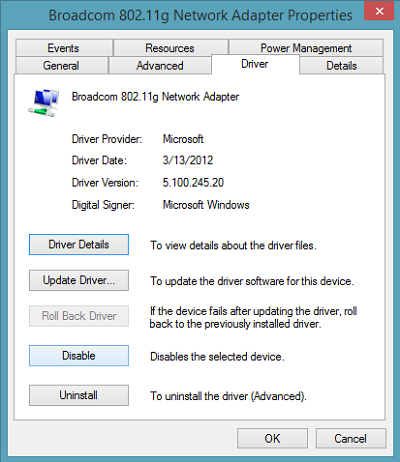
Next, click the ‘Disable’ button and hit ‘Ok’ to apply the changes. See if it helps. If it does not help, re-enable it and proceed to the next step.
If the above solution fails, try doing the following:
Open an admin-level command prompt in Desktop mode, type the following commands, and hit Enter after each command:
netsh int tcp set heuristics disabled
netsh int tcp set global autotuninglevel=disabled
netsh int tcp set global rss=enabled
Then type the following and hit Enter, to verify that practically all the settings are disabled.
netsh int tcp show global
Finally, reboot your machine and see if this helps.
Our last suggestion is to use Network reset and see if that works.
All the best.
Read:
You may also try this:
Open Command Prompt as Administrator and run the following commands
sc config licensemanager type=own
Restart the computer and see if it has helped.
If it doesn’t help, you could also try the built-in Hardware and Devices troubleshooter and see if it helps.
This post will show you how to troubleshoot if your Windows can’t find wireless devices.
