
One should always try to create backups because you don’t know what may come towards you in the future. In this Windows 11 and Windows 10, one can easily create a backup of File History, but for that, you have to turn on and use File History to backup and restore files in Windows 11/10, and in this article, we are going to help you to do that.
For your information, starting with Windows Vista, Microsoft introduced a feature called Shadow Copy or Previous Versions. This allowed users to restore earlier versions of their files using the Backup and Restore feature. Microsoft has introduced a feature called File History. File History in Windows 11/10/8 saves copies of your Libraries, Desktop, Favorites, and Contacts, so that you can get them back any time if they are ever lost or damaged. While System Restore allows you to completely restore your computer to an earlier state, File History lets you restore your files and data from an earlier point in time.
How does File History backup work?
File History backup creates a mirror image of your system, as it stores all the available files on an external drive. The drive can be connected over USB or a home network. Because of this, you can restore that data anytime you want. So, you don’t have to worry about your files anymore, just create a backup, and you will be good to go.
Turn on & Use File History to Backup and Restore files in Windows 11/10
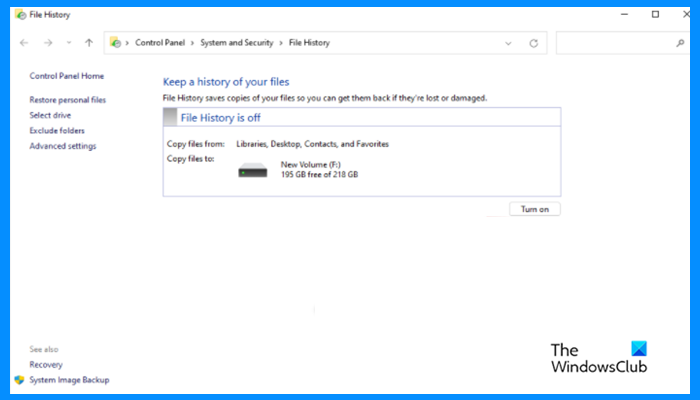
One can easily turn on and use File History to back up & restore files in Windows 11/10. It allows one to be a bit careless with their files, as you can create a backup and restore it whenever you want. In this post, we are going to go in-depth and see how to use this utility in Windows 11/10.
This is a two-step process, first, you have to set File History the way you want, and then enable the feature. So, let us see how to do the same.
To turn on and use File History backup in Windows 11/10, you first have to open File History by searching it out of the Start Menu. After doing that, the File History window will open and from there you will have to configure the setting the way you want.
Alternatively, you can also open File History from the Control Panel. Just open Control Panel from the Start Menu. Make sure that your View by is set to Categories. Click System and Security > File History.
Now, let us see how to set up File History in Windows 11/10
- Open Control Panel > File History
- Select the Drive
- Exclude folders you don’t want to back up
- Decide if you want to Save copies of files and Keep saved versions
- Turn On File History Backup
You are all set!
1] Open File History Control Panel applet
Using Search, Open Control Panel > File History.
2] Select Drive

First up, we need to select a drive where your File History should be stored. To do that, click Select drive. Now, select a drive, and click Ok. If you are not able to find a network drive in the list, just click Show all network locations, and click Add network location to add a drive.
You may be asked to confirm your activity, so, click Yes when needed.
3] Exclude folders
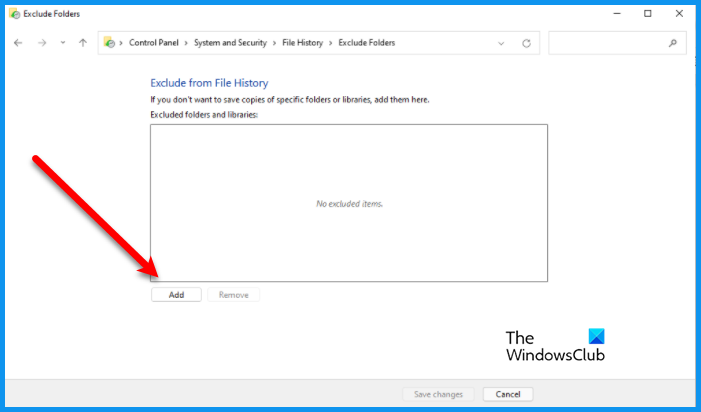
If you don’t want a folder to be included in the File History backup, just click Exclude folders. Now, you can add or remove a folder, by clicking on their respective buttons, and then click Save Changes.
4] Advanced settings
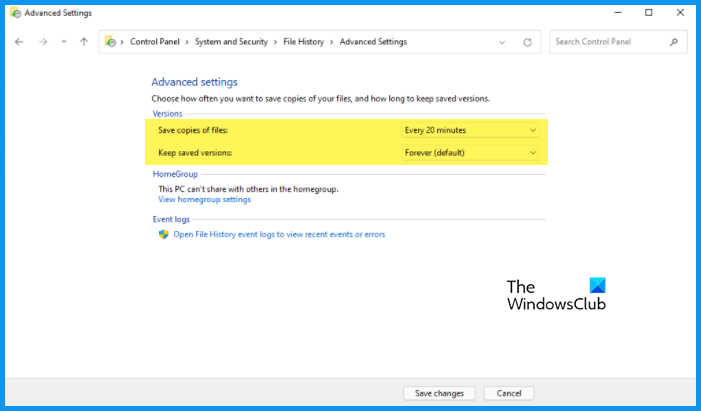
If you want to do a few more things, then Advanced Settings is where you need to go. Here you can select how often you want your computer to take a backup. So, use the drop-down menu to change Save copies of files and Keep saved versions. Finally, click Saved changes.
Read: What is File Level Backup? Why and When to use it?
5] Turn On File History Backup in Windows 11/10
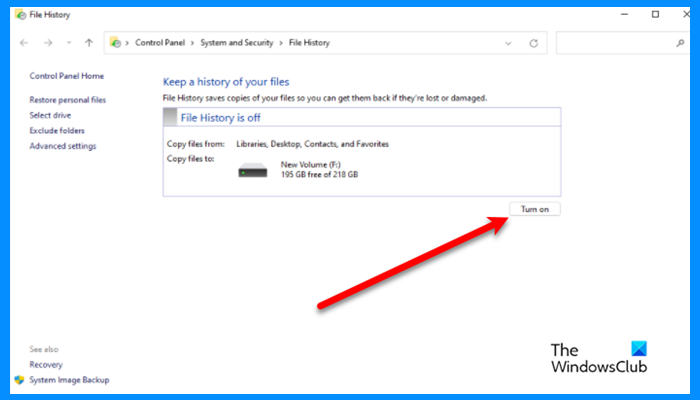
Finally, you can enable File History backup by just clicking on the Turn on button.
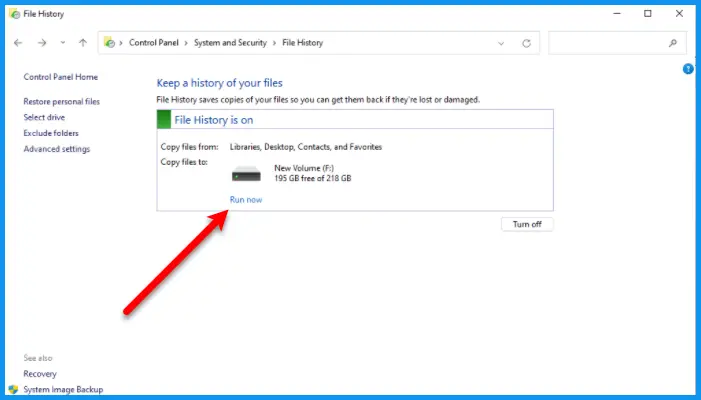
Usually, after clicking the button, your computer will start creating the backup, you can confirm this by checking if there is a Stop button. If there is no Stop button, there must be Run now. Click that button and you will be good to go.
Now, you can close the File History window.
Read: How to reset File History in Windows
Turn off or Pause File History in Windows 11/10
If you don’t want to backup your content, temporarily or permanently, you can turn off or pause File History. To pause File History for a while, you can click on the Stop button and then resume it, click on Run now and you will be good to go. Whereas, to disable File History backup, you have to click on the Turn off button.
TIP: You can also disable File History Backup in Windows using REGEDIT or GPEDIT.
Restore files using File History in Windows 11/10
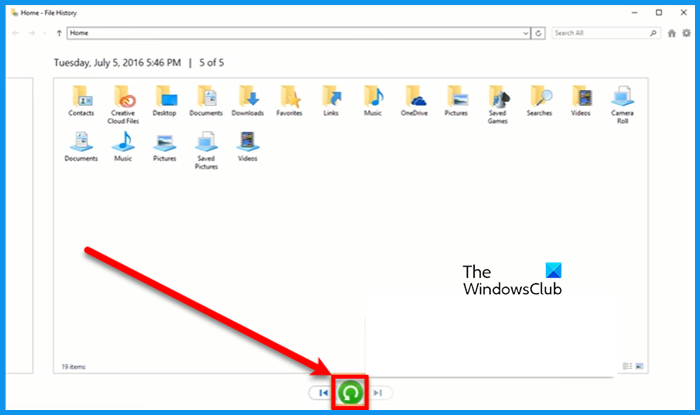
To recover files using File History, follow the given steps.
- Open File History.
- Click on Restore personal files.
- Click on the Green button to restore the files at the original location.
- To restore files at a new location, you can right-click on the same icon and then click Restore to.
That’s how you can recover files using File History.
File History Cleanup
If you want to save some space by deleting your File History, you can do that from the Advanced Settings. Just go to File History > Advanced settings > Clean up versions. Now, you can delete an old copy of the File History.
File History not working in Windows 11/10
There are many error messages you can see related to File History, we have tried to accumulate solutions for all of them. So, go through the following solutions and execute the one for the error message that you are getting.
- Enable File History
- Select a different drive
- Turn on BitLocker
- Decrypt EFS Files
Let us talk about them in detail.
File History doesn’t recognize this device, No usable drive found
1] Enable File History
If you are seeing the error message, that says “File History doesn’t recognize this device” or “No usable drive found, we recommend that you use an external drive for File History. Connect a drive and refresh this page, or use a network location.”, then the first thing you should do is enable the File History (aforementioned).
2] Select a different drive
If the issue persists, then you should try changing the drive. To do that, open File History, click Select drive, choose a different drive, and click Ok. Finally, see if the issue persists.
3] Turn on Bitlocker
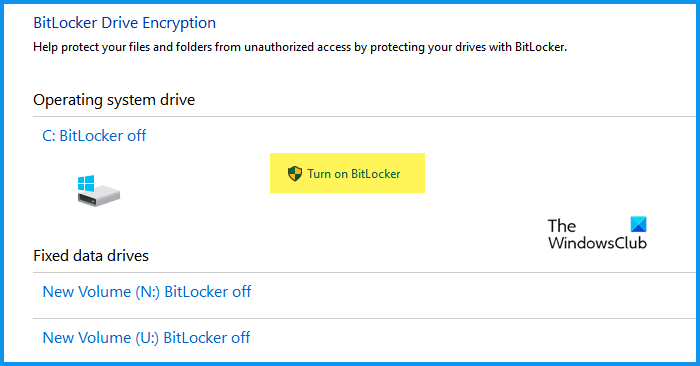
If you are seeing an error message that says “Your PC is protected by Bitlocker Drive Encryption, but your file History drive is not.”, then you have to enable Bitlocker.
To enable Bitlocker in Windows 11/10, follow the given steps.
- Open Control Panel by searching it out of the Start Menu.
- Make sure that your View by is set to Categories.
- Click System and Security > BitLocker Drive Encryption.
- Now, click on Turn on BitLocker.
Now, see if the issue persists.
4] Decrypt EFS Files
If you are seeing the following error message, then you need to decrypt EFS Files or Remove Network Paths
File history has found files that are encrypted with Encrypting File System, on a network location, or on a drive that doesn’t use the NTFS file system, these files won’t be backed up.
File history can not backup encrypted files, so, if there is such file, you have to decrypt them, and then try taking the backup.
Follow the given steps to do the same.
- Open File Explorer by Win + E.
- Navigate to the folder that you were trying to backup.
- Right-click on it and select Properties.
- Make sure you are on the General tab and click Advanced.
- Untick the Encrypt contents to secure data option and then click OK.
Finally, check if the issue persists.
Read: Fix File History Element Not Found error on Windows.
Where is File History saved?
When setting up the File History backup, you must have selected a drive where you want to back all the files, that is, your backup drive. So, that’s where the File History is saved. You can just go there and retrieve your files. If you want to change the location, you can change drive by following the method aforementioned.
Create Backups on Local Drive using File History
As I had mentioned, by default, Windows does not offer any direct way to let you create backups on your local hard drive. But there is a way out. To do so, select the drive you want to create the backups on. Let’s say you have selected D drive. Now right-click on it and select Properties. Under the Sharing tab, click on Advanced Sharing button. In the window which opens, check to Share this folder. Next, give the folder a name. I have given the name as FileHistoryBackup.
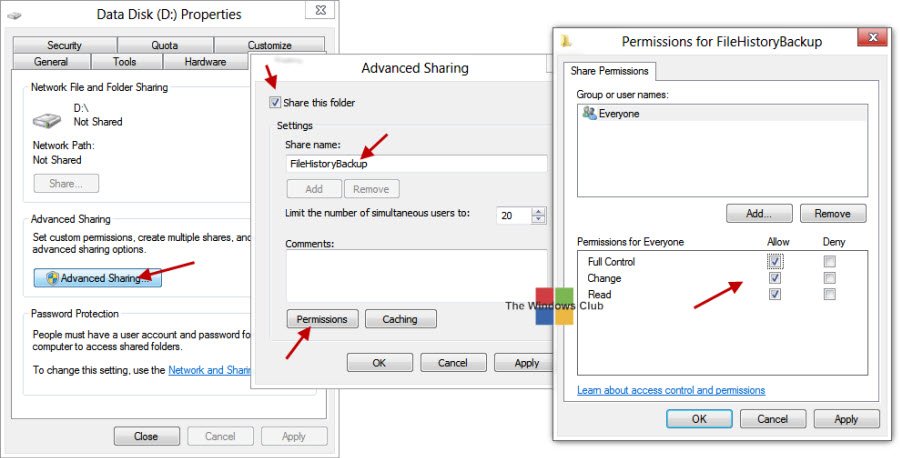
Next, click on Permissions. In the folder’s Permissions box, check the Allow boxes for Full Control, Change, and Read. Click Apply/OK.
Now in the Change drive setting, click on Add Network Location and enter the following in the Folder field.
\\127.0.0.1\FileHistoryBackup
Click Select Folder > Save > OK. The backups via File History will now get saved in your D:\FileHistoryBackup folder.
The Windows operating system includes in-built tools that let you backup and make copies of your files and create a system image. It also includes a System Image Backup Tool, with which you can now backup or clone an image of your disk. But if you wish to use a third-party freeware, then check out some of these free Imaging, Backup and Recovery Software. You can also use Windows 7 Back up and Restore Tool in Windows 11/10.
If I have missed out on anything, please do share in the comments.
Now read: How to Clone a Hard Drive on Windows 11.

