
Windows 8 is not just making PC easier to use, more interactive, and social but it’s the most secure and safe computer operating system ever made. Microsoft is very much concerned about the security and safety of its customers and to make sure that they are safe both offline and online, so Microsoft keeps on introducing new security features in their products.
Family Safety in Windows 8 is a perfect example of Microsoft’s seriousness about the security and safety of its users. With Family Safety in Windows 8, the monitoring of child and other Standard user accounts is like never before. You can now get more detailed reports about the user activities and have more control over the user account.
Just activate the Family Safety option while creating your kid’s account on PC and you will start getting weekly reports of your Kid’s activities on PC. And don’t worry, setting up the Family Safety option requires just a click on the checkbox and nothing else is required, no download of any additional files, installation wizards, or configuration files are required.
TIP: Go here to learn how to set up Microsoft Family Safety for Windows 10.
Set up Family Safety in Windows 8
We have earlier seen how to set up Family Safety in Windows 7. Now let’s check out how to set up Family Safety in Windows 8:
1. First of all, you need to set up a new account. To apply the Family Safety option, the account type must be a Standard User.
2. To set up a new account in Windows 8, go to all Control Panel items and click on User Accounts from the list of options available.
3. Now, you can either set up a Microsoft Account using your children’s email ID or you can set up a Local Account for your kid to access the Windows 8 PC.
4. Enter the details for the account like name, password, etc. and click Next to move further.
5. Now, click the checkbox to enable the Family Safety feature.
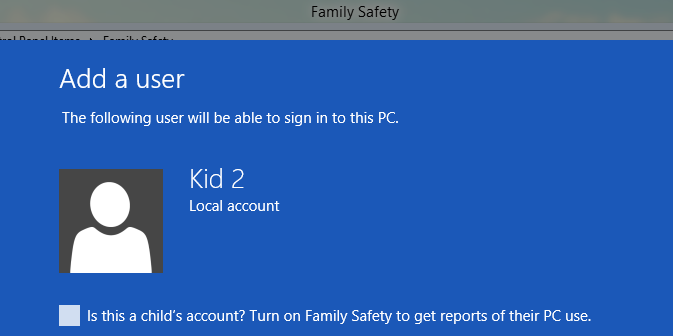
6. The account is now ready to use with the default Family Safety settings and features.
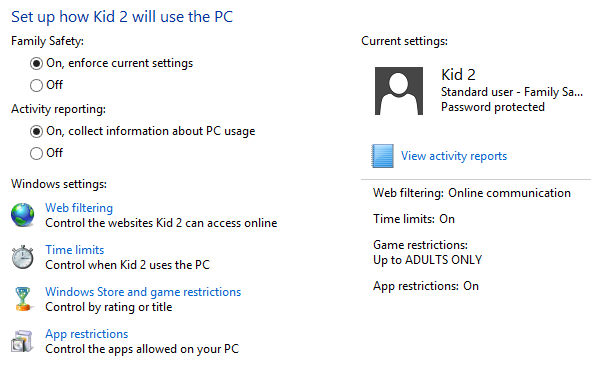
You can also change the account safety preferences if you are looking for a more secure environment for your kid. Some of the features which can be used to do so are:
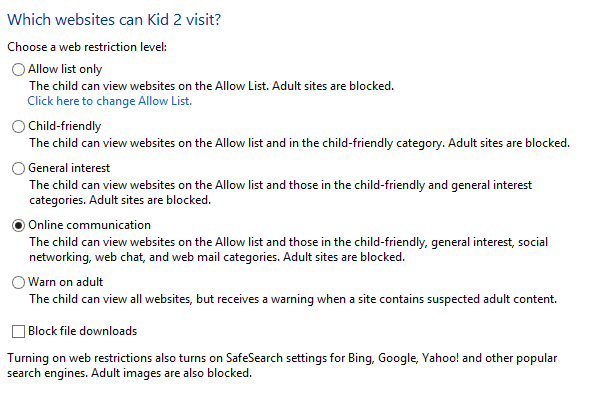
Web Filtering: you can monitor and restrict the web activities of your kid. It allows you to block websites, downloads and other offensive content available on the web. It also automatically enables the Safe Search option on Bing, Google, and Yahoo search engines.
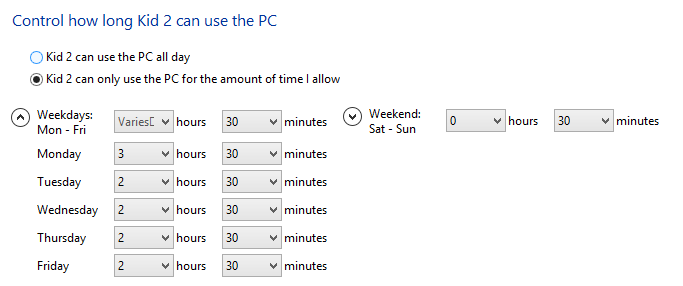
Time Limits: With this feature, you can limit the PC usage time of your kid. You just need to set up the time limitations and it’s all done.
Windows Store and Games Restrictions: You can also decide the usage of Windows Store and Games for your kids. It allows you to control the types of the app which your kid can download from the Windows Store and Games which he/she will play depending on the game rating.
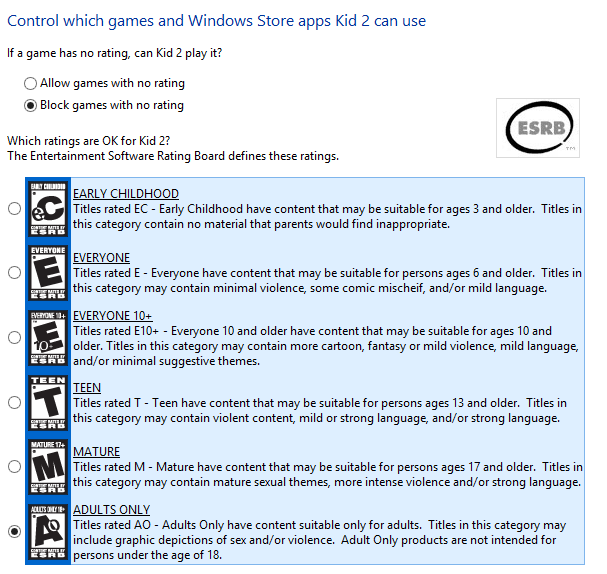
App Restrictions: It allows you to decide which apps and programs will be available for your kid to use on his account. You can restrict applications that are not of their use by unchecking them from the list of installed apps available there.
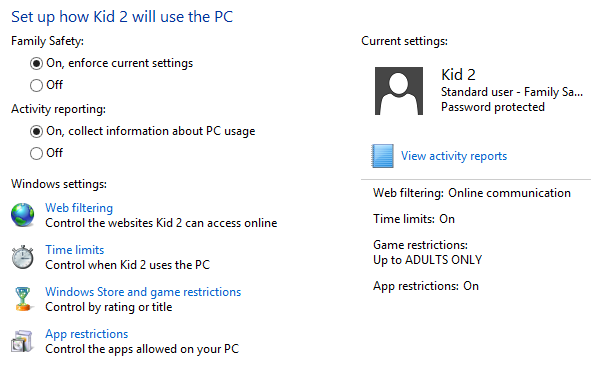
The activity reports will be generated separately for each account and you can check them by selecting that particular account and clicking on View Activity Reports option available inside it.
The fully functional Family Safety is available in Windows 8 Release Preview to test and use. If you are a parent, you might want to consider using it.
See this short video from Microsoft on Family Safety in Windows 8 to understand it better.
Family Safety not working
Type Family Safety in start search and click on the result, to open the Family Safety applet in Control Panel. Click the Refresh button to refresh the Family Safety Filter. The Family Safety Filter refreshes its settings automatically periodically, but if you notice that web content isn’t being filtered the way you want to, you can refresh the Family Safety Filter manually.
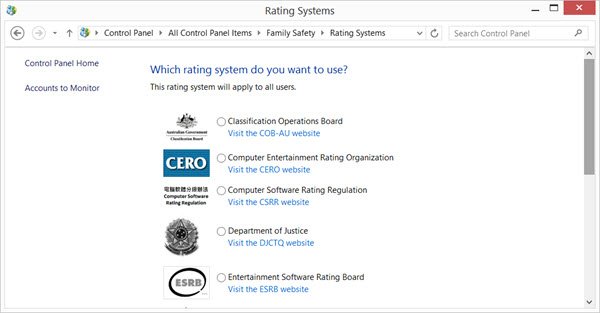
Set the rating system in Microsoft Family safety as shown in the image below. You can let it be at its default value or you can select Classification Operations board and see if that helps.
Sometimes your security software may interfere with the smooth working of Family Safety. Disable it temporarily and see if that is the cause.

