
Drag and drop images, media, to or from Windows Phone 7 device directly

Speed Up My PC

To sync your media in Windows Phone 7 device, you have to use your Zune software. However using this trick, you can enable USB drive mode on your Windows Phone 7 phone, use your Windows Phone 7 device as a portable USB drive, explore your Windows Phone 7 media in your Windows 7 explorer and Drag and drop images, videos, media directly to or from Windows Phone 7 device.

Enable USB drive mode on your Windows Phone 7

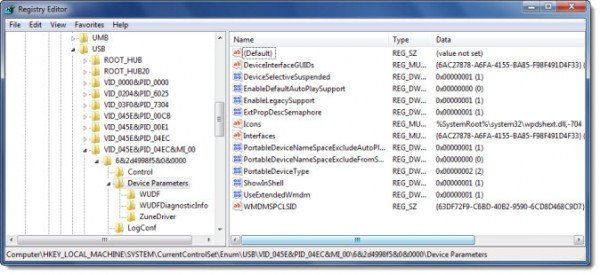
To enable USB drive mode on your Windows Phone 7 phone, open Windows Registry Editor and navigate to the following key:
wp7 explorer registry 600x275 Drag and drop images, media, to or from Windows Phone 7 device directly

HKEY_LOCAL_MACHINE\SYSTEM\CurrentControlSet\Enum\USB

Right click USB, select Find and search for ZuneDriver

Now click on Device Parameter, on the key, under which ZuneDriver appears.

In the right panel:

Change value of ShowInShell from 0 to 1. This enables Windows Explorer to show the device when pluged in

Change value of PortableDeviceNameSpaceExcludeFromShell from 1 to 0

Change value of EnableLegacySupport from 0 to 1. This enables Windows Explorer to detect the device

Refresh the registry by pressing F5.

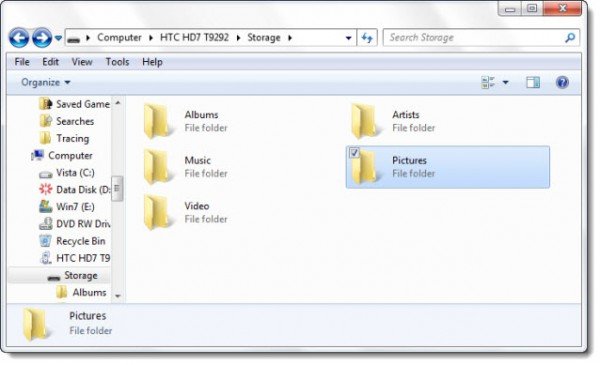
NOW, connect your Windows Phone to your Windows computer. You will be able to see your Zune Phone in the Computer folder under Portable Devices.

Zune software will also start. But to be able to see, explore, navigate your WP7 folder you will have to close Zune.

One you do that, you will be able to see the contents of this folder.
wp7 explorer 600x365 Drag and drop images, media, to or from Windows Phone 7 device directly

Drag and drop images, videos, media directly to Windows Phone 7 device or vice versa.

Hat tip.

Posted by on , in Category Phone with Tags
Anand aka HappyAndyK is an end-user Windows enthusiast, a Microsoft MVP in Windows Desktop Experience since 2007, and the Admin of TheWindowsClub.com, TheGeeksClub.com & WinVistaClub.com. Creating a System Restore Point before trying out a new software or a tweak is always recommended.
  • BlueManBisaya

    This is a great workaround. Thank you. But why did Windows Phone 7 people hide it in the first place?

  • chaitanya

    Awesome option explored…thanks

  • Tanmay

    thakyou so much love you guys i am so happy

  • http://www.facebook.com/junsuu.cool Junsuu Cool

    hi..
    am using samsung omnia w….i did what you said.. i couldn’t read my folder but my phone read by computer as a storage device… when i click my phone model there is storage icon then i clicked that icon go to blank page….i can’t move any file on it….i hope you understand what am try to said…

    awaiting for you reply..

  • New User

    Hi. Thank you so much. This worked! I was wondering if there is any way to look at the the files stored by apps through a similar method. I have downloaded a voice recorder (The Listener) and I am unable to see these files in Zune or in this mode and I am not able to use the option to transfer it to PC via the app as there are several errors. Please help!

  • An

    this works as a breeze thank you sirr! :)

  • Abhishek808000

    awesome sir gr8 job

  • http://www.facebook.com/Jeremy.D.Thorne Jeremy Thorne

    Hi – did you find a solution for this? I have the same problem!