
I have been using Movie Maker and the Windows Photo Gallery for a long time, but unfortunately, Windows Essentials got deleted from my PC while formatting it—and now, since it is no longer supported, it is no longer available for download from Microsoft. I am missing it badly and have been looking for it online. But, as mentioned, Microsoft discontinued the entire suite of Windows Essentials in January 2017. The suite includes e-mail, instant messaging, photo sharing, blogging, and parental control software.
So, the Windows Essentials Suite is now no longer available for download, but thankfully you can still have it. You can now get the archived copy of the Windows Essentials Suite. While it is not really like the actual suite, and some of the programs here might not work on your current version of Windows 11/10, some of the major ones, like Windows Movie Maker and Windows Photo Viewer, work fine as before.
Yes, we can download it from the archived website. As we all know, an archived website preserves past versions of web pages. Thus, even though Microsoft has ended the Windows Essentials Suite, it is available for download from the archived website, and you can use it on your Windows 11/10.
Download Windows Essentials for Windows 11/10
Since this is an archived file, you don’t need an internet connection to install the suite and its applications on your PC.
To download and use this archived Windows Live Essentials Suite 2012, you need at least Windows 7 on your machine. It works fine on all the later versions of Windows, including Windows 11/10.
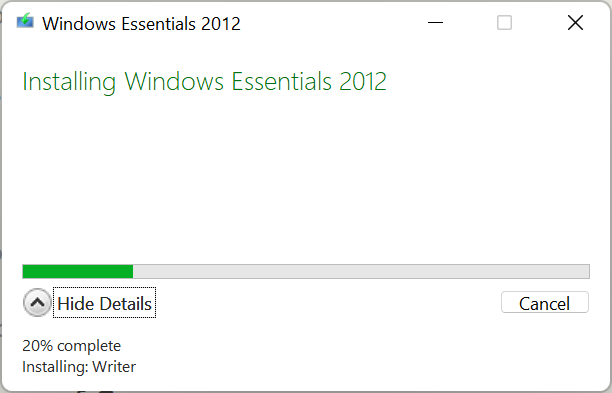
The archived file is available as a file of 130 MB. It will be simple and easy to download and install. I didn’t face any difficulty in downloading or installing the suit; it was easy and quick.
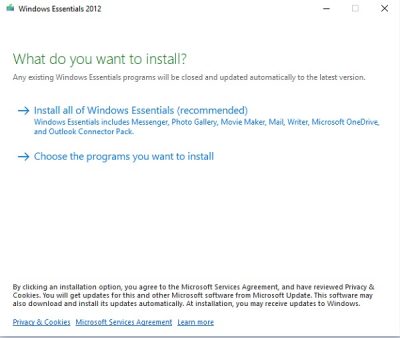
Selecting the second option is recommended because it’s an archived file and not all programs are supported.
Choose the programs you want to install
I installed only Windows Movie Maker and Photo Gallery as per my requirements. Mail has limited support, and Messenger is no longer functional, so there is no point in installing them. Both Writer and Microsoft OneDrive are available in their latest versions to download.
So, if you are also a Movie Maker fan like me, this post might help you big time. You can download the archived file for Windows Essentials Suit from archive.org.
Is Windows Server Essentials still available?
Yes, Windows Server Essentials is still available and can be purchased through OEM Server Hardware partners. It provides small businesses with a robust and affordable solution, offering features such as file sharing, remote access, and data backup.
Is Microsoft Essentials still available?
Microsoft Security Essentials is no longer available for download as it reached end of service on January 14, 2020. Microsoft continued to release signature updates for existing users until 2023. It has been replaced by Windows Defender.
