
Using Group Policy or Registry Editor, you can prevent users from changing the Start Menu background color in Windows 11/10. Let us see how to disable the Change Start Menu Background option in Settings.
Disable Change Start Menu Background option in Windows 11/10
Your Windows 11/10 OS has multiple users on the same computer. You want each user to use the same Start background and disallow users from changing it. In that case, you have to prevent other users from changing the Start Menu background color. So how can you disable the option to change the Start?
There are two ways to do it: Using the Registry Editor and using the Group Policy Editor.
Using Registry Editor
1. Press the Windows Key + R simultaneously and put regedit in Run dialog box.
2. Navigate to the following registry key:
HKEY_LOCAL_MACHINE\SOFTWARE\Policies\Microsoft\Windows\Personalization
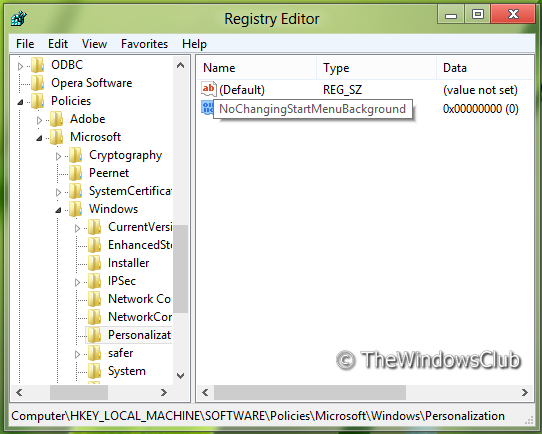
3. Now right-click in the right pane of the window. Create a DWORD value and name it “NoChangingStartMenuBackground”.
4. Right-click on the above-created DWORD value, select Modify. You will get this window:
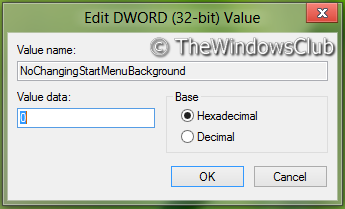
5. Now you can use the following values for Value data section:
- Enable Start Screen Background Change = ‘0’ (Default Setting)
- Disable Start Screen Background Change = ‘1’
6. Close Registry Editor and reboot to see results.
Random read: PerfView is a Performance Analysis & Profiling Tool from Microsoft.
Using Group Policy Editor
1. Press Windows Key + R combination and put gpedit.msc in Run dialog box.
2. In the left pane navigate to:
Computer Configuration -> Administrative Templates -> Control Panel -> Personalization
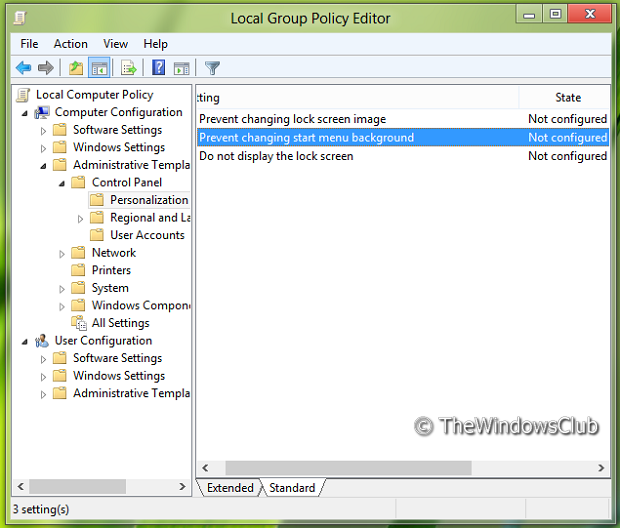
3. Now look in the right pane, you’ll get the policy named Prevent changing start menu background as shown above.
Prevents users from changing the look of their start menu background, such as its color or accent.
By default, users can change the look of their start menu background, such as its color or accent.
If you enable this setting, the user will be assigned the default start menu background and colors and will not be allowed to change them.
If the “Force a specific background and accent color” policy is also set on a supported version of Windows, then those colors take precedence over this policy.
If the “Force a specific Start background” policy is also set on a supported version of Windows, then that background takes precedence over this policy.
4. Double click on this policy to get the window shown below.
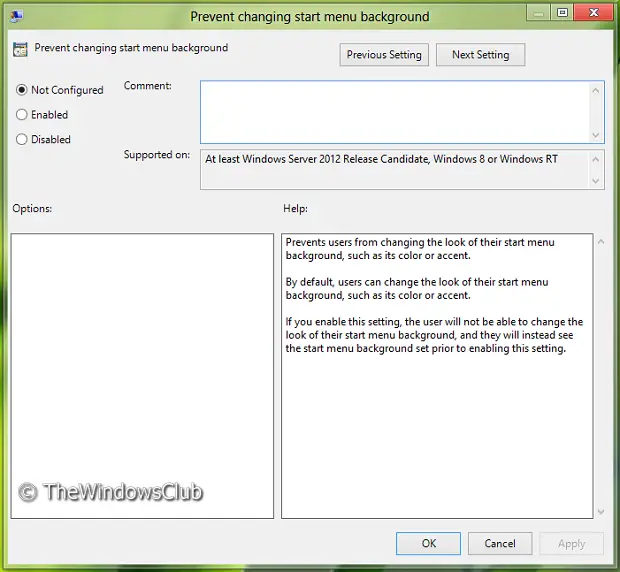
5. Now you can use the following settings:
- Allow Start Screen Background Change = Disabled/Not configured (Default Setting)
- Disable Start Screen Background Change = Enabled
After making changes click Apply followed by OK.
That’s it. Reboot to see the results.
Related: Set different colors for the window border and the taskbar in Windows.
