
Windows includes a feature called Password Reveal. In Windows 11/10, whenever you enter your password in the password field of a website, any Windows app, or the login screen, a Password Reveal Button or icon will appear at the end of the field.
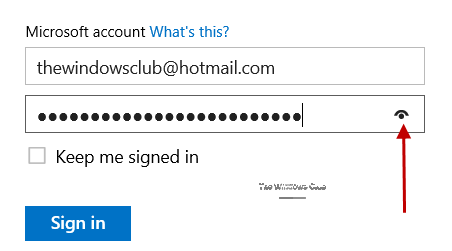
When you click on this button, your password gets momentarily displayed in place of the asterisks. While it is a useful feature, especially in cases where you are unsure what you have typed in the password field and need to confirm before clicking the Sign in or Enter button, security-conscious users may want to disable this feature.
Disable Password Reveal Button in Windows 11/10
If you wish, you can disable the Password Reveal Button in Windows 11/10. To do so, type gpedit.msc in the search box and hit Enter to open the Group Policy Editor.
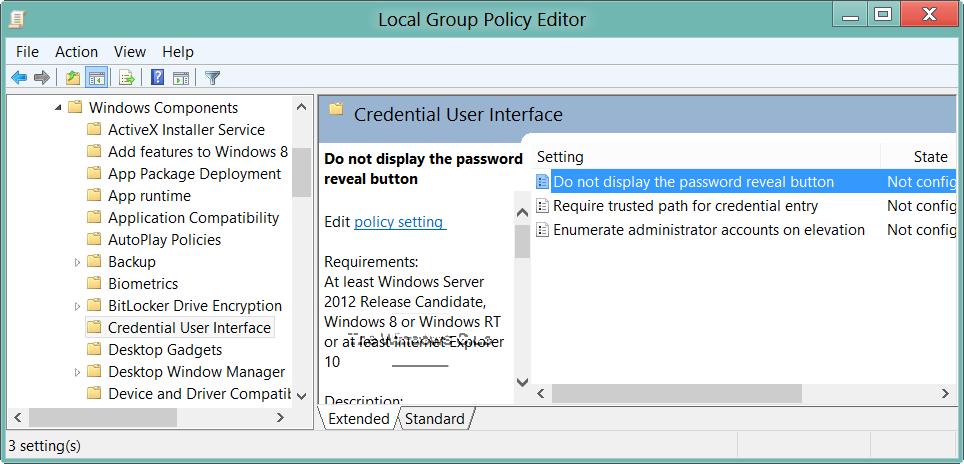
Navigate to:
Computer Configuration > Administrative Templates > Windows Components > Credential User Interface.
Now in the right side pane, you will see Do not display the password reveal button. Double-click on it to open its Policy Settings box.
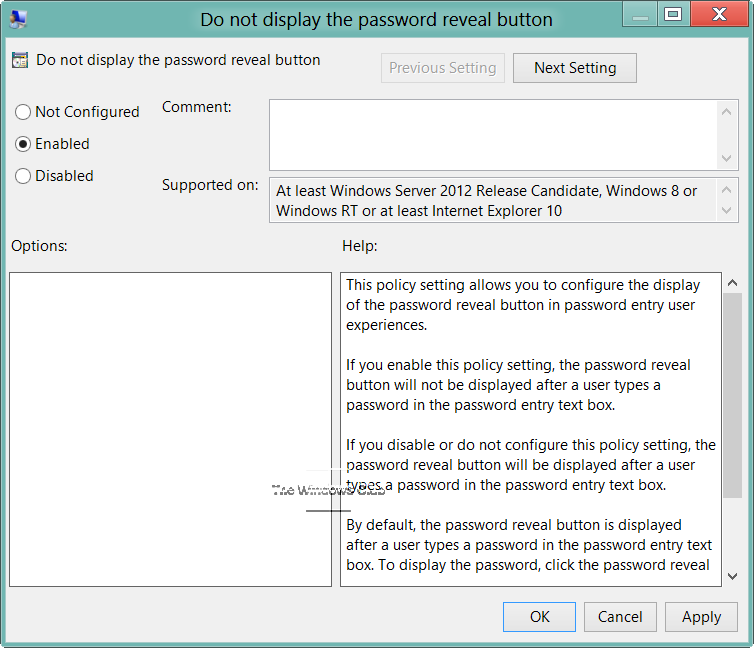
This policy setting allows you to configure the display of the password reveal button in password entry user experiences.
Select Enabled and click on Apply/OK.
- If you Enable this policy setting, the password reveal button will not be displayed after a user types a password in the password entry text box.
- If you Disable or Do Not Configure this policy setting, the password reveal button will be displayed after a user types a password in the password entry text box. By default, the password reveal button is displayed.
If your version doesn’t have a Group Policy Editor, you may be required to edit your registry.

To do so, open the Registry Editor and navigate to the following key:
HKEY_CURRENT_USER\Software\Policies\Microsoft\Windows
Create a new Key and name it CredUI.
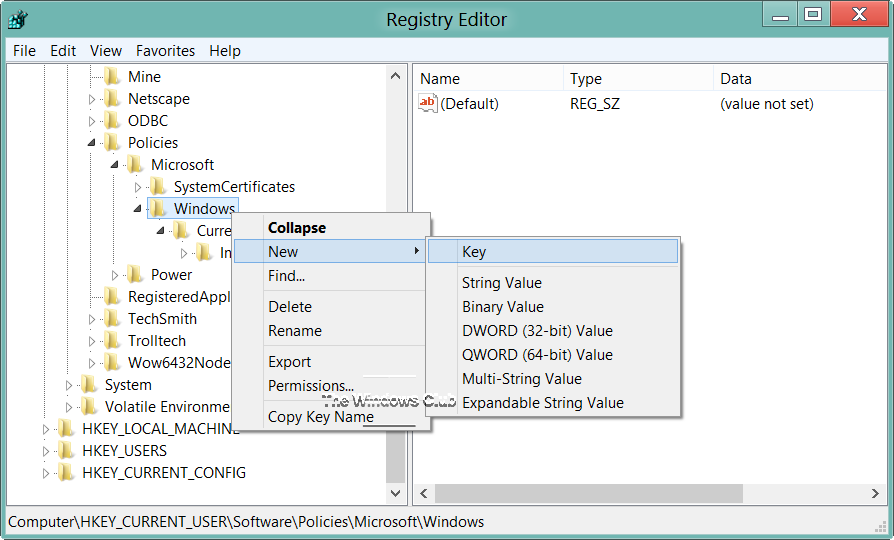
Next, on the right side, right-click and create a new DWORD and name it DisablePasswordReveal.
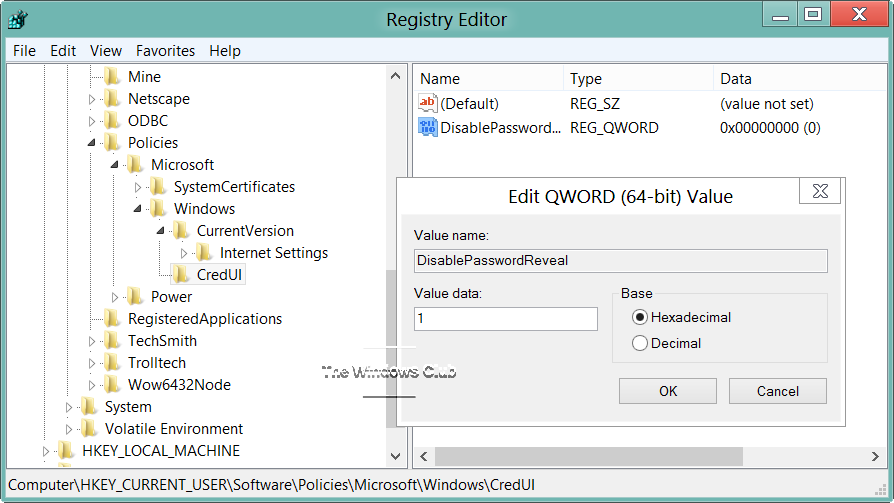
- If you give DisablePasswordReveal a value 1, the Password Reveal Button will be hidden.
- If you give it a value 0 or delete this DWORD, it will revert to default ie. the Password Reveal Button will be shown.
The policy applies to all Windows components and applications that use the Windows system controls.
Read: Enable or disable Reveal Password button in Microsoft Edge
How do I turn off Windows Password Hint?
To turn off the Windows password hint, go to Settings > Accounts > Sign-in options. Select “Password” and click “Change.” Follow the prompts and leave the password hint field blank when creating the new password. This will remove the Password hint.
How do I turn off password visibility?
To turn off password visibility, go to your device’s Settings, select Security, then Passwords. Disable the “Show password” option to prevent your passwords from being visible when you type them in. This setting helps keep your passwords secure.
