
The Windows Store allows you to browse for and install many Windows 8.1 apps. Some of the apps present in the Windows 8 store, may be present, but may not be offered or visible to you.
This is because, by default, Windows 8 has Localization for apps enabled. As a result, all country-specific or Language-specific apps will not be shown to you – only those applicable to your locale will be shown.
Many developers like to localize Windows apps for country-specific or language-specific audiences, yet others like to ‘globalize, their apps for a global audience.
Download Windows Store apps, not available in your country
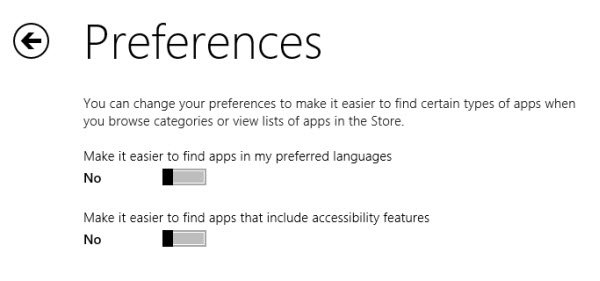
To disable localization, click on the Windows Store tile to open it. Move your mouse pointer to the bottom right corner to bring up the Charms bar. Click on Settings > Preferences.
You will see an option to Make it easier to find apps in my preferred languages. The default will be Yes. Move the slider and select No.
You will now be able to see ALL the Windows Store apps!
If you need, you can also Make it easier to find apps that include accessibility features, by moving the slider to Yes.
