
If you are an avid computer user, your desktop must be full of folders containing important files and subfolders. Have you ever faced a situation when you are looking for a particular folder but couldn’t find it? Scrolling your eyes to all folders just to find the desired one becomes really difficult at times. But there is a solution to this problem. Yes, you can actually change the colors of your folders and differentiate them easily.
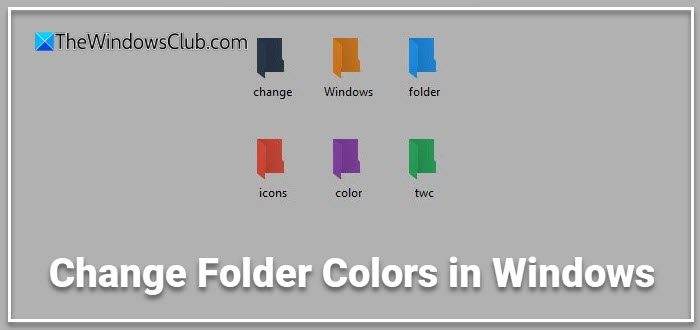
Can you change the color of the folder icon in Windows?
Yes, you can change the color of folder icons in Windows using third-party software. Typically, right-click the folder, choose the color option provided by the tool, and apply it. This allows you to personalize and organize your folders efficiently, as Windows does not have a built-in feature for changing folder colors.
If you are looking for how to change folder colors, then this post has a list of free software to change Folder icon color in Windows 11/10. Changing the default cream-yellow color to some other like red or blue will make the folder stand out for easy identification.
How to change Folder colors in Windows 11/10
You can change the style & color of your folder icons in Windows 11/10 by using one of these free software. Below is a list of some good freeware available on the internet for your Windows 11/10 PC that helps you to change the color of your folders thereby helping you to find them easily and quickly.
- Shedko FolderIco
- Rainbow Folders
- StyleFolder
- Folder Marker
- Folder Painter
- CustomFolders.
Let us take a look at them.
Free Folder color changer software for Windows PC
1] Shedko FolderIco will change folder icon color
Shedko FolderIco is yet another freeware that allows you to color your Windows folders, to help you distinguish them. This helps you locate your oft-used folders easily.
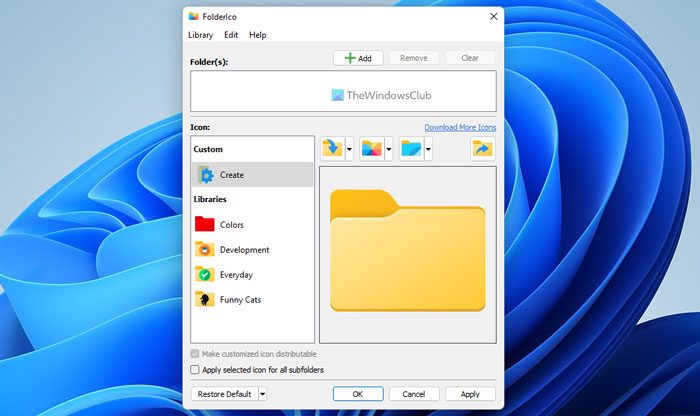
The program can quickly change the folder icons and restore them to their original state with one click. It also seamlessly integrates with Windows Explorer and core services by adding an item to the context menu.
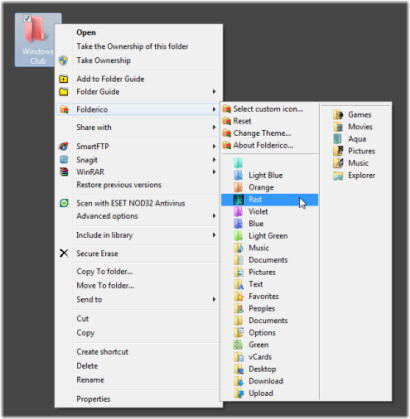
You can also download additional themes. Folderico uses a special format, SFT, for themes. These files are automatically associated with the program and are fully processed. Folderico also supports using ICL files and themes from iColorFolder.
Visit FolderIco HomePage.
2] Rainbow Folders will change the color of folder icons
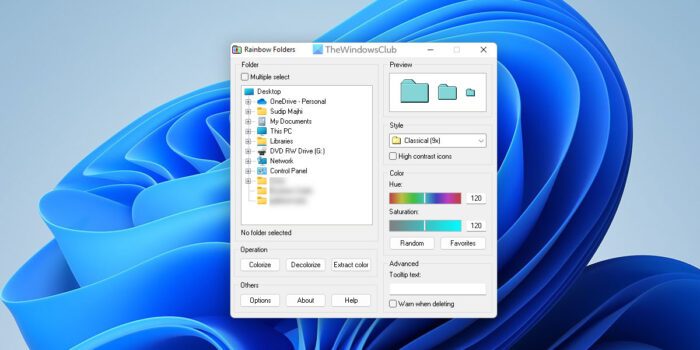
Rainbow Folders will let you give your folders a different color. It is a nice and free program that allows you to change the color of folders right from the context menu. This is a versatile program and can be used in so many ways. For example, you might denote all of your work folders with a red color to visually differentiate them from others. In short, with this program, you can colorize your folders and speed up your navigation among the hundreds of folders on your hard drive. Rather than offer you a limited number of colors, it lets you use a hue to make an unlimited number of shades.
To color Windows folders using Rainbow Folders in Windows 11/10, follow these steps:
- Download and install Rainbow Folders.
- Open the app on your computer.
- Select the folder you want to colorize.
- Choose a color you want to set.
- Click the Colorize button.
First, you need to download and install the Rainbow Folders on your computer. Then, open the folder on your PC and choose the folder you want to colorize.
You can find a tree view to select the desired folder. Once you have done so, choose the color you want to set and click the Colorize button.
Download page: Softpedia.
3] StyleFolder can change folder icons
StyleFolder is a small freeware that lets you customize Windows folders easily, from the right-click context menu. Customizing folders make it easy for you to quickly identify your favorite folders from a bunch and make it stand out.
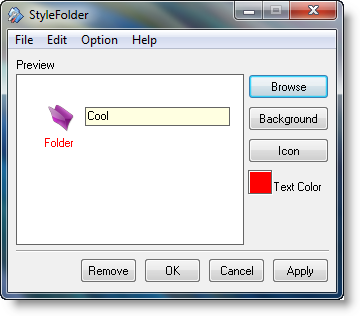
Using this freeware utility, you can change the folder icon, background, font, color, and size. So, if you want to give your Explorer folders a new look, you might want to check it out.
You can download it from our server.
4] Folder Marker can differentiate folders using colors
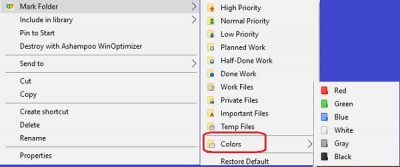
Folder Marker is again a small freeware that lets you change the color of your folder icons. Assign different colors to your folder icons to find the desired folders quickly. With this freeware, you can even change the icon of your folders on your own preferences. With a new icon and color, you give a new look to the folders on your PC.
You can assign your own icon to the folders only from ICO, ICL, EXE, DLL, CPL or BMP file. This tool is available both as a free as well as a paid version which certainly has some extra features. You can download the free versions by visiting foldermarker.com.
5] Folder Painter will customize folder icon colors
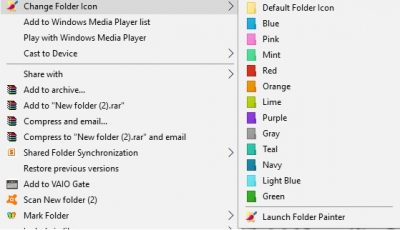
Folder Painter is a free portable program that lets you change the folder icons so as to make them easily locatable. You can give different colors to different folders in just a few simple clicks. The tool comes in a zip file; you just need to download, unzip it and run the setup. The submenu of the program contains few colors to select from.
You can also add your own custom colors in Folder Painter and customize the Icon folder with your custom color icons. It is a simple portable application that needs no installation. It doesn’t affect your PC’s performance at all and works smoothly. You can download Folder Painter here.
6] CustomFolders can customize folder icons
CustomFolder is a free software for Windows devices that lets you customize your folders. It lets you change the color and add emblems to each folder. While Windows lets you change the folder icon, this program lets you change the color of your folders and even add an emblem to them. Let’s learn more about this freeware.
CustomFolder is a lightweight freeware that comes in a Zip format and takes less than a minute to download and install on your PC, depending on your internet connection of course. The program asks to launch the quick guide before you install it, check it before you would need it.
I literally couldn’t figure out how to launch the application until I checked the Help guide.
This is what I was getting when tried to open it directly.
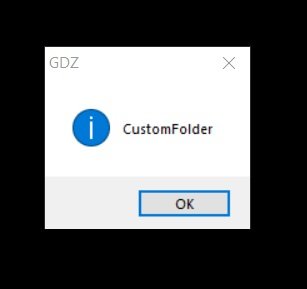
You cannot run the program by simply clicking on it, you need to use your context menu.
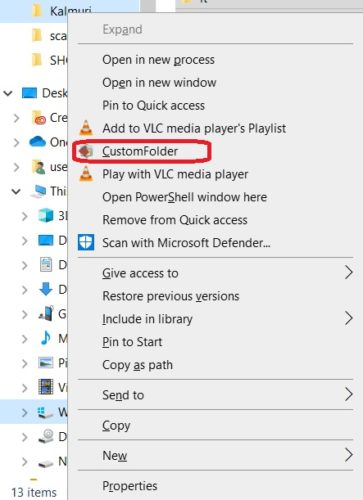
Open your File Explorer > Take the cursor on any folder you want to customize > Right click and select CustomFolder.
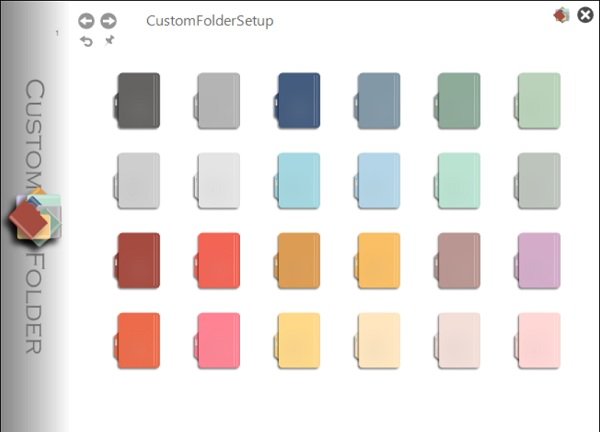
You can customize Folder icons, Change color, Add Emblems. Once it opens, its pretty simple to use. The main overview has it all. You will see 24 different colored boxes, folder icons to be specific in the main interface window.
8 Collections of 24 icons each can be added. For this, you must add folders numbered from 3 to 8 in the CustomFolder installation folder in the ICON folder and within them add icons named from “01.ico” to “24.ico”
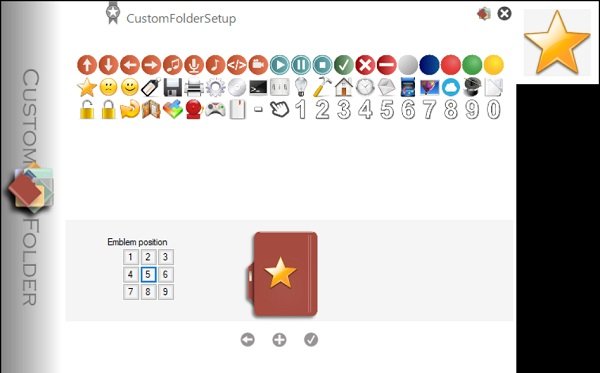
Select the icon you want for the specific folder and click on the Emblems tab on the top. There are 60 emblems which include various symbols and numbers. Select the emblem you want and click on the ‘?’ icon. You can also position the emblem from the dial-pad given right next to the icon.
Up to 80 extra emblems can be added. To do this, you must add 85×85 pixel .png files named “61.png” to “140.png” in the CustomFolder installation folder in the EMBLEM\1 folder.
You are done. I have selected the folder of Kalmuri which is a screenshot tool so I choose the emblem of a printer and this how my folder icon looks like now-
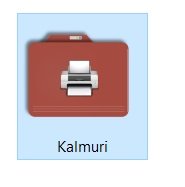
This is how you can add a customized icon to your folders.
Overall, CustomFolder is a nice simple, and useful tool if you want to make your PC look totally customized. It is specifically useful for users who want to beautify their PC. You can download CustomFolder here from its homepage.
This is my list of free software for changing Folder icon colors in Windows 11/10. Do let us know if you have any favorites.
While we are on the topic of customization, you might want to check out these posts too:
- Change folder background with Windows Folder Background Changer
- Customize Windows folders easily with StyleFolder.
How do I change folder icons?
To change the icon of a folder, then access the Properties window of a folder, and switch to the Customize tab. Select the Change Icon… button and a Change Icon box will open. Now you can select an icon from the given list or provide the path of an icon file available on your system. After selecting the icon, press the OK button to close the box. Again, press the OK button to close the folder Properties window.
If you want, you can also change or customize Desktop icons, shortcut icons, file icons, drive icons, etc.
How do I change the color of a folder in Windows 11 without software?
As of now, there is no native option or feature, or built-in app in Windows 11/10 to change the color of a folder. You can only change the icons of files and folders in Windows 11/10 without using any software. To change the color of a folder in Windows 11/10, you need to use some free folder color changer software.
Can you customize Windows folder icons?
Yes, you can customize Windows folder icons by changing their appearance to suit your preferences. This includes altering the color and replacing the default icon with an image of your choice, such as a specific logo or a relevant picture, to help categorize and personalize your files.
How do you colorize folders in Windows?
FolderIco is a Windows app that allows you to colorize folders. This app is compatible with Windows 11 and Windows 10. With the help of FolderIco, you can colorize almost any folder with any number of files.
Can you color code Windows folders?
There are two ways to color code folders on Windows 11 and Windows 10. First, you can download the icon pack and manually change the icon or color. Second, you can use a third-party program like FoldrIco to get the job done automatically.
