
The Windows operating system is set to check if Windows Updates are available periodically. By default, such checks are set at every 22 hours. In practice, however, the checks may take place anytime between 17.6 hours and 22 hours. But you can make Windows check for Updates faster.
Make Windows check for Updates faster
You can, if you wish, make your Windows check for updates more frequently. The same applies to Windows 11/10/8/7. To do so, open the Group Policy Editor or gpedit.msc.
Automatic Updates detection frequency
Click on Local Computer Policy > Computer Configuration > Administrative Templates > Windows Components > Windows Update.
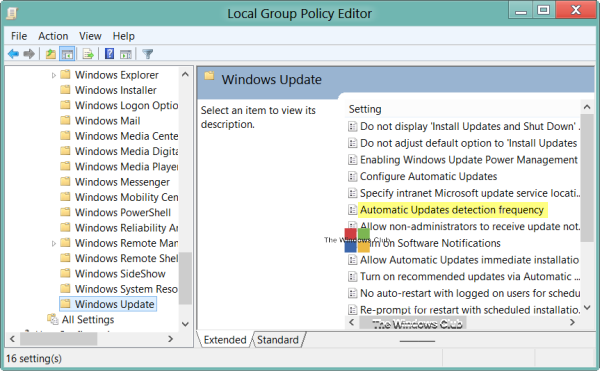
Here from the left side pane, double-click on Automatic Updates detection frequency.
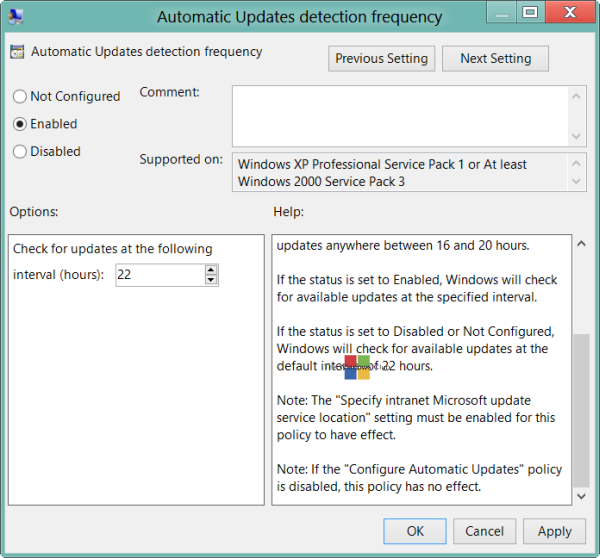
This setting specifies the hours that Windows will use to determine how long to wait before checking for available updates. The setting is not exact. While you may set an exact time, the check will occur anytime between the specified time and up to 20% before that time. This means that if you set the time for 20 hours, the check will take place anytime between 16 hours and 20 hours.
The default status is set at Not Configured. If it is set at this or at Disabled, Windows will check for available updates at the default interval of 22 hours.
If the status is set to Enabled, Windows will check for available updates at the specified interval.
Click on Enabled to change the time. From the Options available, change the time to check for updates at the following interval in hours.
Once done, click Apply/OK.
This policy setting affects the following registry values:
HKLM\Software\Policies\Microsoft\Windows\WindowsUpdate\AU!DetectionFrequencyEnabled
- DetectionFrequencyEnabled Value:
- 1 = Enable DetectionFrequency.
- 0 = Disable custom DetectionFrequency.
HKLM\Software\Policies\Microsoft\Windows\WindowsUpdate\AU!DetectionFrequency
- DetectionFrequency Value: Range=n; where n=time in hours (1-22).
More on this at TechNet.
For this policy to take effect, the “Specify intranet Microsoft update service location” setting must also be enabled. You can access this setting from the All Setting list. Double-click Specify intranet Microsoft update service location to open the settings box. and in the Specify intranet Microsoft update service location dialog box, click Enabled. Now enter the client configuration URL in both the Set the intranet update service box and the Set the intranet statistics server box.
TIP: Change this settings to get Windows 11 Feature Updates quickly
For example, type http://servername in both boxes, and then click OK. If the port is not 80 for HTTP or 443 for HTTPS, you should add the port number as follows: http://servername:portnumber.
You can get more details on this at TechNet. The “Configure Automatic Updates” policy also should not be set at Disabled.
NOTE: Windows Ultimate, Professional and Enterprise editions have gpedit.msc, Unfortunately, certain editions of Windows like Home Premium, Home Basic and Starter Editions as well as Windows Home, do not include the Group Policy Editor.
