
Over a period of time, as and when you install and uninstall programs on your Windows 11/10 computer, you may find your Windows Installer cache growing bigger and bigger – and could run into several gigabytes too!
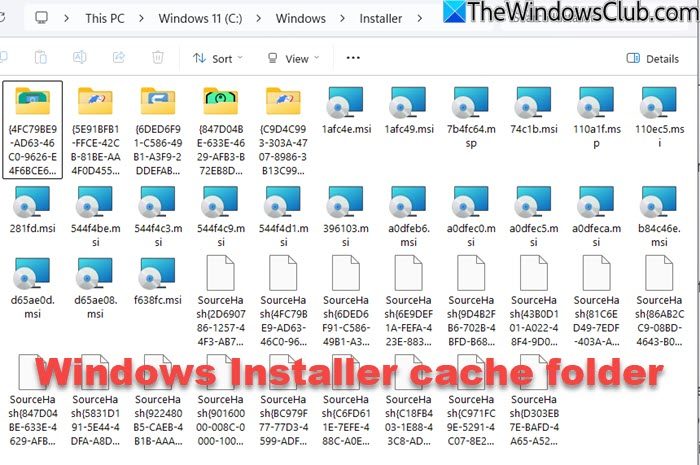
Windows Installer cache folder location
The Windows Installer folder is a hidden system folder situated in C:\Windows\Installer. To see it, you have to go through Folder Options and uncheck the Hide protected operating system files option.
What is Windows Installer Cache
If you open the Windows Installer cache folder, you will see numerous installer files and folders containing additional installer files.
Whenever you install a program using the Windows Installer, a copy of the changed system information is placed in this folder. The folder contains saved copies of the updates installed by the Installer. This information is required if you decide to uninstall the program. Most of the time, it won’t be complete files – it could just be the size of the triggering MSI. If you delete the particular folder or its contents, you may not be able to uninstall, repair or even update the program using the Windows Installer.
At some point, you may encounter a situation where your system drive is running out of space, and this folder is consuming a significant amount of space.
Read: What are Windows Installer Patch (.MSP) files?
Is it safe to delete the Windows Installer folder or its contents?
If you empty the folder, your system will continue to operate normally. However, as mentioned, if you decide to uninstall/repair/update a program at any point in time, you will not be able to do so.
Therefore, you should not delete files from the Installer folder, at least not manually, as this folder serves as a cache for installation files and patches (MSP files). Removing these files will prevent you from uninstalling, updating, or repairing programs. Furthermore, it may even prevent you from applying or removing software updates or patches.
Windows Installer cache folder cleanup
However, if you are really hard-pressed to free up space on your system drive, you may try copying its contents to another drive for safekeeping. These files are unique and cannot be shared between machines.
Alternatively, you may try and clean out the Installer folder by downloading Windows Installer Cleanup Utility and then running the command:
msizap.exe g!
When you run this command, the installer & patch packages are enumerated. The unreferenced packages are considered safe to delete. The “g” option removes any orphaned cached Windows Installer data files for all users.
Msizap.exe is a command-line utility that removes either all Windows Installer information for a product or all products installed on a computer.
However, products installed by the installer may fail to function after using Msizap, and it may and may move the machine to an inconsistent state. As a result, Microsoft has stopped support for the Windows Installer Clean Up utility.
Use InstallerClean to clean the Installer folder
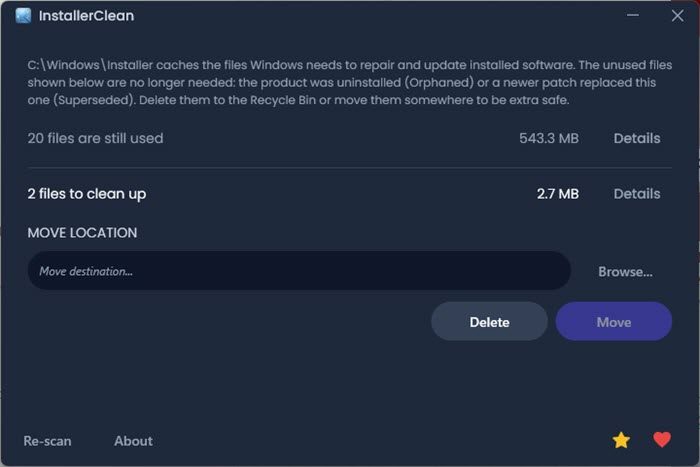
InstallerClean is an open source tool to safely clean orphaned Windows Installer files and reclaim disk space. Instead of directly deleting them, you can also move them to another location if you wish. It is available on GitHub.
Read: Tools to clean up unused .MSI and .MSP Files from Windows Installer folder.
How to rebuild or repair Windows Installer cache?
Some third-party programs may promise to repair the Windows Installer cache; however, Microsoft does not recommend this approach. It recommends doing the following instead:
- Reinstallprograms
- Use System Restore points
- Use System state backup
- Recovery to restore the full system state backup
- Reinstallation of the operating system and all applications
See this post to troubleshoot Missing Windows Installer Cache files.
You may also like to read the following posts which talk about other Windows system folders:
