
The Windows Installer Patch (.MSP) files on Windows 11/10 are located under the C:\Windows\Installer\$PatchCache$ root directory. In this post, we will explain what Windows Installer Patch (.MSP) files are, as well as provide concise instructions on how to remove these files from your Windows computer.
The Windows operating system, like any other similar platform, receives regular Updates. These updates are intended to resolve reported bugs and software-related issues, improving the overall user experience. Depending on the update and its importance, these patches include bug fixes, new features, system apps, and even new capabilities or security enhancements.
After a Windows patch is installed on your computer, the patch file and related packages will be cached in a dedicated folder.
What are Windows Installer Patch (.MSP) files
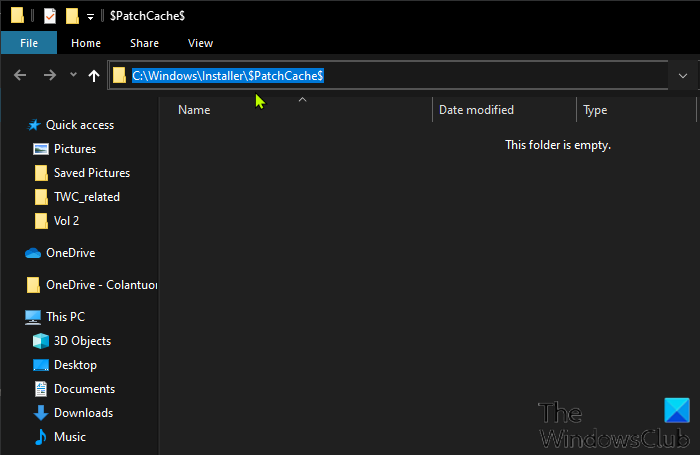
After your Windows computer install a Windows patch, the patch file, along with other files related to the installation, are cached in the hidden system directory as shown below.
C:\Windows\Installer\$PatchCache$
The files in this cache are mainly used to roll the system back when a patch is uninstalled. Over time, this storage place may become quite large, and if you have a computer in your office/work, business, home, or school with a rapidly filling hard drive, clearing the cache can free up gigabytes of space that can be used for business documents such as contracts, invoices, employee evaluations or copies of business letters as well as other non-business documents/files.
While it’s not really recommended to delete essential installer directories, the cache folder that stores the installer patch files can be safely removed from your Windows computer. Continue below to learn how you can safely remove the Windows Installer Patch (.MSP) files from your device.
Read: Windows Installer Cache files missing
How to remove Windows Installer Patch (.MSP) files
You must be logged in as an administrator on your Windows device to remove the Windows Installer Patch (.MSP) files.
To manually remove/delete the Windows Installer Patch (.MSP) files, do the following:
- While logged in on your PC, press Windows key + R to invoke the Run dialog.
- In the Run dialog box, type cmd and hit Enter to open Command Prompt.
- In the CMD window, copy and paste the command below and hit Enter.
rmdir /q /s %WINDIR%\Installer\$PatchCache$
That’s it!
Once the command executes, the Windows Installer Patch (.MSP) files will be nuked from your Windows computer.
Read: Tools to clean up unused .MSI and .MSP Files from Windows Installer folder.
Additional Information
Bear the following important information in mind:
- Only files in the C:\Windows\Installer\$PatchCache$ directory, called the baseline cache, are safe to delete. Do NOT, under any circumstances, delete anything out of the Windows Installer cache folder located at C:\Windows\Installer; doing so may cause serious problems in the future that necessitate a reinstallation of the OS or some important software.
- While clearing the baseline cache is safe, if you ever want to uninstall a patch, you’ll need to download the specific patch’s installer file. For this reason, consider backing up your baseline cache to an external hard drive before clearing it.
On the last note, if your goal is just to free up disk space, consider running the Disk Cleanup utility before clearing the baseline cache.
