
It may happen at times, especially if your computer is old, that your CD / DVD / Optical Drive tray just will not open even if you click on its Eject or Open button. It may open at times and yet will remain closed at other times. If you are facing this problem, there are a few things you may try.
Optical drive tray will not open
- First, restart your Windows PC and see if it helps. I have found that a simple restart solves many problems, including this one. You may also try clicking on the Eject button while the computer is booting and see if it works.
- Check if any locking software exists on your computer that prohibits the tray from being opened.
- Ensure that all your power cables are not loose and are properly connected.
- Open the Computer folder and right-click the icon for the CD or DVD drive that is stuck, and then click Eject.
- Look for a small hole below the Drive Tray. This is the Manual Tray Release. Take a pin or a straightened-out paper clip and insert it into the hole. At the same time, you may have to continue to press the tray’s Open or Eject button.
I hope one of these helps. If it does not, then you can try this freeware Tray to open and close a stuck optical drive tray.
Optical drive tray stuck
Check out Tray Control. This tool allows users to open or close their optical drive without using their computer’s button. It shows radio buttons for up to 4 optical drives. It is a simple utility to Open or Close the Tray for Optical Drives.
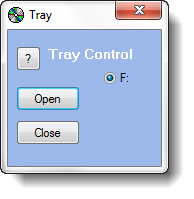
This is quite a handy utility to have if your tray gets stuck frequently for some reason.
This post will show you how to eject or close CD/DVD Tray using Hotkey, a Shortcut or Freeware.
If things still don’t work out, I guess you will have to open the machine’s side panels and open the tray manually, either yourself or with the help of a technician.
Know of any more tricks? Please do share below in the comments!
See this post if your Windows can’t find a DVD or CD drive.
