
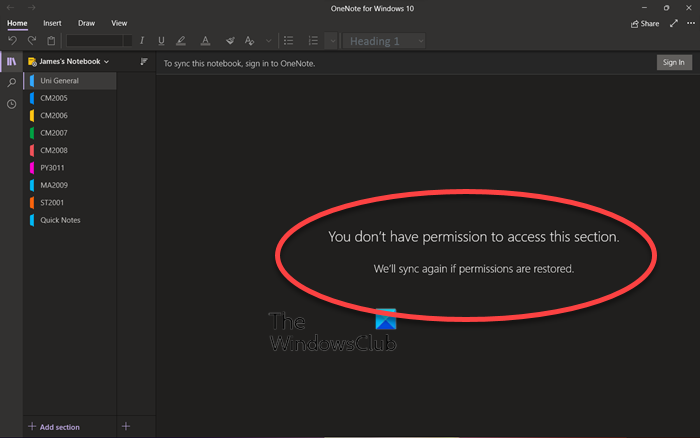
OneNote is part of the office product, which is an excellent tool if you want to keep notes. Like other products, it also syncs with OneDrive. However, while accessing it, if you receive an error message – You don’t have permission to access this section, We’ll sync again if permissions are restored, then this post will help you resolve it.
What is the Permission issue with OneNote?
Like any other document, OneNote is connected to the Microsoft Account, so permission is always attached. If someone has shared a OneNote document, you should have sufficient permissions to access that document and its sections. Apart from this, this can be a minor glitch and might go away with a few basic troubleshooting.
You don’t have permission to access this section OneNote error
Follow these suggestions to resolve the issue. Make sure to use the same Microsoft account.
- Sign in to your Microsoft Account again
- Move OneNote Files
- Switch to OneNote Desktop
We suggest that you back up the files before attempting the solutions. If you cannot access the file locally, you can download it from OneDrive online.
1] Sign in to your Microsoft Account again
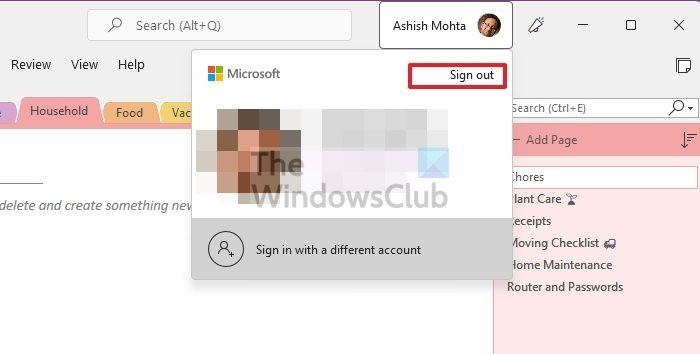
It is possible that the sync has an issue, and OneDrive cannot validate your account. The easiest way to resolve this is to sign out of the OneDrive account and sign back in. All local files will be removed when you sign out of the OneDrive app, and any conflicts should be resolved.
- Locate the OneDrive app icon on the system tray.
- Right-click on it the icon and click on the Settings menu
- Switch to the Account tab and then click on Unlink This PC link
- Done that, all files will be removed from the local account.
- Repeat the steps but this time, sign in using the Microsoft account
You will have to select which folders to download to the PC.
2] Move OneNote Files
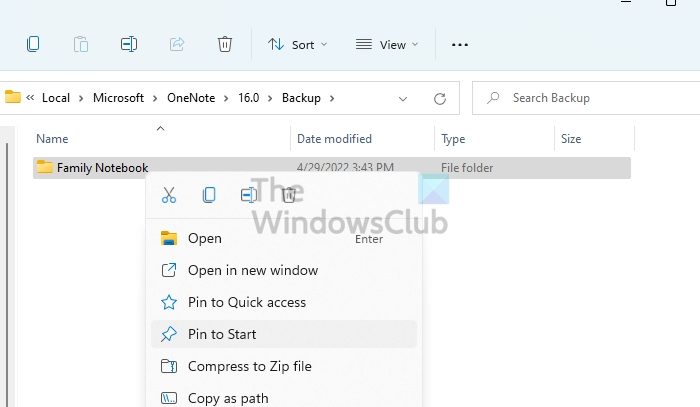
Done that. If you are using the Desktop version, go to the location mentioned below and make a copy of the backup files. You will need to move them out, i.e., cut and paste them into a different location.
C:\Users\<username>\AppData\Local\Microsoft\OneNote\16.0\Backup\
Next, open the location where OneNote saves the files. You will need to move these files to a local notebook — something that one cannot do with the online-only version of OneNote – leaving the online notebooks intact but not deleting them.
This method should trigger the sync again. Once done, you can move back the files, and everything should load fine. This method worked for one of the users who reported in Microsoft forums.
3] Switch to OneNote Desktop
If you are using the Microsoft Store, it is known to cause such issues. One of the most significant drawbacks of using the store app is that you do not have easy access to the file using File Explorer. So it would be best to switch to the desktop app, which you can download from the Microsoft website. Make sure to sign in with the same account where your files are stored.
How to fix You no longer have permission to access this notebook error?
You can fix You no longer have permission to access this notebook OneNote Error by multiple methods, including disabling automatic syncing, reinstalling the app, copying pages to a new section, and even updating the app to the latest version. The accompanying error codes be 0xE0001460, 0xE000004A, etc.
Why is OneNote forbidden?
You might encounter this problem if the notebook owner (or the server administrator) deliberately or accidentally changes your permissions. You will need to connect with the Notebook owner and ask them to apply for permission.
