
Some users encountered the “You can’t edit this notebook” error in OneNote. This error prevents users from editing their notebooks and usually occurs when OneNote is unable to sync changes to the cloud. If you encounter this error, the solutions provided in this article will help you.
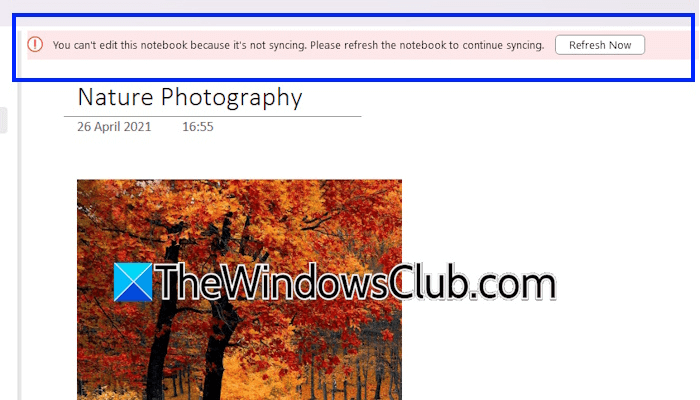
The complete error message is:
You can’t edit this notebook because it’s not syncing. Please refresh the notebook to continue syncing.
You can’t edit this notebook because it’s not syncing
Use the following fixes if you cannot edit your OneNote notebook due to the “You can’t edit this notebook” error.
- Sign out and sign in again
- Close all other instances of OneNote
- Clear OneNote cache
- Sync your notebook manually
- Edit your notebook online
- Open the notebook from OneNote for the Web
- Try to download the notebook
- Export the notebook
- Repair OneNote
All these fixes are explained in detail below.
1] Sign out and sign in again
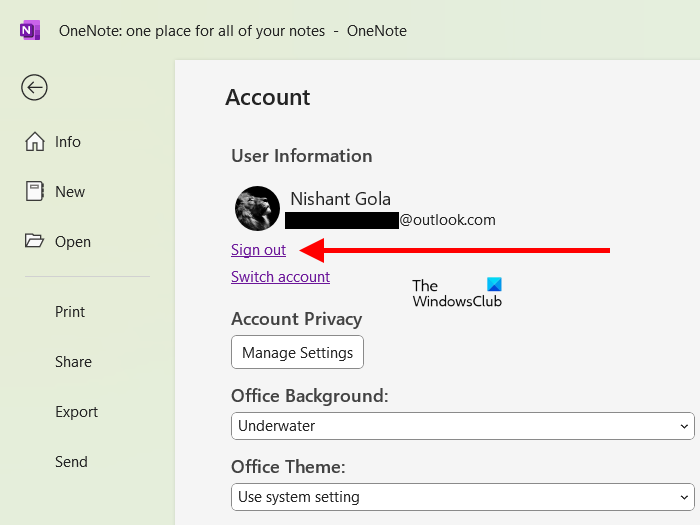
I also encountered this error. In my case, it was a temporary glitch that was fixed when I signed out and signed in again. You can also try this fix. Click on your profile icon in OneNote and select Sign Out. Relaunch OneNote and sign back in.
2] Close all other instances of OneNote
In some cases, this error may occur if another instance of OneNote is opened on your system. For example, if you have multiple profiles on your computer and OneNote is running in another profile, and you are signed into OneNote with the same Microsoft account. Check this and close other instances of OneNote.
3] Clear OneNote cache
Corrupt OneNote cache can also cause this problem. We suggest you clear the OneNote cache and see if it helps. The following is the default OneNote cache location.
C:\Users\username\AppData\Local\Microsoft\OneNote\16.0
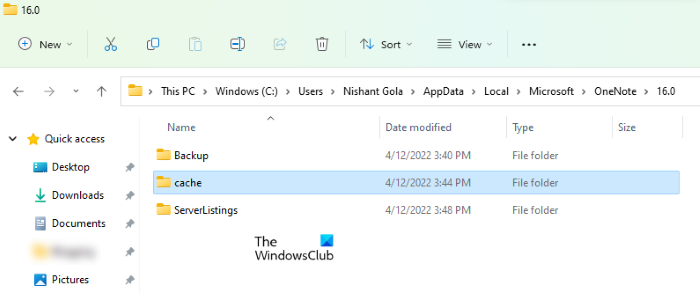
Replace the username in the above path with your username. The above path is the default, but it may differ in your case if you have made changes. To view the cache location, follow these steps:
- In OneNote, click File > Options.
- Select the Save & Backup category on the left side. You will see the OneNote cache location on the right side.
Go to the OneNote cache location and open the 16.0 folder. Delete the cache folder.
4] Sync your notebook manually
You can also sync your notebook manually. Sometimes, sync issues occur due to minor glitches, which can be fixed after syncing the notebook manually. Follow these steps:
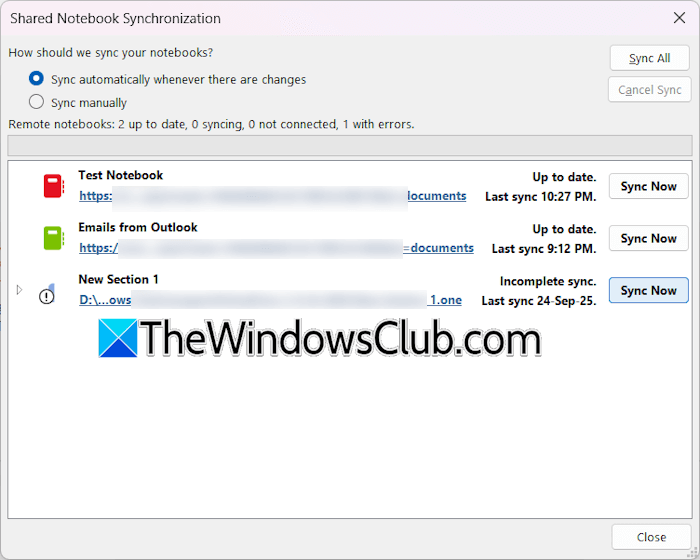
- In OneNote, select File > Info.
- Click View Sync Status.
- Click Sync Now to sync your notebook manually. Or you can click Sync All to sync all your notebooks.
5] Edit your notebook online
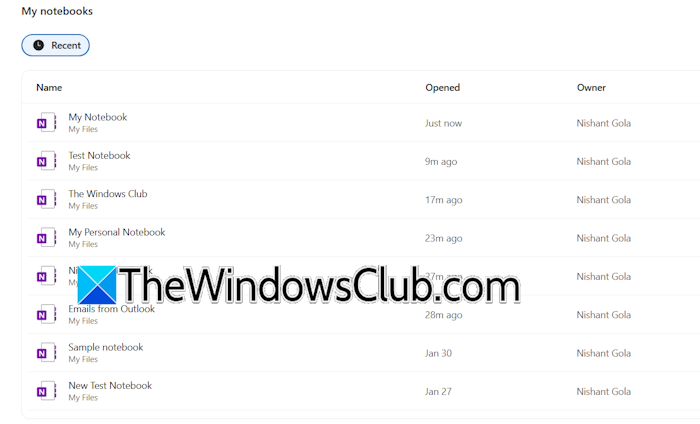
See if you can edit the notebook online. Open OneNote in your web browser, then open the affected notebook. If you can edit it, make the required changes. OneNote will automatically save the changes to the cloud. Now, uninstall the OneNote desktop app and reinstall it. Sign in to the OneNote desktop app with your Microsoft account and open your notebook. Let OneNote sync your notebook automatically.
6] Open the notebook from OneNote for the Web
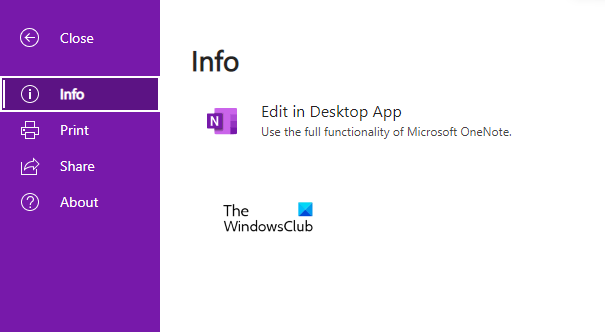
If the error persists, log in to OneNote in your web browser and open the affected notebook. Make some changes in the notebook (if you can) and then open it in the app directly from your web browser. For this, click File and then select Edit in Desktop app.
7] Try to download the notebook
If you can edit your notebook online, you can download it and open the downloaded notebook in the OneNote desktop app. OneNote for the Web does not support downloading the complete notebook in a single file. However, you can download each section separately.
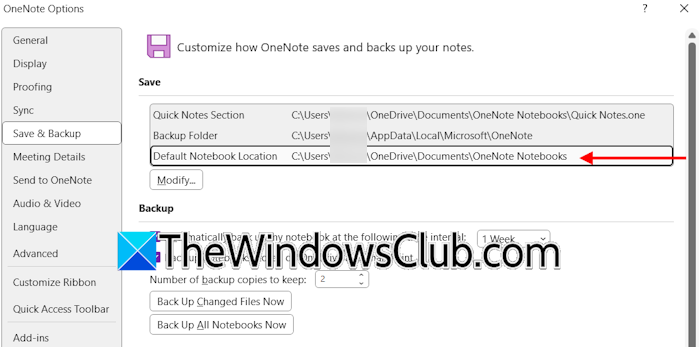
Open the default notebook location in File Explorer. Usually, this is the Downloads folder. But it can be different in your case if you have changed it manually. To view the notebook location, go to File > Options > Save & Backup in OneNote. You will see the default notebook location on the right side.
Now, open the default notebook location. You will see all the notebooks as HTML files. Double-click on the affected notebook. It will be opened in your default web browser. Select sections and download them. The sections will be downloaded as a ZIP file. Extract the file and open the sections. OneNote will create a separate section with the name “Open Sections.” Once you open all the sections in the OneNote desktop app, follow these steps:
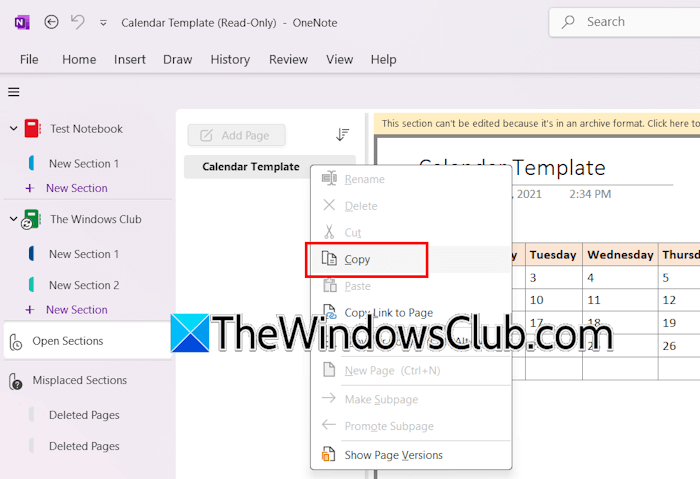
- Create a new blank notebook.
- Right-click on the downloaded section you opened in OneNote and select Copy.
- Go to the newly created notebook and create a new section there.
- Paste the copied section there.
Follow these steps to copy all the sections to the new notebook.
8] Export the notebook
Export the notebook and open it in the OneNote desktop app. This should work. The steps are as follows:
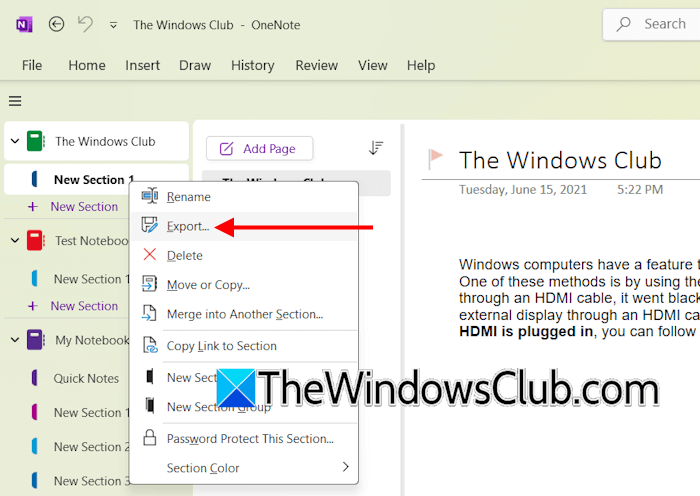
- Select the affected notebook.
- Go to File > Export.
- Select Notebook and click Export.
- Select a location on your hard drive and save the notebook.
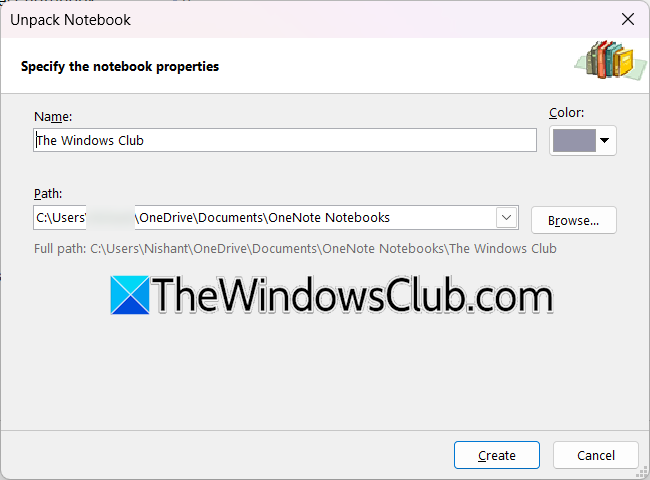
Now, go to the location in File Explorer where you exported the notebook. Double-click on the notebook to open it. OneNote will open automatically, asking you to unpack the notebook. Click Create.
9] Repair OneNote
If the problem persists, you can repair OneNote. Follow these steps:
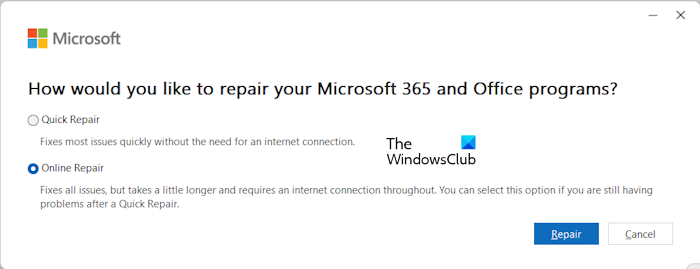
- Open Windows 11 Settings.
- Go to Apps > Installed apps.
- Search for OneNote.
- Click on the three dots next to it and select Modify.
- Click Yes in the UAC prompt, and then click Online Repair.
- Click Repair.
That’s it. I hope this helps.
OneNote can’t sync this page, please don’t edit this page
If OneNote shows “Can’t sync this page, please don’t edit this page”, check your internet connection to ensure that it’s working fine. Then, verify that you’re signed in with the correct account and that the notebook is stored in OneDrive or SharePoint. Next, close and reopen OneNote to refresh the sync process. If the issue persists, try moving the page content to a new page or section. You may also clear OneNote’s cache and update the app, and see if that helps.
How to fix OneNote notebook not syncing?
If the OneNote notebook is not syncing, you can try to sync it manually. Click File > Info View Sync Status. Now, click the Sync Now button next to your notebook. Also, check your internet connection. It should be stable. Sync issues also occur due to the corrupt cache. Clear OneNote cache. Additionally, you can try copying all the sections of your notebook to a new notebook. If the new notebook starts syncing, you can delete the old notebook.
Why is OneNote taking so long to sync?
The time it takes OneNote to sync your notebooks depends on factors such as your internet connection speed. If your internet speed is slow, OneNote may take more time to sync. Apart from that, your notebook size also affects the sync time. OneNote takes a longer time to sync large notebooks.
Read next: OneNote Error Code 0xe00001BB.
