
When installing the Xbox App, if you see the Xbox Installer stuck with a progress bar saying Preparing or Making things awesome, then this post will help you resolve the problem. The error occurs when you download and install the Xbox Installer app or when you are reinstalling the Xbox app from the Microsoft Store. While Windows comes with Xbox App if you have uninstalled it earlier, and then try to reinstall the app.
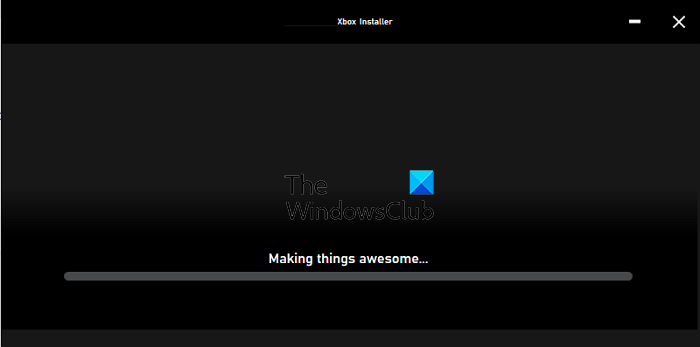
Xbox app stuck at Making things awesome or Preparing screen
Try the suggested solutions and check if they help you fix the problem.
- Restart Installer Service
- Restart and Reinstall Xbox App
- Run SFC Tool
- Run Windows App Troubleshooter
- Repair and Reset Microsoft Store
Ensure that you use an admin account to resolve the problem.
1] Restart Windows Installer Service
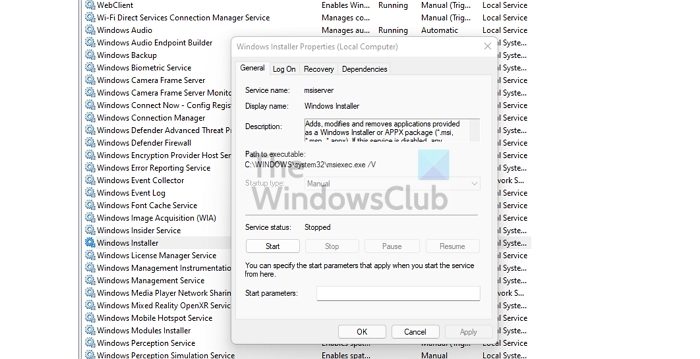
Any software or app needs the help of Windows Installer Service. If it is stuck for some reason, then any installation will get stuck. Follow the steps to restart it:
- Type Services.msc in the Run prompt (Win +R) and press the Enter key
- Locate Windows Installer and right-click on it
- Click on Restart or Start and let it finish the process
Try reinstalling the Xbox app again.
The Windows Installer service is manually invoked by any program that wants to install it. If it does not work as expected, you can manually start it.
2] Restart and Reinstall Xbox App
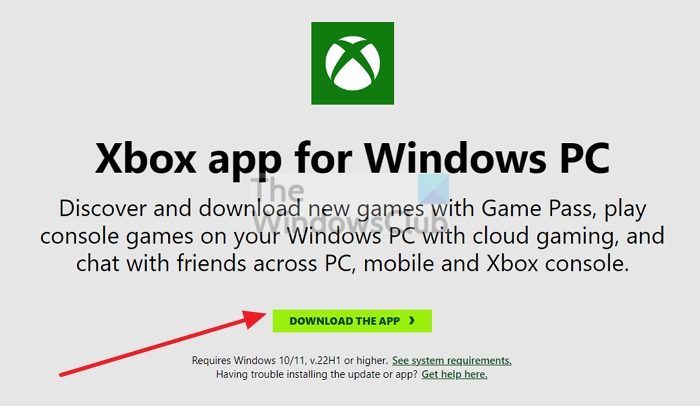
If the installation is stuck for a long time, it’s best to restart the PC and try reinstalling the app with admin permissions. Many problems are resolved after a restart, and if something is causing the process to get stuck, restart the PC.
If you were trying to install it from the Store, you can always download the installer from here, and try.
3] Run DISM and SFC Tools

It is always a good idea to run the SFC tool to rule out issues with corrupt system files. Run the following command on an elevated command prompt, and let the process complete.
sfc /scannow
If the tool finds an issue in any of the system files corrupt or mismatched versions, then it will be replaced and fixed.
4] Run Windows App Troubleshooter
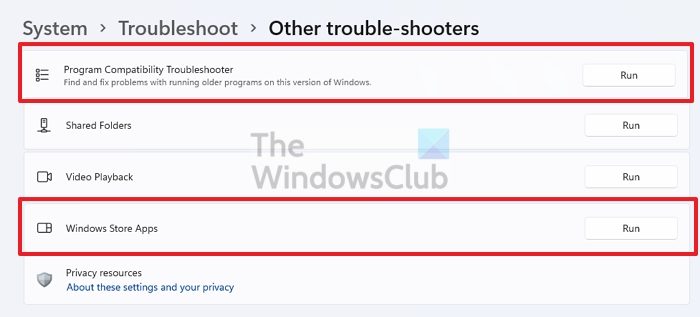
If you have previously uninstalled the app, and trying to reinstall the app only to face this problem, then you need to run the Windows App Troubleshooter. Go to Settings > Troubleshoot > Other troubleshooter and run Program App compatibility and Windows Store Apps troubleshooters.
5] Repair or Reset Microsoft Store
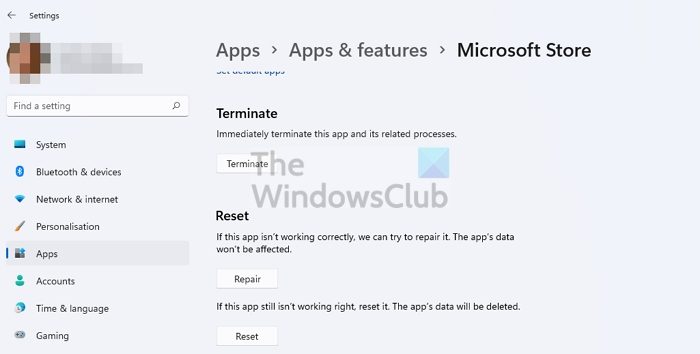
If the troubleshooter doesn’t work, then you can reset the Microsoft Store app, and then again try reinstalling the app. Go to Settings > Apps & Features. Locate the Store app and then click on the three-dot menu button > Advanced options. Scroll to the bottom of the screen, then click the Repair and Reset buttons. Once done, try reinstalling the app and see if the issue is resolved.
Does closing the Xbox app make games install faster?
The Xbox app on Windows PC is only for accessing games and initiating downloads. However, the actual download occurs in the background through the Microsoft Store. So even if you close the app, it still works the usual way and isn’t faster.
Why is Xbox Installer not working?
If everything is working as expected, then it can be the security or antivirus blocking connections from Xbox App to your Microsoft servers. So you may want to disable it momentarily and then try again.
How do I fix the Windows installer?
If it’s not working, you can manually start it. If it’s already running, stop it, and then start it. If you believe the installer is corrupt, you can run the DISM and SFC tool to fix that.
