
Windows 11/10 offers a Sandbox feature that offers a disposable virtualized desktop environment where a user can run temporary commands and actions. It is powered by the Hyper-V virtualization platform. That said, if you encounter error code 0x80070569 when launching Sandbox, this post will help you resolve the issue.
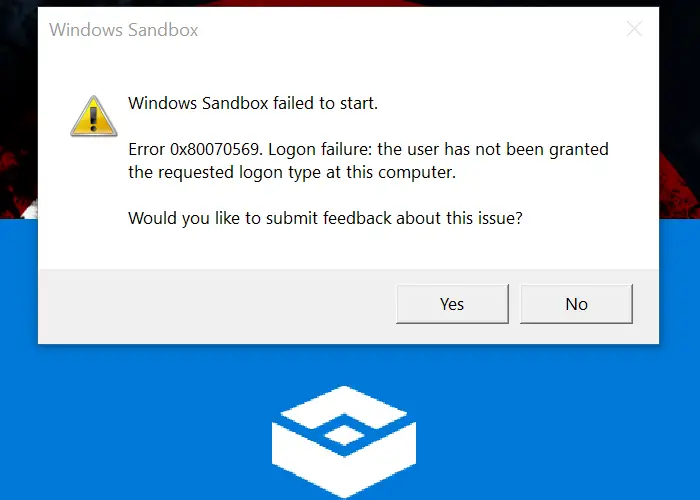
Fix Windows Sandbox Error 0x80070569, Logon failure
The complete error message reads:
Windows Sandbox failed to start
Error 0x80070569, Logon failure: the user has not been granted the requested logon type at this computer.
The error is due to the user’s permissions, which should be fixed.
1] Update Group Policy for Domain Computer or Add again
If the computer is connected to a domain, the Hyper-V host likely has lost or incomplete domain connectivity. It may be due to a credential mismatch. If that’s not the case, then it could be because of an error in the inherited GPO Policy.
Update Group Policy
A domain administrator can use the Group Policy Management feature from the Server Manager console and install the correct group policy to the computer. Then he will need to update the policy to include NT Virtual Machine\Virtual Machines in the Log on as a Service entries. Done that close the policy editor, and use ‘gpupdate /force‘ command on the Hyper-V host computer to refresh policy.
Remove/Add computer to Domain again
A domain administrator can remove the computer from the domain and re-add it. It will ensure everything is refreshed and that permissions, including credentials, are verified and correct.
Related reads:
2] Restart Windows Services Associated with Windows Sandbox
Open the Services snap-in by typing services.msc in the Run prompt (Win + R), and then press the Enter key. Find the following services, right-click each, and choose Start or Restart.
- Network Virtualization Service
- Virtual Disk
- Hyper-V Virtual Machine Manager
- Hyper-V Host Compute Service
- Container Manager Services
- Application Guard Container Service
- Remote Procedure Call (RDC)
Do not change the startup type; leave it at the default, as Windows Policies manage them.
I hope the post was easy to follow and that you were able to resolve the “Windows Sandbox failed to start (0x80070569)” error.
If nothing else works, and your computer is part of a domain, it would be best to contact your IT admin to resolve the issue.
