
One of the things some Windows 11/10 users may miss is Windows Experience Index. For those unfamiliar with the Windows Experience Index, it’s a Microsoft benchmark tool that measures your computer’s performance. It analyzes your Processor calculations per second, Memory operations per second and Graphics by determining the Desktop performance of Windows Aero and so on for Windows 11/10.
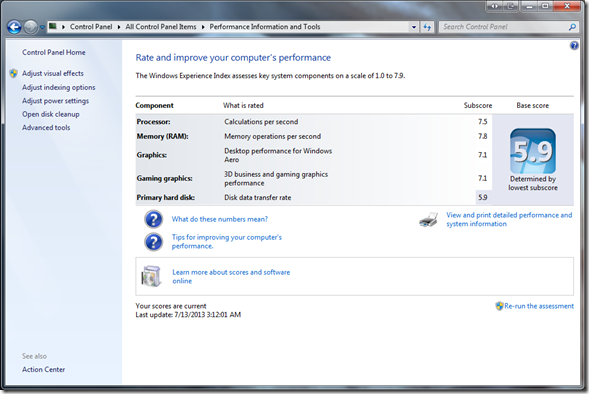
Microsoft first introduced this in Windows Vista. Microsoft removed the Experience Index from Windows RT but kept it on the original release of Windows 8 in October of 2012
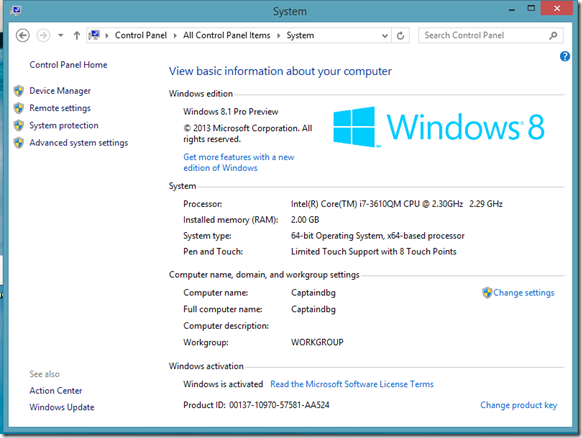
I think it’s a bad move by Microsoft to kill this feature. It was a nice way to benchmark a PC without any additional tools. Well, at least geeks used to look at this score to compare performance, but for average home users, they couldn’t care less about this feature. Most of them didn’t even know that there was such a feature on Windows 7 or 8.
Because of WEI, I knew whether I needed a hard drive with higher RPM or even an SSD on my laptop. But I guess Microsoft decided to kill this feature because it was less popular among users. Let’s face it; geeks are a rare breed compared to the average home or business user, who doesn’t care about these small changes.
There is speculation that Windows 8 removed this feature because the Microsoft Store might do the job for them. Just like the Google Play Store, which will not let you install an incompatible game. So I guess today, if you want to check if a game is compatible with your PC, you could visit the Can You Run It website.
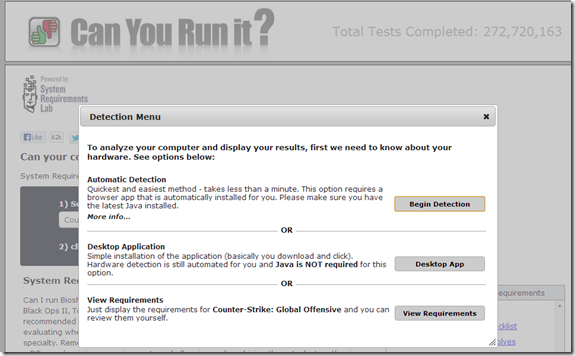
This website will benchmark your PC and list the games that work with it. It looks at your computer’s hardware and system software to determine whether or not your current system can run a game. Recommendations are made on updating or upgrading each component that does not meet the listed requirements. This patent-pending technology is called “Instant Expert Analysis, ” and the System Requirements Lab provides it.
Windows Experience Index in Windows 11
A lot has changed in Windows 11, and there is no direct way to access the experience feature. The alternative is to run a simple command in CMD or Terminal and find out.
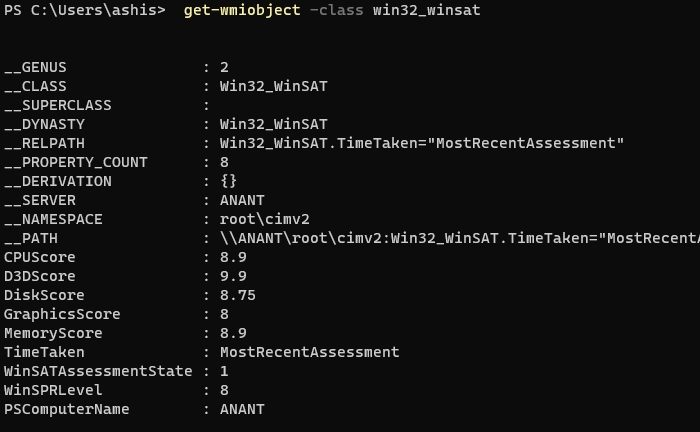
Open CMD with elevated privilege and execute the command:
get-wmiobject -class win32_winsat
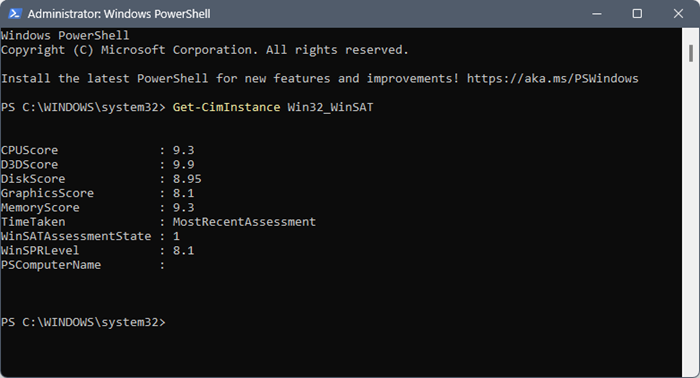
The result will show details of CPUScore, D3DScore, DiskScore, GraphicsScore, MemoryScore, TimeTaken, WinSATAssessmentState, WinSPRLevel and PSComputerName.

You may also execute this command in PowerShell (admin) to get the score:
Get-CimInstance Win32_WinSAT
Windows Experience Index in Windows 10
You could also open the Run box, type shell:games and hit Enter to open the Games Explorer.
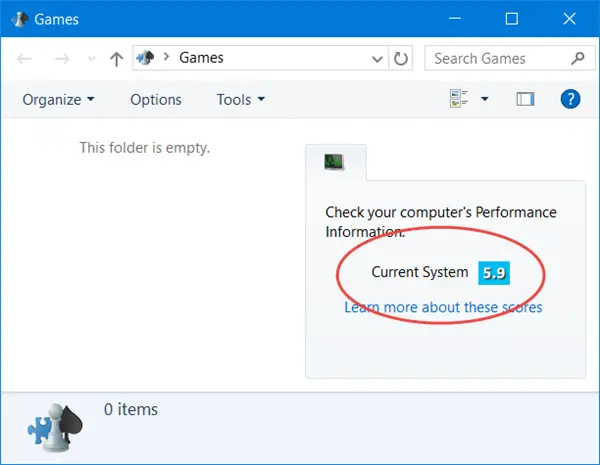
You can see the WEI for your Windows 10 PC here.
Windows Experience Index in Windows 8.1
Nevertheless, if you want to still find your Windows Experience Index on Windows 8.1, you can do it as follows:
We have seen that if you wish to reset your WEI, you have to navigate to the following folder:
C:\Windows\Performance\WinSat\DataStore
Now, select all of the .xml files & delete them – and then re-run the WEI assessment.
So if you want to find out your WEI, all you need to do is open an elevated Command Prompt window, type winsat formal -restart, and press Enter.
Next, look for and open the Formal.Assessment(Initial).WinSAT.xml file in your default browser. You will get all your individual Windows Experience Index scores, including the final Disk Score, here in Windows 8.1.
Check out WEI Tool and Win Experience Index, as they will allow you to view Windows Experience Index in Windows 11/10.
What is a good Windows Experience Index?
For high-end work and strong multitasking, scores in the 4.0–5.0 range are sufficient. Any computer with a performance rating of 6.0 or higher can do anything you need. That said, a lot depends on what kind of work you do and how many apps you need to run simultaneously. So make sure you also try it out in the experience zone to figure out of the PC works well for you.
How do I improve my Windows Experience Index?
Upgrading the hardware is the only way to increase the experience. Not that it matters, but if you are experiencing a slow PC, upgrade storage and RAM first, then consider upgrading the CPU and GPU.
