
The Application Control feature in Windows Defender is a crucial security feature for Windows 11/10. With advanced malware, ransomware, and spyware, we need advanced security systems. Let us learn about this new feature introduced in Windows 10.
Windows Defender Application Control
Application Control helps determine the trustworthiness of each app instead of assuming an overall trust on the system apps, therefore greatly reducing system attacks, especially via executive files.
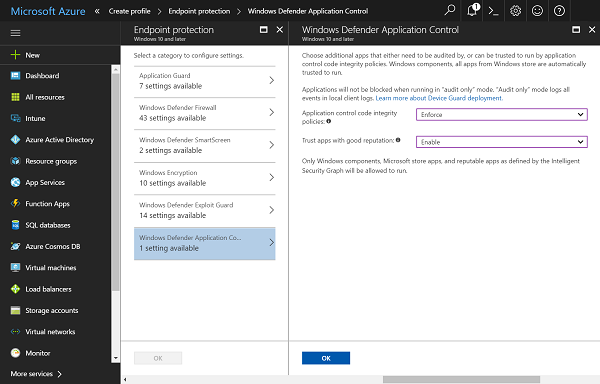
Many people know the importance of application control but do not know how to put it to use. Only about 20% of people were reported to be using application control solutions. But that started changing!
Device Guard protection
Windows Defender Device Guard for Windows 11/10 enables locking down of Windows systems and runs only authorized apps using configurable code integrity. The Device Guard also makes kernel attacks more difficult using HVCI. The CI policy is mandatory for the Windows kernel, so people must use it. It gets activated during the boot sequence itself so it can be ready for any malware even before the other antivirus software is ready.
The configurable CI lets users set app control policies for runtime as well as for kernel mode hardware as well as software drivers. The CI policy can be hidden from local administrators to avoid tampering. But this would require administrative privilege and access to the digital signing procedure to obtain it. The HVCI further protects all this.
Application Control
The original Device Guard was made focusing on the lockdown state, but it became lesser known that the OS can be used separately as well. Many users thought they wouldn’t be able to configure CI. Windows Defender Application Control, introduced with the Fall Creators Update, was designed to address these issues, including increased malware and spyware attacks. More people have since started enjoying the benefits of Application Control.
The WD ATP got a boost with the Fall Creators Update. This makes the Application Control along with the Firewall and antivirus systems, provide full optics into every threat encountered and blocked. The records are available to the system for quicker action in case of future attacks.
Ease of use
Windows has introduced a managed installer for WDAC. It came with easier trust, but System Center Configuration Manager provided native support that made app deployment a three-click process, ensuring better security.
Application Control uses Microsoft’s cloud ISG to authorize trusted apps without further confirmation, simplifying things for the user. All new policies in the Fall Creators Update are meant to build on WDAC policies. Code signing is the best way to verify the authenticity of apps. With Application Control, Windows 10 systems are both secure and convenient. Signtool helps code signing incorporate itself into an app built. Package Inspector helps generate catalog files that enable existing apps to authorize without rebuilding or repackaging.
Microsoft brought the dedicated Application Control for Windows Defender to make the OS smarter than before. All threats will be tackled, and everything that is surely trustworthy will pass without hindrance. This is the best one can ask of a security system. With greater flexibility, Application Control allows users to customize app permissions according to their requirements. It also helps democratize app control by making app management easier than ever before on multiple devices.
That’s all! Hope it helped.
What is application control in antivirus?
As mentioned above, Application Control helps you check the trustworthiness of every application installed on your computer. Whether it is a system app or a third-party app, you can check the reliability of the program using application control functionality. Nowadays, this security layer is present in almost all standard antivirus tools.
How do I unblock from Windows Defender application control?
As this feature is available in Windows Defender or Windows Security under Exclusions, you need to check that section first. You can remove a program or file from the exclusion list in just a moment. For that, open the Windows Security, go to Virus & threat protection > Add or remove exclusions. Then, find the program and click the Remove button.
