
Are you bored with the regular Taskbar design in Windows 11 and want something new and refreshing? If the answer is yes, we have a very cool customizing tool for you that allows you to alter the look and feel of your Taskbar. In this post, we are going to talk about Windhawk which lets you customize the Windows Taskbar, Start menu and more!
How to use Windhawk to customize Windows 11
Windhawk offers the following customization features and options:
- Start menu personalization: Modify layout, appearance, and restore older Windows behaviors.
- Taskbar customization: Style the taskbar, add custom clocks, and enable smoother tab/taskbar cycling.
- File Explorer enhancements: Show folder sizes, display file sizes in MB/GB, and improve details view.
- UI tweaks: Restore the classic context menu, adjust Alt+Tab behavior per monitor, and refine window switching.
- Visual and performance mods: Apply custom themes, accent colors, dark mode tweaks, and optimize system responsiveness.
- And more!
Install and use Windhawk Taskbar Styler to customize Windows 11 Taskbar
Taskbar Styler is a mod that alters your taskbar and new design elements to it. To install it, you need to download and install Windhawk. For that, open a browser of your choice, navigate to windhawk.net, and then click on the Download button. Once the app is downloaded, open File Explorer, go to Downloads, and run the installer. Wait for it to install, and once done, open it.
To install the Taskbar Styler mod, you have to go to Explorer, search “Taskbar Styler” and then install it. Now that Taskbar Styler is installed, let us start configuring it.
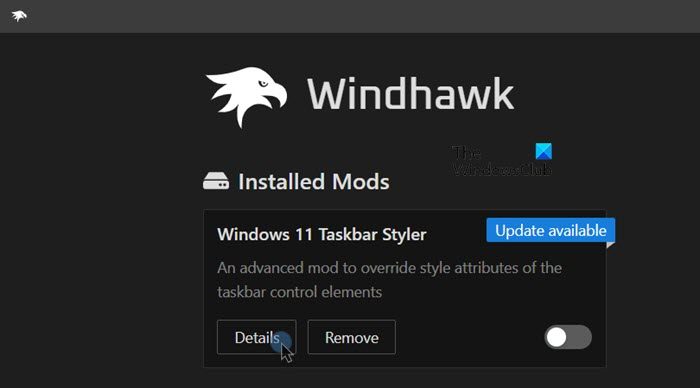
To access the Settings of Taskbar Styler, go to Home > Installed Mods, click on Details associated with Taskbar Styler, and then Settings. You will see the following style options when you go to the Settings tab.
- Control Styles
- Resource Variables
Let us discuss them in detail.
1] Control Styles
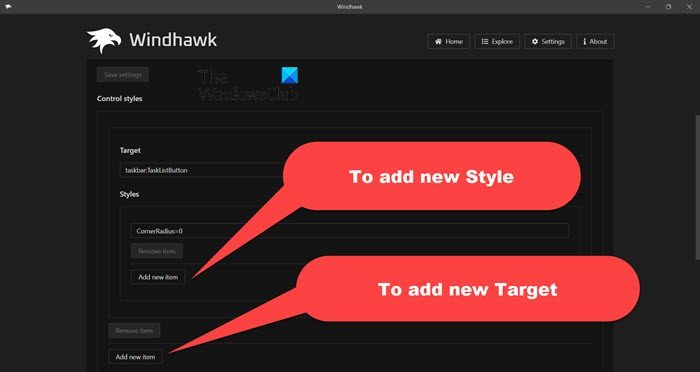
Control Styles allows you to target a specific object Taskbar and then style it the way you want. It has two sections, Target and Style. You are supposed to enter the name of the object in the Target field and then the way it should be formatted in the Style one. If you want to add a new style, just click on Add new item in the Style section. To target a new object, click on Add new item in the Target section.
Styles are defined as Style=Value, e.g., Height=5. Use := to employ XAML syntax, such as Fill:=<SolidColorBrush Color=”Red”/>. To apply a style only when a visual state matches, use Style@VisualState=Value.
Now, let us discuss a few design examples that you can try.
To configure the corner radius of a button in the Taskbar
- Target:
taskbar:TaskListButton - Style:
CornerRadius=0
To configure the running indicator’s size and color
- Target:
taskbar:TaskListLabeledButtonPanel@RunningIndicatorStates > Rectangle#RunningIndicator - Styles:
Fill=#FFED7014Height=2Width=12Fill@ActiveRunningIndicator=RedWidth@ActiveRunningIndicator=20
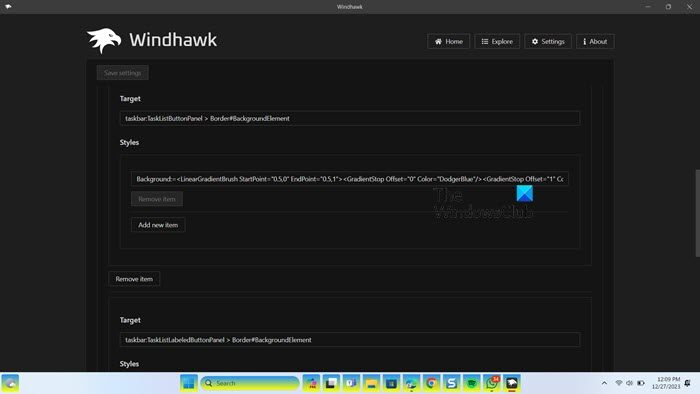
To make the background gradient of the Taskbar list buttons
- Targets:
taskbar:TaskListButtonPanel > Border#BackgroundElementtaskbar:TaskListLabeledButtonPanel > Border#BackgroundElement
- Style:
Background:=<LinearGradientBrush StartPoint="0.5,0" EndPoint="0.5,1"><GradientStop Offset="0" Color="DodgerBlue"/><GradientStop Offset="1" Color="Yellow"/></LinearGradientBrush>
You need to open two Target fields for two different values, but the Style option will have the same value.
To hide the Start button
- Target:
taskbar:ExperienceToggleButton#LaunchListButton[AutomationProperties.AutomationId=StartButton] - Style:
Visibility=Collapsed
If you notice that no effects are being applied to your taskbar, you need to do a refresh. A refresh will force your Taskbar to apply the changes we made earlier.
Read: How to make Windows 11 Taskbar look like Mac Dock
2] Resource variables
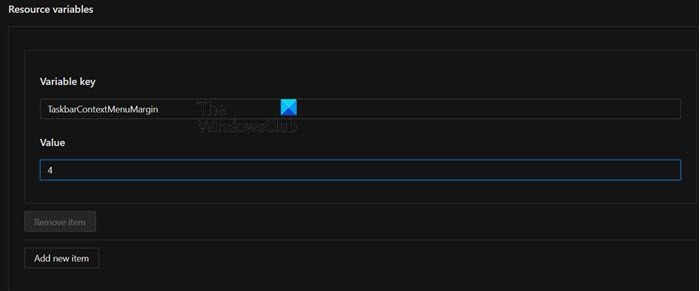
Resource variables define size and padding for various controls. Here are several examples:
TaskbarContextMenuMargin: The margin between the taskbar and the start button context menu.ContextMenuMargin: The margin between the taskbar and the notification area context menu.MediumTaskbarButtonExtent: The width of the taskbar buttons.
Note: After making the changes to Control Styles and/or Resource Variables, make sure to click on Save Settings.
If you want to see what happens to the source code when you make all these changes, just go to the Source Code tab. However, you won’t be able to make changes to that code.
In case a new update is rolled out, and you want to install it, just click on the Update button. Whereas Disable and Remove buttons are used to stop and delete the tool, respectively.
Windows 11 Start Menu Styler
Windows 11 Start Menu Styler lets you customize the look and layout of the Start menu beyond the built‑in options:
- Resize Windows 11 Start menu with custom height and width
- Apply custom themes (including Windows 10‑style layouts).
- Change the background (solid colors, acrylic, mica, blur, or transparent).
- Remove or move elements like the search box, Recommended section, user profile button, or power button.
- Force light or dark mode regardless of system settings.
- Use semantic zoom and transforms (translate, rotate, scale, skew) for advanced visual tweaks.
Using Windhawk, you can also increase Taskbar to 2 or more rows in Windows 11.
Download Windhawk
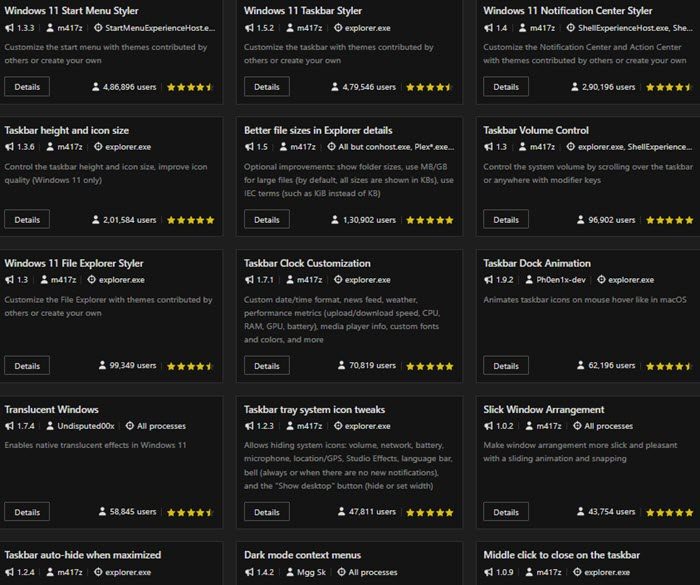
Windhawk offers many more customization mods. If you like this tool, go to windhawk.net to download and install it.
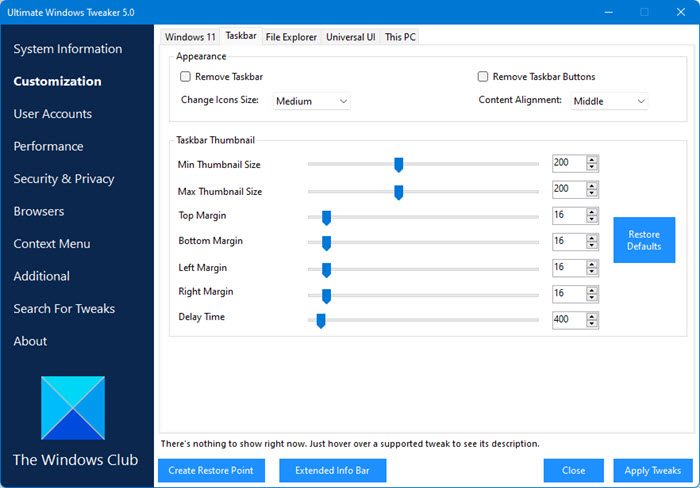
TIP: Our portable freeware Ultimate Windows Tweaker lets you tweak the settings of your Taskbar, Thumbnails, File Explorer, and more!
Read: Best Free Microsoft Store Apps to Customize Windows 11
Can you customize Windows 11 taskbar?
Yes, you can customize the taskbar on a Windows 11 or 10 computer. Microsoft allows you to make basic changes such as changing the background or accent colors of the taskbar in Settings. You can open Settings by Win + I, go to Personalization > Taskbar, and then make changes to the Taskbar. However, if you are not satisfied with the options mentioned there, use Winhawk’s Taskbar styler to tailor your Taskbar to your taste.
Read: Best free Taskbar Customization software for Windows
How do you customize your desktop in Windows 11?
To customize the desktop in Windows 11, you need to go to Settings > Personalization. There you will see various objects to customize such as Background, Colors, Taskbar, and Fonts.
Also Read: How to customize and change Chrome Color and Theme.
