
A pixel (picture element) on a screen combines 3 colors (Red, Green, Blue). Almost any opaque color can be made with this combination; however, many games and advanced photo editing tools use transparent and translucent colors. The color components make up what we call an alpha bitmap, and the process of mixing and creating these colors is called alpha blending. The transparency component is called the alpha channel. At times, while trying to play games that require alpha blending, users might get the following error message in Windows 11/10:
Your video card does not support alpha blending
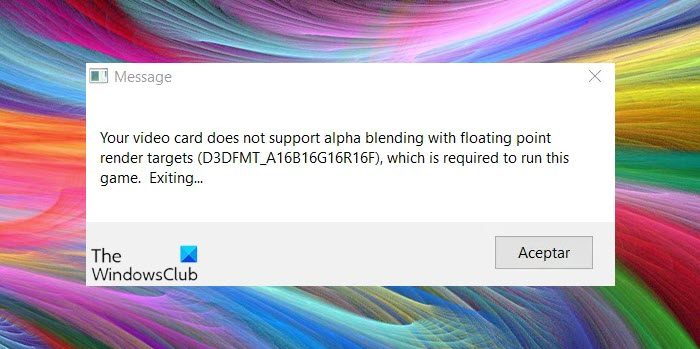
While the message blames the video card for not supporting the feature, it’s usually a graphics driver issue, since most brands have updated their drivers to support alpha blending. However, your system might not have the drivers installed correctly, or perhaps they might not be updated.
Beyond opaque RGB colors, gaming uses transparent and semi-transparent colors, which require alpha blending.
Try the following solutions step by step to rectify the issue:
1] Update the graphics drivers
Without changing the video card, many manufacturers have added the functionality for alpha-blending. Here is a guide to help with updating graphics drivers for Windows.
If this doesn’t work, you can install the latest drivers from the manufacturer’s website.
It is also suggested to roll back the graphics drivers if things do not work right.
2] Enabling GPU/Display scaling
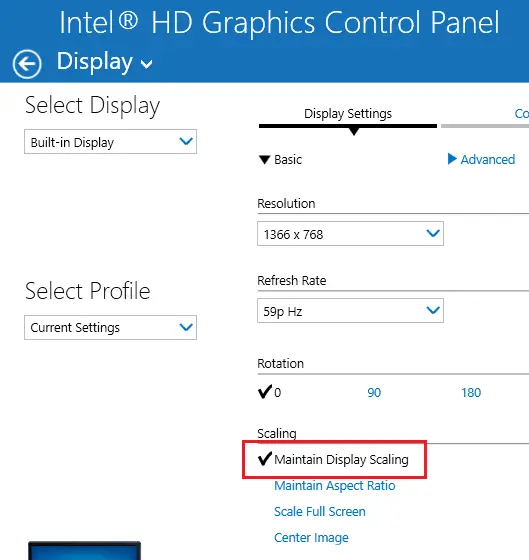
GPU scaling is a feature with newer graphics cards that helps the image output of any game or application fit the screen. You can enable this feature from your graphics driver’s settings page, but the steps differ by driver.
1] Right-click on any empty space on the desktop screen of your computer and check for the graphics card properties in the list. It may be named differently depending on the driver.
2] After opening the graphics card’s setting, please open the display tab or display setting and enable GPU scaling or display scaling. Again, this varies by driver, but it’s understandable.
3] Select default Graphics card
If your system has both a dedicated graphics card and an integrated card, a conflict may occur as the system switches between them depending on the application.
To resolve this conflict, you can permanently set a default graphics card.
1] Right-click in any empty space on the desktop screen and then click to open the Graphics properties.
2] Go to the 3D properties (it might be an icon or a tab) and select any one of the graphics cards as default. It is recommended to use to the dedicated card for its higher configuration here but the choice is yours.
Hope this works for you!
