
The new version of the Edge browser comes with some interesting tweaks and useful features that make it easy to personalize the browsing experience. One such exciting feature is the Vertical tabs added to the Microsoft Edge browser.

In this article, we explain how to hide or show Vertical tabs in the Edge browser.
How to Turn on Vertical tabs in Edge browser
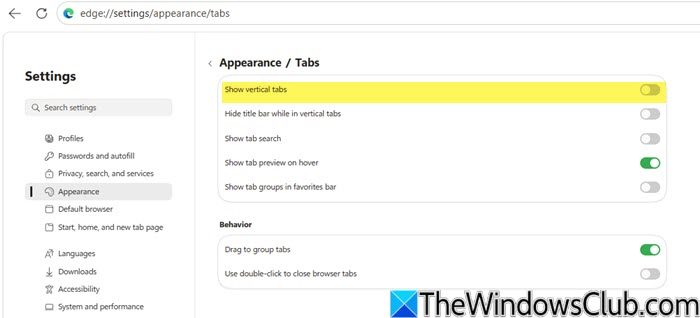
To enable and show Vertical tabs in the Microsoft Edge browser in Windows 11, take these steps:
- Open Microsoft Edge
- Go to Settings > Appearance.
- Go to the right side and locate Show vertical tabs under the Tabs section
- Now turn ON the Show vertical tabs as per your requirement.
Clicking on this icon, it will turn on the Vertical tabs feature on your browser.
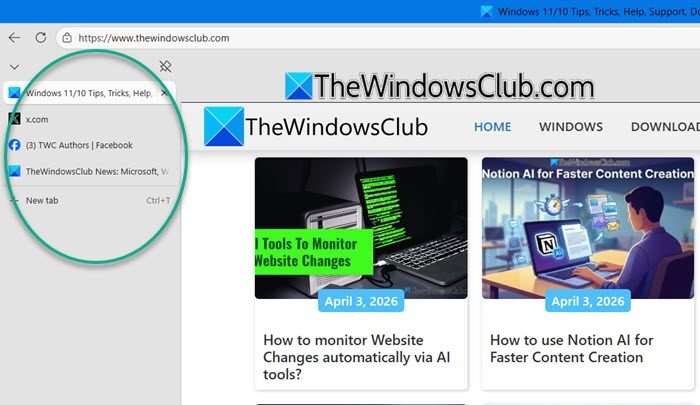
Similar to the tab row layout, you can use the Ctrl+T keyboard shortcut to add a new tab in your browser.

Let us know how you like this feature.
How to Turn off Vertical tabs in Edge browser?
To turn off Vertical tabs in Microsoft Edge, open Microsoft Edge Settings, then click the Appearance section. Now, on the right side, locate Show vertical tabs under the Tabs section and set it to OFF.
This post will show you how to disable Vertical Tabs in Microsoft Edge using the Registry.
Read:
