
VaultPasswordView is a free tool for Windows 11/10 that decrypts the passwords and other data currently stored in the Windows Vault & the Credential Manager. In order to understand the exact utility of this app, we first need to know what exactly ‘Windows Vault’ is and what its use is for a Windows user.
What is Windows Vault
Not many of the Windows users are aware of the Windows Vault feature despite already using in on a day-to-day basis. The Windows system stores the credentials in these special folders called “vaults” in order to help people log in directly to websites and other places. To be precise, this feature was introduced starting from Windows 7. The vault will also let people review and add the credentials.
Windows Vault is placed inside the Control Panel > User Accounts and Family Safety > Credential Manager. The best part is that users can take the credentials with them whenever they get a new computer or completely format the current machine. The backup can be stored in a safe place and restored whenever you start setting up the new machine.
VaultPasswordView for Windows PC
VaultPasswordView is a light program from Nirsoft that can be run to decrypt and display the password and other related data stored in the vault. Also, the tool can be used to decrypt the Windows Vault of your current system and also the backup files stored on the external hard drive.
This is one of the best free tools if you want to retrieve the information of Windows Mail, Internet Explorer and Microsoft Edge Web Browser which is stored inside Windows Vault.
Thankfully VaultPasswordView doesn’t require any additional installation process and all that one needs to do is run the executable file- ValutPasswordView.exe. Once successfully run you will be able to see the ‘Vault Decryption Options’ displayed. However, the login password is initially needed to begin decrypting the vault files.
In case you want to decrypt a file backed up in external storage, you can do so by directing the tool to the correct folder in the external drive. Click the ‘OK’ button after choosing the vault decryption option. The tool scans the vault folders, decrypts them and then goes on to display the result in the primary window.
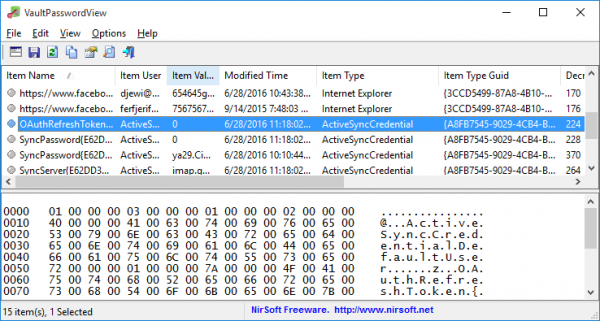
The upper section of the window will display the list of decrypted .vcrd files. The data will be in Hex-Dump format. If by chance the decrypted data contains a password, it is shown in the ‘Item Value’ on the upper section.
The tool is freeware and can be used by anyone. Download it from nirsoft.net.
