
Are you missing user accounts from your PC after upgrading to Windows 11? If, after upgrading your Windows computer to the next version, you find that one or more User Accounts are missing or have disappeared, then this post will be able to help you fix the issue.

User Accounts missing after upgrading to Windows 11
In the course of the issue, we found that the user account we were missing had an entry under the hood of the Users directory. We also could not rename the entry because the rename option is greyed out for it. Also, when we tried to create a new user account with the same name, obviously, Windows didn’t allow us to do so.
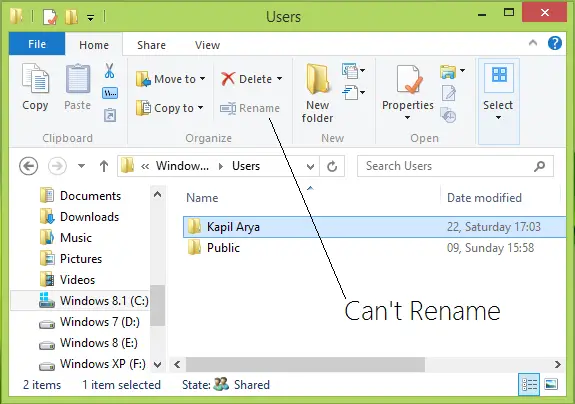
Then how do we solve this issue? Well, in this article we tell you the way to fix this. After doing a bit of research, we found that the User we were missing was still available inside Windows, but it has lost group membership, i.e., there is no group to which this user belongs, which is why it is not available to you. You can check this in the following way:
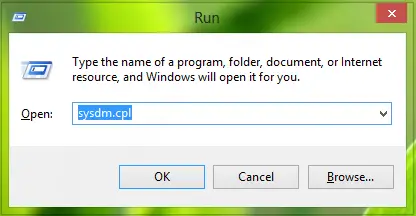
1. Press Windows Key + R combination, type put sysdm.cpl in Run dialog box and hit Enter to open the System Properties.
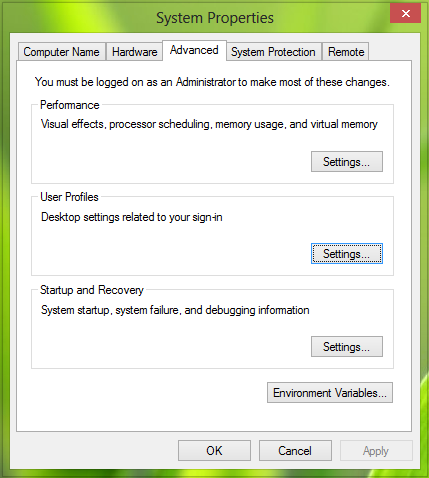
2. In the System Properties window, switch to Advanced tab, under User Profiles, click Settings.
3. Now, you can see all the user accounts on your system. The Account Unknown here is the user account that doesn’t belong to any group.
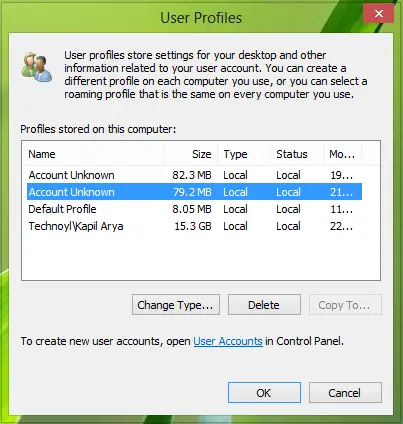
So if somehow we add that user to any group, we can recover it as our Local User account. Here are the steps you would need to follow in order to bring the missing user account in a group:
1. Open the administrative Command Prompt.
2. Paste the following command and press Enter:
net localgroup "Administrators" [Computer Name]\[Missing User] /add
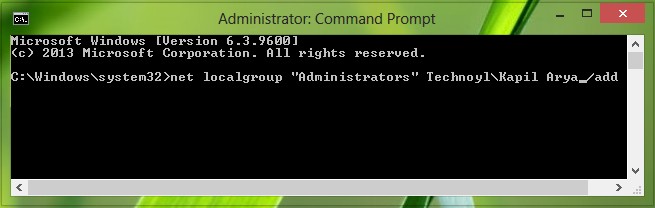
In the above command, you have to substitute [Computer Name] with your computer name and [Missing User] with the Local Account user name, which you lost after the upgrade. After a reboot, you can use the Recover user account option, which was missing after the upgrade.
Other suggestions that can help you:
- Open Windows Settings > Accounts > Family & other users and ensure the missing account isn’t disabled.
- Open Group Policy > Navigate to Computer Configuration > Windows Settings > Security Settings > Local Policies > Security Options and make sure “Accounts: Administrator account status” and “Accounts: Limit local account use” are set correctly.
- If the account is corrupted, create a new user account and move files from the old folder.
Related: How to recover deleted User account profile in Windows.
