
When opening a file with an unknown extension, Windows will ask you if you want to Use the Web service to find the correct program or Select a program from a list of installed programs. The dialog or the error message pops up before you even have the chance to manually select a program.
As usual, you can follow the registry hack course to force Windows to skip the bothering dialog and give you a list of applications to open the file instead. So let us see how to beat this problem and get a list where you can select a program to open your file or make it default.
Disable Use the Web service to find the correct program popup in Windows 11/10
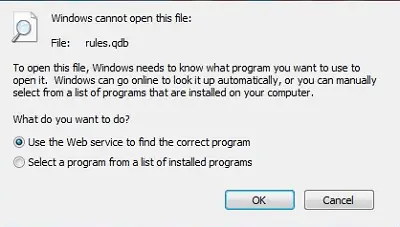
In most cases, you may be aware of the program you’d like to use to open the file; as as such, this extra dialog box can be pretty annoying.
To skip this box, type regedit in the Start Menu box and hit Enter to open the Registry Editor. Now navigate to the following key :
HKEY_LOCAL_MACHINE\SOFTWARE\Microsoft\Windows\CurrentVersion\Policies\Explorer
If this key does not exist, create it by right-clicking on an existing key and selecting New > Key.
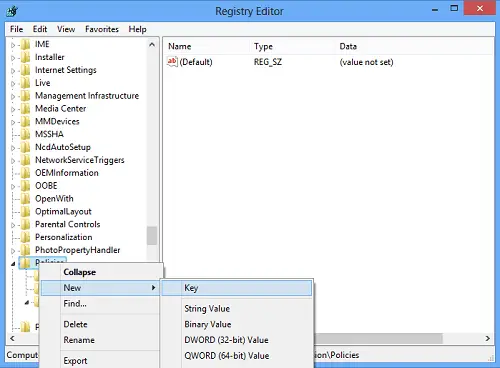
Next, right-click on the RHS, to create a new 32-bit DWORD value. Name it as NoInternetOpenWith and give it a Value of 1.
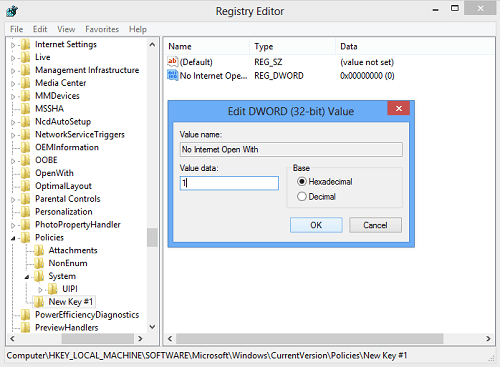
Exit Regedit. Reboot.
Should you wish to reverse the changes, simply reset the value to 0.
I hope this works for you!
How do I stop Windows Search from using the web?
To stop Windows Search from using the web on Windows 11 Pro and Enterprise, use the Group Policy Editor. Navigate to Computer Configuration > Administrative Templates > Windows Components > Search. Then, disable “Search the web or display web results in search.”
How do I turn off Web and Search filters in Microsoft?
To turn off web and search filters in Microsoft, go to the Windows Settings by pressing Win + I. Select “Privacy & security” and then click on “Search permissions.” Here, you can adjust or disable the SafeSearch and other filters to customize your search experience according to your preferences.
