
If the UNIQUE function isn’t working in Microsoft Excel on your Windows 11/10 PC, read this post to learn how to fix the issue. The UNIQUE function extracts a list of distinct (non-duplicate) values from a range or array and “spills” results into neighboring cells. In other words, it helps you remove duplicates from a set of data.
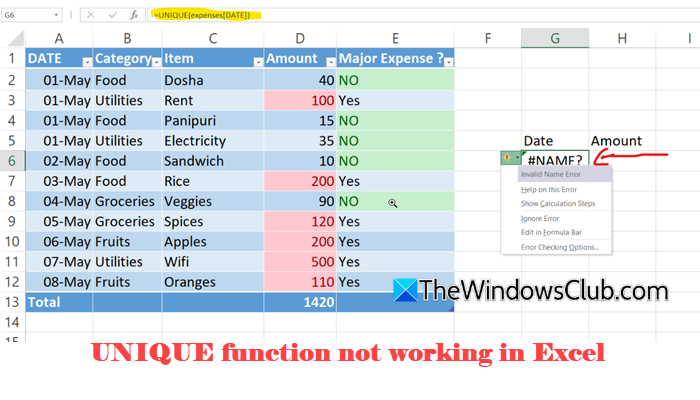
However, sometimes, it fails to remove duplicates properly or throws an error. In some cases, the function does not update dynamically when the source data changes, even though it is expected to do so. In this post, we will discuss the possible reasons why the Excel UNIQUE function may not work in Windows 11/10 and walk you through practical solutions to fix the issue.
Fix UNIQUE function not working in Excel
To fix the UNIQUE function if it is not working in Microsoft Excel on your Windows 11/10 PC, use these solutions:
- Clear the spill range
- Check your Excel version
- Clean your data
- Set calculation mode to Automatic
- Avoid using UNIQUE inside Excel Tables
Let us see this in detail.
1] Clear the spill range
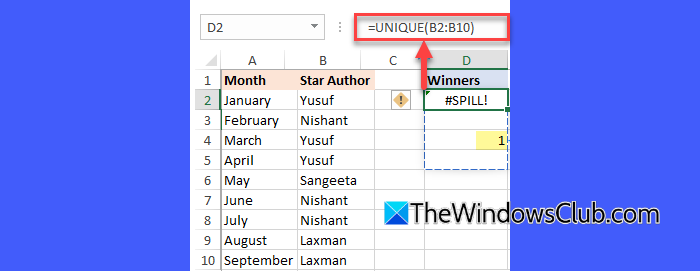
If you’re getting the #SPILL! error, use this fix.
The UNIQUE function is a dynamic array formula that requires empty cells to display its results. If any cells in the spill range are blocked (by data, hidden content, or merged cells), Excel cannot return the full output.
To fix this, click the cell containing the UNIQUE formula. Then check the highlighted spill range (dotted border) and delete any data within it. Also, unmerge any merged cells in the spill area.
2] Check your Excel version
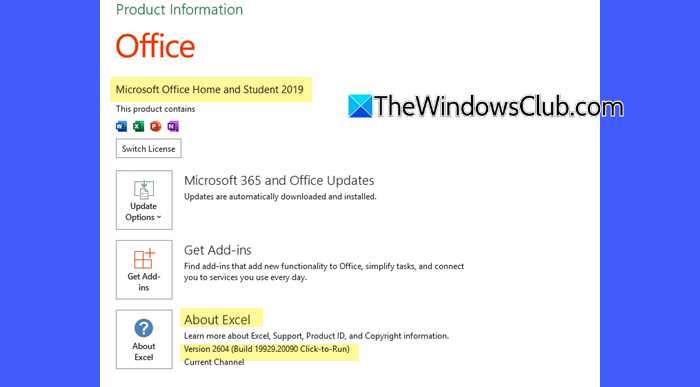
If you’re getting the #NAME? error, use this fix.
The UNIQUE function is only available in newer Excel versions. Currently, it is available in Excel 365 and 2021. If you have a different version, Excel may not recognize the function and throw the #NAME? error.
In supported versions, the #NAME? error indicates that either the function name is misspelled (e.g., UNIQE instead of UNIQUE) or the formula syntax is incorrect.
To fix this, go to File > Account. Check the Excel version you have. If it is Microsoft 365, or Excel 2021 or later, make the required syntax corrections. If it is not a supported version, either upgrade Excel or use an INDEX-MATCH-COUNTIF array formula as a workaround.
For example, if you have names in cells A2:A10 and want a list of unique names in column B, enter the following formula in cell B2:
=IFERROR(INDEX($A$2:$A$10, MATCH(0, COUNTIF($B$1:B1, $A$2:$A$10), 0)), "")
If you have an older version of Excel, press Ctrl + Shift + Enter. After that, drag the formula down to extract more unique values. Excel will return only distinct entries from the list.
However, this method is not dynamic like the UNIQUE function and may require manual updates when the source data changes.
3] Clean your data
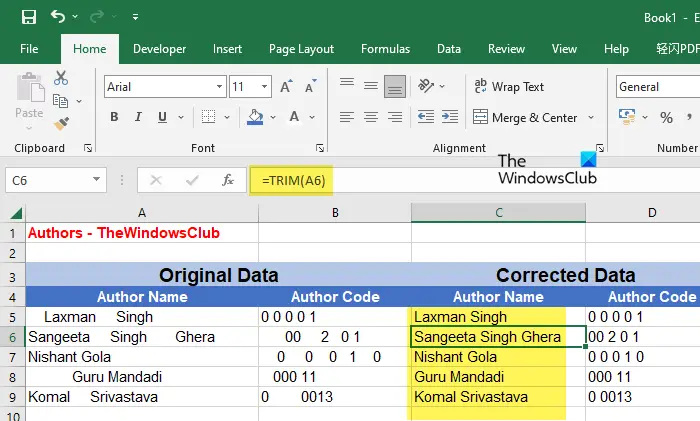
If the data is imported from external sources or copied from the web, it may contain hidden spaces, non-printable characters, or inconsistent formatting, such as numbers stored as text. Because of this, Microsoft Excel treats them as separate entries instead of duplicates.
To fix this, use helper functions like TRIM() and CLEAN(). This will remove extra spaces and unwanted characters from your dataset. Then copy the cleaned results and paste them back as values. Once done, reapply the UNIQUE function.
4] Set calculation mode to Automatic
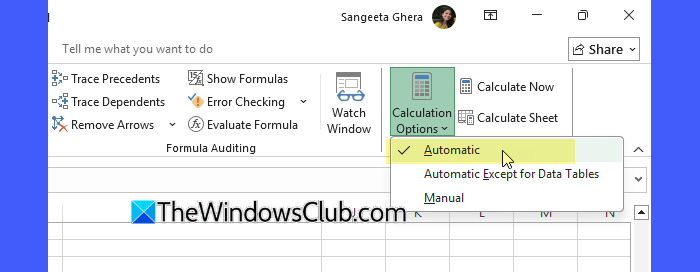
If the UNIQUE function does not update when the source data changes, the calculation mode may be set to Manual. In Microsoft Excel, formulas recalculate automatically by default. However, if the workbook is set to Manual calculation mode, the UNIQUE function will not refresh unless you force a recalculation.
Go to the Formulas tab, click Calculation Options, then select Automatic. After that, press F9 (or reopen the workbook) to recalculate formulas.
5] Avoid using UNIQUE inside Excel Tables
If your data is inside a table, move the UNIQUE formula outside the table or convert the table to a normal range.
Tables expect one result per row, but the UNIQUE function tries to return multiple results at once. Because of this mismatch, the formula may not work properly.
Click outside the table (any empty cell). Enter your UNIQUE formula there. It will work normally.
Alternatively, click anywhere inside the table. Go to Table Design > Convert to Range. Click Yes. Now use the UNIQUE formula again.
I hope this helps.
Read: Useful Excel Accounting Functions you should know.
Why is UNIQUE not showing in Excel?
The UNIQUE function may not appear in Microsoft Excel if you are using an older version, such as Excel 2016 or 2019. UNIQUE is only available in Microsoft 365 and Excel 2021 or later. It may also not work if the function name is misspelled or the workbook is in compatibility mode (.xls).
Why can’t I use unique in a table?
You can use UNIQUE with table data, but not inside an Excel Table. Tables are designed to return one value per row, while UNIQUE returns multiple results (spill range). Because of this, the formula may not work or behave incorrectly within a table.
Read Next: How to delete Duplicate Rows in Excel and Google Sheets.
