
If you have a remote computer and want to transfer files to and from Remote Desktop in Windows 11 or Windows 10, here is how. This step-by-step guide helps you access local resources. To transfer files to and from Remote Desktop in Windows 11 and Windows 10, use Devices and Resources in a Remote Desktop session. This guide helps you set things up so you can transfer files to and from your computer.
How to Transfer Files to and from Remote Desktop in Windows 11
To transfer files to and from Remote Desktop in Windows 11/10, follow these steps:
- Search for remote desktop connections in the Taskbar search box.
- Click on the search result.
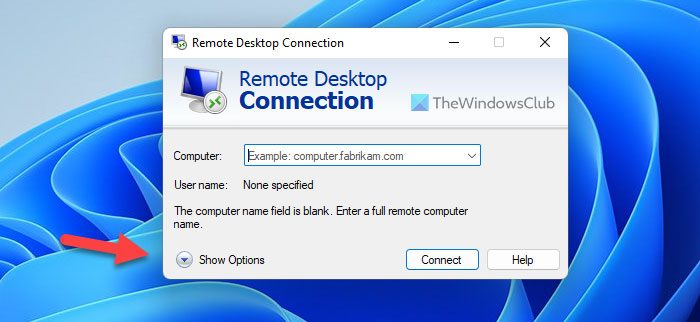
- Click on the Show Options.
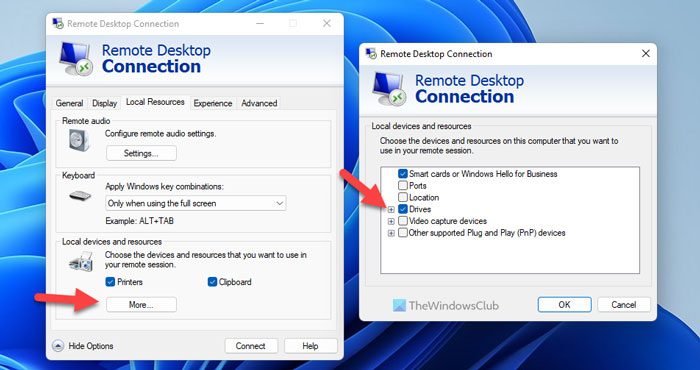
- Switch to the Local Resources tab.
- Click on the More button.
- Tick the Drives checkbox.
- Click the OK button.
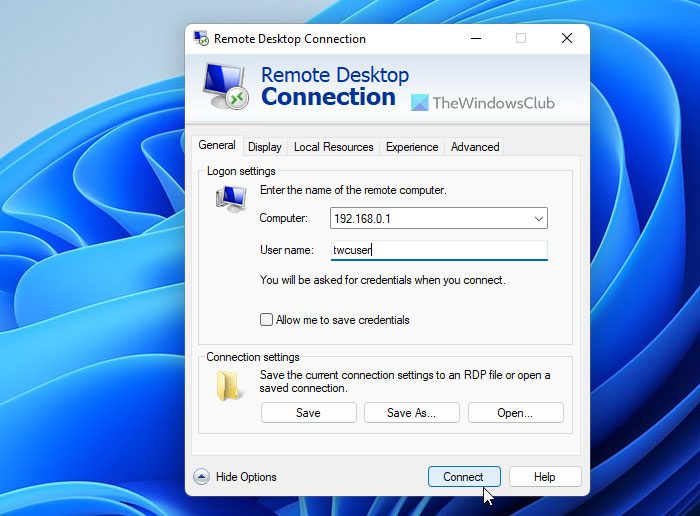
- Go to the General tab.
- Enter the IP address and user name.
- Click the Connect button.
- Open the File Explorer to find the drive.
To learn more about these steps, continue reading.
To get started, you need to open the Remote Desktop Connection panel first. For that, search for remote desktop connection in the Taskbar search box and click on the individual search result.
Once it opens, click Show Options and switch to the Local Resources tab.
Following that, head to the Local devices and resources section and click on the More button. Next, tick the Drives checkbox. From here, you can also select a specific drive. For that, expand the Drives section and choose the drive you want to share in the Remote Desktop session.
Once done, click the OK button and go to the General tab. Here you need to enter the Logon settings. In other words, enter the IP address and username.
Once you click the Connect button, you can open File Explorer and find the drives under the Redirected drives and folders section.
You can copy any file to this folder to share it with the remote user. Similarly, if you want to transfer a file from another Remote Desktop computer to your computer, you need to perform the same steps on that remote computer.
How do I transfer files from Remote Desktop to Windows 11 locally?
To transfer files from Remote Desktop to Windows 11 or Windows 10, follow the guide above. As said earlier, you need to use Local devices and resources. We recommend following the entire guide mentioned here to complete the transfer.
How do I transfer files from Remote Desktop to my computer?
To transfer files from a Remote Desktop to your computer, you can follow this article. Here is how to transfer any file to or from Remote Desktop. Whether you use Windows 11 or Windows 10, the process is the same on both versions.
Read:
