
In this post, we have covered some best free tools for typing practice for kids on Windows 11/10. These tools help kids practice and learn touch typing through a step-by-step process in a fun, easy way. They can start with basic keystrokes and then type short words to build muscle memory. Once they memorize the key locations, they can keep improving their typing skills, including speed (WPM or Words Per Minute) and accuracy.
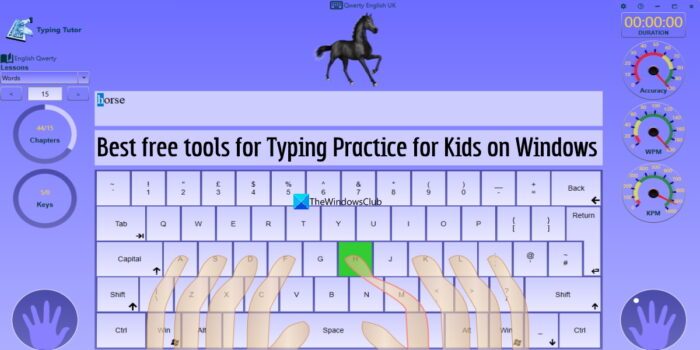
An easy-to-understand interface, a simple typing guide, learning lessons, and other options help kids learn and practice typing. While there are many good free typing software for Windows also available, the tools covered in this list are especially there to let children build their typing skills and practice typing altogether.
Best free tools for Typing Practice for Kids on Windows 11/10
This list includes free software, services, and Microsoft Store app(s) for typing practice for kids on Windows 11/10. Included tools are:
- TurtleDiary
- KidzType
- Easy Typing for Kids
- Kiran’s Typing Tutor
- Tux Typing.
Let’s check all these typing practice tools for kids.
1] TurtleDiary
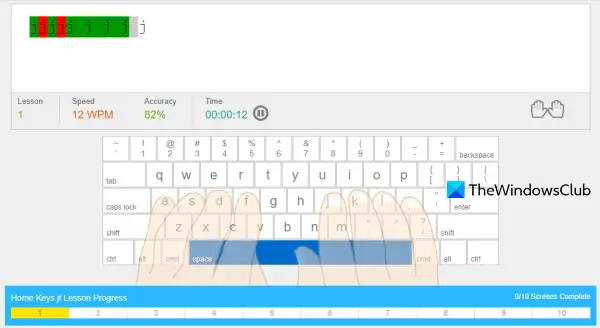
TurtleDiary is a free service that provides a separate section for typing practice for kids. You can use it without any sign-up. Kids can also sign up for free to save and track their typing progress and more. A typing games section is also there for practice and improving typing.
It comes with Beginner, Intermediate, and Advanced typing lessons. At the beginner level, there are 25 lessons where kids can practice typing home row and keys, top row, bottom row, mixed keys, number keys, and number row. In each lesson, kids can check their speed, accuracy, and time taken to complete it. A keyboard layout is also provided to help kids place their fingers correctly and type the keys shown in the lesson.
Once they are experts in the Beginner level, they can move to the Intermediate level, where kids can learn typing, practice typing home row along with the Shift key (for uppercase and lowercase use), bottom row, Math keys, type symbols with the Shift key, simple punctuation, short paragraphs, etc. A total of 9 lessons are available at this level.
When the kids have mastered both levels, they can proceed with the Advanced level where they can practice typing with different typing goals such as practice goals 28 WPM, 36 WPM, 50 WPS, etc. This level includes 17 lessons and each lesson is set or designed for a different practice goal. So, the difficulty level, paragraph, and paragraph length will vary accordingly.
If you want to use this online typing practice tool for your kid(s), you can access it from turtlediary.com.
2] KidzType
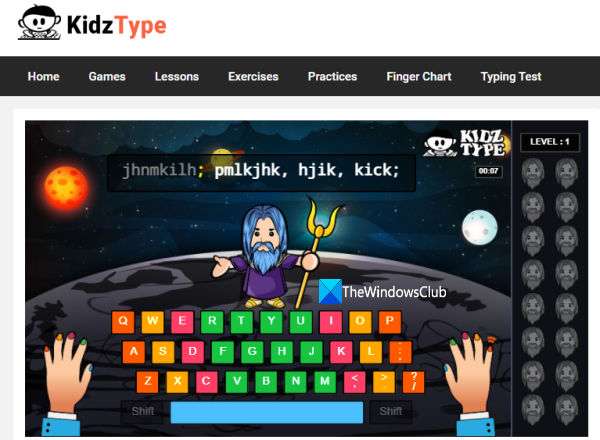
KidzType is also an online platform for typing practice for kids that you can use without creating an account. It comes with Dance Math Typing where there are four levels and each level contains 3 different stages to help kids learn touch typing.
In addition, there is a Games section with 25+ typing games that kids can choose and play as they wish. Some other sections or categories are also present which include:
- Lessons: Use this section to access number row lessons, home row lessons, keyboard symbol lessons, shift keys lessons, etc.
- Typing Exercises
- Practices section where you can access home row practice lessons, start sentence practice, and paragraph practice.
A Finger Chart section also provides a clear keyboard layout, correct sitting posture, home row keys and finger-placement images, and more.
And, when you have practiced and understood enough, you can also go to the Typing Test section to take a 1-minute test, 3-minute test, or 5 minutes test and check your typing skills. If you are interested in using this online typing practice tool for your kids, you can jump to its homepage via kidztype.com.
3] Easy Typing for Kids
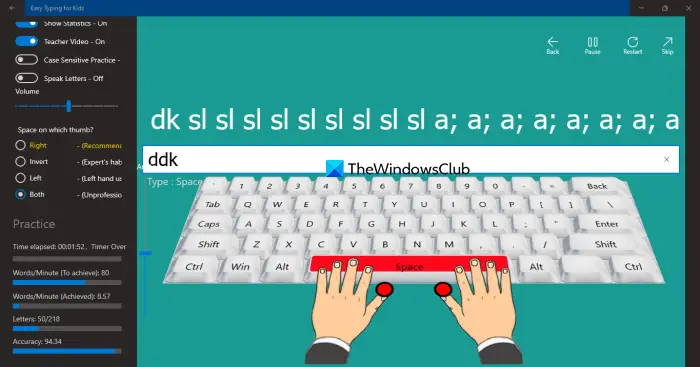
Easy Typing for Kids is a free Microsoft Store app for Windows 11/10. This typing practice for kids’ app comes with 18+ themes that you can apply and change anytime. A finger position guide with a figure/image is also available that kids can check before practicing typing.
This Windows 11/10 app comes with 200 practice lessons. Here, the most interesting thing is that you can’t jump to any practice lesson or skip a lesson. You have to complete the previous lesson in order to access the next lesson so that typing practice can be done in an appropriate manner.
This app also includes some interesting features that you can enable or disable after accessing a practice lesson. Available features are:
- Pause/resume and restart the practice lesson
- Speak letters: It is helpful to listen to the next letter/key that needs to be pressed. The feature is good, but it should be used only at the start of a lesson or for a few letters. If the kid waits for the letter to be spoken, it will slow down the typing speed for sure. It is good to murmur or read letters by yourself, which will improve typing and speed up practice
- Type automatically: As the name indicates, it automatically types the letters and speaks them. Again, this feature is helpful for demos or previews, but not for regular use. So, you should keep this feature turned off
- Adjust the volume level
- Distraction-free mode to practice typing in full-screen mode. You should turn on this option so that the app can be used comfortably
- Turn on/off case-sensitive typing. If Caps Lock is on and you type a capital letter instead of a small letter, then it will be considered a mistake and your typing practice will not progress
- Show/hide statistics. This feature is handy for checking typing speed (WPM), accuracy, the number of typed letters, and the remaining letters to type, etc.
To use this app, install it from apps.microsoft.com. Open the app interface, select a theme, add a name, etc., and then use the Start Practice button for the first lesson.
The top of the practice lesson shows letters, a keyboard layout (whose angle you can adjust with a slider), and options you can set as needed. Once everything is ready, type the letters, complete the lesson, check stats and improve them, move to the next lesson or level, and repeat.
Related: 10 best Family and Kids games for Windows PC
4] Kiran’s Typing Tutor
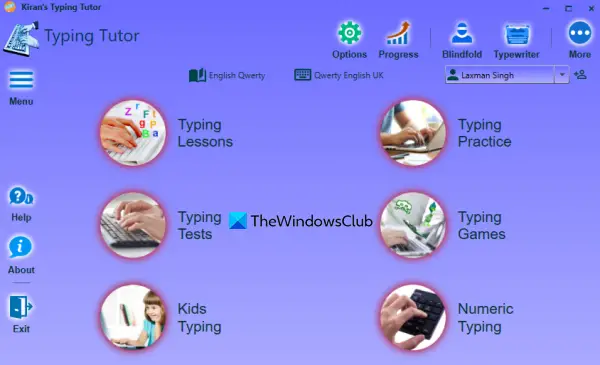
Kiran’s Typing Tutor is one of the best options on this list that provides 500+ typing lessons in total. This free Windows 11/10 software has a beautiful, self-explanatory interface and can be used for typing practice for kids and elders. Even I learned touch typing using this tool and therefore it is one of my favorite typing practice tools.
It comes with 6 different sections that help kids and elders learn everything related to typing and become masters with improved typing skills. Available sections are:
- Typing Lessons: Here, you will learn about the benefits, requirements of touch typing, keyboard history, basics of keyboard, keys and fingers placement, and get lessons related to basic keyboarding so that you can start practicing and memorizing keys
- Typing Practice: This is one of the important sections of this tool. Once your typing lessons are completed, you can use this section to begin typing practice for number keys, upper keys, lower keys, home row, etc. You will get random letters for typing in a lesson, a keyboard layout that provides finger preview, key press, and key preview features to help you know which finger to use to press what key, etc.
- Typing Tests: This section provides different and random typing tests/lessons for practice. You can select paragraphs, sentences, accounts, or coding options for getting typing lessons
- Typing Games: In this section, four different games (Duckling, Jets, Balloons, and Invaders) are available to choose from. For the selected game type, you can set simple words or single letters option and start the game
- Kids Typing: Here, 5 different types of lessons (Numbers, Colors, Small Letters, Capital Letters, and Words) are available to choose from. This section is pretty helpful for kids in the age group of 4 to 8 years
- Numeric Typing: This section is helpful to practice typing number keys or numeric keys present in the Number Pad (or Numpad).
To use this software, you can download its installer from kiranreddys.com. Its Microsoft Store app is also available if you don’t want to use the software version.
Open the software interface and all the sections will be in front of you. You can explore those sections and also customize the settings of this tool to toggle typing sound, key highlights, keyboard colors, error sound, speak-type instruction, and more.
Many other features like blindfold typing, checking typing progress, getting typing certificate, etc., are also available to use. It offers plenty to do, making it a strong option.
5] Tux Typing
Tux Typing is open-source software for Windows 11/10 that comes with typing games for kids. There are two games mainly (Fish Cascade and Comet Zap) where children need to type the upcoming letters before they reach the end. The letters appear slowly so the child has enough time to type them in the order they arrive. This way, kids can memorize letter placement on the keyboard and learn new words (based on the game).
The game part is definitely interesting and useful, but mainly when kids already have a basic knowledge of keyboard keys and where to place their fingers. If you want them to practice typing, then you need to access the Lessons menu where 8 pre-added lessons are present.
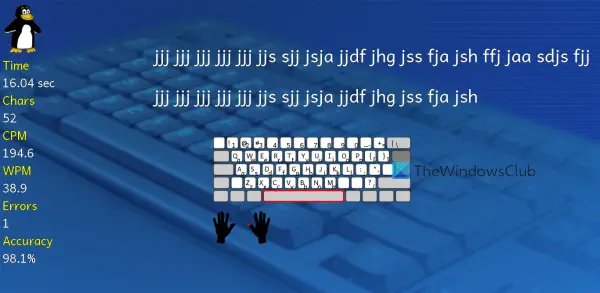
Kids can access a lesson and type the letters in the order shown in the lesson. For a lesson, typing stats (time taken, characters typed, accuracy, number of errors, WPM, and CPM (Characters Per Minute), etc.) are also visible in real time on the left side.
This tool also includes other useful features. Features such as phrase typing, adding a new word list, editing a word list, etc., are present that can be used as per the requirements.
If you are ready to give it a try, then you can grab it from tux4kids.com.
Hope these are helpful.
Read: Best e-Learning Apps, Websites & Tools to educate Kids at Home
What is the best free typing program for kids?
The list of free typing programs for kids is huge. But the best typing program is one that helps your kids learn and improve typing more easily and in less time. A friendly interface, typing guide, typing lessons, and other features make it a better typing practice or typing tutor program. With that in mind, we created a list of the best free Windows 11/10 tools for typing practice for kids. Check them out in the post.
How can I help my child practice typing?
There are some free and very useful websites, freeware, and Microsoft Store apps that can help your child practice typing. These include TurtleDiary, Kiran’s Typing Tutor, Easy Typing for Kids, and more. This post covers all these options. Your kid can learn and improve typing with basic lessons, instructions, progress tracking and more.
Read next: Teach Kids to Code using these Tools and Programs from Microsoft.
