
Steam users have experienced a lot of error codes on Steam. Two of many Steam errors include error codes 102 and 137. If you are facing any of these error codes, this article is your stop. Here, we are going to discuss methods that will enable you to resolve these errors on your Windows 11/10 PC.
What is Steam Error Code 102?
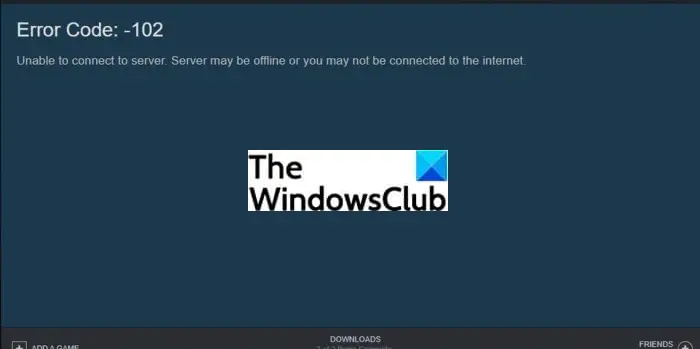
The error code 102 on Steam is a connection error that some users have experienced during scenarios like accessing the Steam community tab, etc. When triggered, it prompts the following error message:
Error Code: 102
Unable to connect to server. Server may be offline or you may not be connected to the internet.
As mentioned in the error message, there are two main reasons for this error code. Either the server is down or offline or you are not connected to a proper and stable internet. Now, if you are getting this error code on Steam, we will list down some tips that you can follow to fix it up. Let us check out now!
How to Fix Steam Error Code 102 on Windows PC
Here are the fixes that you can try to resolve Steam error code 102:
- Check whether you are connected to stable internet.
- Make sure the server is not down.
1] Check whether you are connected to a stable internet
The first thing you should do is ensure that you are connected to a stable and reliable network. If there are network or connection issues, troubleshoot the Network & Internet problems and fix them up. Additionally, you can try switching to a different network and see if the issue is resolved. If so, then the error most likely occurred due to internet issues.
Read: How to fix WiFi problems in Windows
2] Make sure the server is not down
If you are certain that there is no internet problem, there may be server issues causing error code 102 on Steam. To ensure that, check the server status using any of these free websites. Additionally, you can also try contacting Steam’s support team for more information on this matter. If indeed it is a server error, you can’t do much about it. You will have to wait until the server issues are fixed from their side.
Read: Fix Steam is having trouble connecting to Steam servers on Windows PC
What does error code 137 on Steam mean?
The error code 137 is a Steam browser error that many users have encountered. It shows a similar error message like ‘Failed to load web page (unknown error)’. This error can keep you away from accessing certain features in Steam’s browser. Now, if you are encountering this error code, you have landed on the correct page. Here, we will show you some solutions that have worked for many users to resolve the issue. But before that, let us try to understand the scenarios that usually trigger error code 137 on Steam.
What causes error code 137 on Steam?
Here are the possible causes for Steam error code 137:
- It may occur if your firewall is prohibiting the outgoing Steam connection. A lot of time such errors are a result of an overprotective third-party party firewall that you are using.
- A corrupted Steam cache can also be a reason for this error.
- Sometimes application glitches can also result in such errors.
- In case you are facing this error code only while accessing certain Community pages, you might have not registered as a Beta participant which is required.
- Other reasons for this error can be server issues and network adapter inconsistencies.
Now that you know the scenarios that trigger the error code 137, let us discuss the fixes for this error.
How to Fix Steam Error Code 137 on Windows PC
Here are the possible solutions that you can try to fix error 137 on Steam:
- Clear Steam’s Web Browser Cache.
- Refresh Network Adapter.
- Flush the DNS.
- Use Google DNS.
- Whitelist Steam on your firewall.
- Provide permissions to SteamService.exe.
- Enable Beta Participation.
Before trying the above methods, ensure that there is no server outage or other server problems. Let us now discuss the above solutions now!
1] Clear Steam’s Web Browser Cache
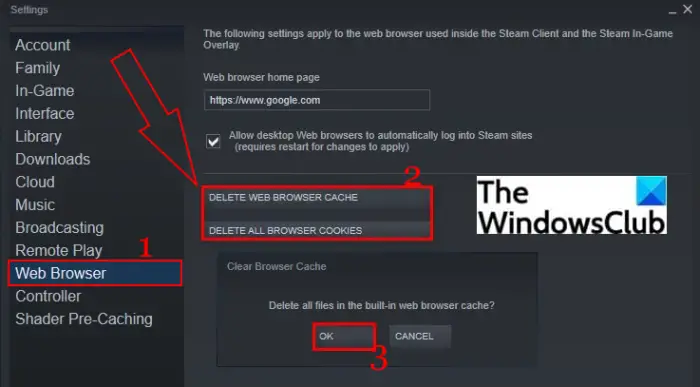
If the corrupted browser cache is the reason for this error, you need to clear Steam’s browser cache associated with your account. To do that, you can follow the below steps:
- First, launch Steam and sign in to your account.
- Now, click on the Steam option from the top toolbar and then go to Settings.
- Inside the Settings page, navigate to the Web Browser tab.
- Next, tap on the Delete Browser Cache button and press the OK button.
- When the cache is cleared, click on the Delete All Browser Cookies and tap on the OK button.
- Finally, restart the Steam client and see if the error is fixed.
2] Reset Network Adapter
Network adapter inconsistency can be another cause of this error. Hence, resetting the network adapter may fix the error for you. For that, follow the below steps:
- Firstly, open the Command Prompt with administrator privilege.
- Now, enter this command in CMD: netsh winsock reset
- When the command is fully executed, restart your PC and then check if the error is resolved.
3] Flush the DNS
Running the ipconfig /flushdns command may also help resolve this Steam browser error. So, open the Command Prompt as an administrator and then type the following command: ipconfig /flushdns. And then, press Enter and let the command execute completely until you see a message, “DNS Resolver Cache Successfully Flushed.”
You can now restart your PC, launch Steam, and verify if the error has been resolved.
4] Use Google DNS
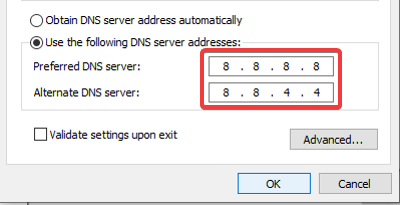
You might be able to resolve the issue by changing the default DNS settings in case network inconsistency is the cause. Change your DNS, preferably to Google DNS as a lot of affected users were able to fix this issue using it. To change your DNS to Google, here are the steps that you can follow:
- Firstly, open the Control Panel from the search bar.
- Now, click on the Network and Internet > Network and Sharing Center option.
- From here, tap on the Change adapter settings button present on the left-hand side.
- Next, right-click on your network connection and press the Properties option.
- Next, select Internet Protocol Version 4 (TCP/IPv4) and choose the Properties option.
- Then, click on the Use the following DNS server addresses option and set the Preferred DNS server to 8.8.8.8 and Alternate DNS server: 8.8.4.4
- Finally, press the OK button to save changes.
5] Whitelist Steam on your firewall
If you are using an overprotective third-party firewall, it may block the outgoing Steam connection, resulting in an error code 137. Try disabling your firewall or uninstalling it completely. If you don’t want to do that, you can add the Steam app to your firewall’s whitelist. See if this helps and fixes up the error for you.
Tip: How to allow or block a program in the Windows Firewall of Windows
6] Provide permissions to SteamService.exe
In case Windows can’t recognize the Steam client’s signature, it might start treating the Steam app like the one from unknown publishers. If this scenario fits you, you can try providing every permission to SteamService.exe. You can follow the steps below to do that:
- Firstly, open the Steam installation directory and navigate to its bin folder where you will find the steamservice.exe application.
- Now, select and right-click on steamservice.exe and then click the Properties option.
- Next, go to the Digital Signatures tab and from the Signature list section, choose Value and then press on the Details button.
- Then, in the Digital Signature Details dialog, choose the General tab and tap on View Certificate.
- After that, press the Install Certificate from the Certificate menu.
- In the Certificate Windows Wizard menu, choose Local Machine under Store Location and press Next.
- Now, enable the Automatically select the certificate store based on the type of certificate option and click on the Next > Finish button to complete Valve certificate installation.
- Finally, restart the Steam client and see if you can browse in its web browser without error code 137.
Read: Fix Steam Error Code 105, Unable to connect to the server
7] Enable Beta Participation
If you are receiving this error code on Steam especially in the Community tab, you might be able to fix it up by enabling Beta Participation. This has reportedly worked for some users and might as well for you. Here are the steps to do that:
- Firstly, open the Steam client and then click on the Stream > Settings option.
- Now, move to the Accounts tab inside the Settings page.
- Next, click on the Change button present with Beta Participation.
- On the next screen, click on the Beta Participation drop-down and select Steam Beta Update.
- Then, press the Ok button to save the changes and wait for the installation to finish.
Check if doing so helps you access Community pages.
How do I Fix Error 130 on Steam?
Error code 130 on Steam is an issue that occurs when attempting to access a web page within the Steam client. To fix it, you can try updating your network adapter driver or reinstalling the Steam client. Also, do check your internet connection.
How do I fix Error 118 on Steam?
The Steam error 118 indicates that you are unable to communicate with the Steam servers. To fix it, check out our guide, which provides various fixes for error 118 on Steam.
Now read:
