
X or Twitter is probably the most popular microblogging tool out there, used by more than 300 million people every day. Nowadays, Twitter has become a source of news for many people. Although different people use Twitter for various purposes, most users primarily utilize it to stay up-to-date with the latest news or tweets from their favorite sources.
Previously, there was no option to upload videos on Twitter. However, you can now upload 30-second videos to Twitter. Apart from that, you can use Vine as well to share videos.
However, the problem is that Twitter automatically loads the video. Whenever you see a video, simply scrolling down or up will automatically play the video.
This feature has both advantages and disadvantages. The advantage is that you will not have to click on the play button every time to watch. The disadvantage is that the video will start playing automatically. That means, if you are reading a tweet or do not want to watch the video, you will be distracted. Or, if you have a slow internet connection, your browsing or download speed will be reduced.
Stop videos from playing automatically on X or Twitter
If you want to stop videos from playing automatically on Twitter, here are two different options. The first one is a browser-based solution, and Twitter itself is offering the second one.
If you use the browser-based solution, playback of GIFs or videos will be stopped globally. That means, not only Twitter but also all the other websites like Facebook will also prevent videos from playing automatically. If you use the second solution, you will be able to block that only on Twitter.
Turn off animated GIFs autoplay
This is easy, but you will have to do that for different browsers. If you use multiple web browsers, you must block GIF/video separately. Do follow this article to turn off GIF in different popular web browsers.
Stop video autoplay via X or Twitter settings
As mentioned before, this solution works only on Twitter and the option is provided by the social network site itself. The best part is that the solution above doesn’t work in Microsoft Edge. But this method also works in that browser. Therefore, to stop videos from playing automatically on Twitter, log in to that, at first.
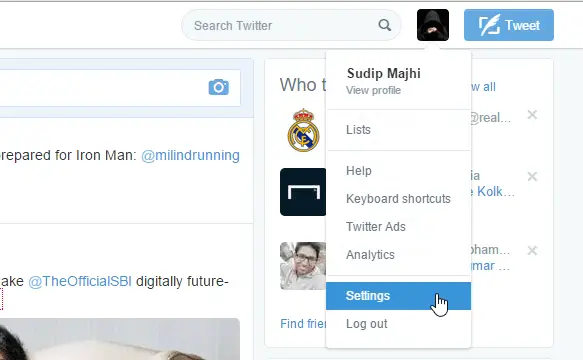
Now, click on your Profile button and select Settings.
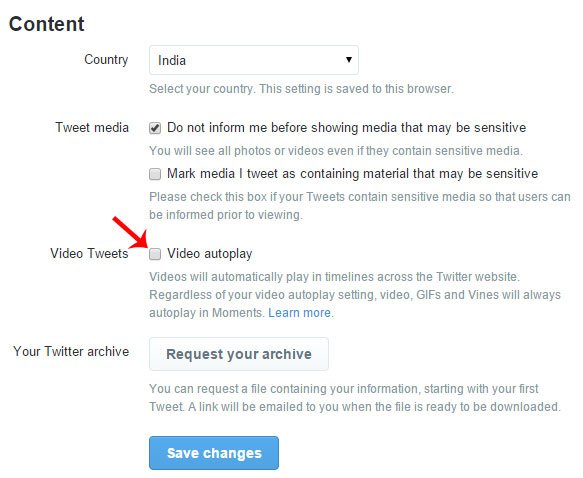
Under the Account settings, you can find an option called Video Tweets. Just remove the tick from the checkbox of Video autoplay and save changes.
Now, you will have to enter your password to get things done.
This post will show you how to stop videos from playing automatically on websites including Facebook.
Stay in touch with TheWindowsClub on X (Twitter) – stay in touch with the latest in the world of Windows!
