
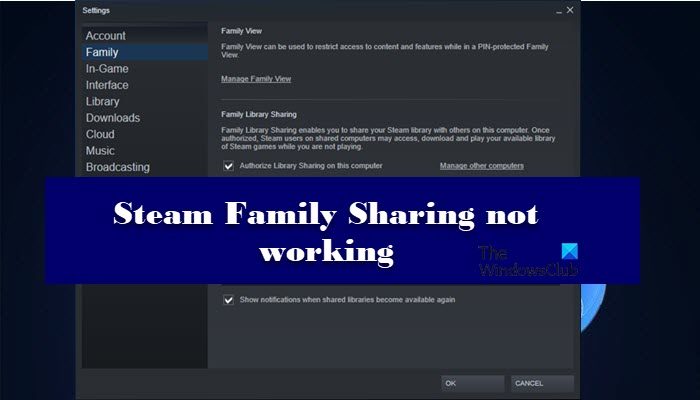
Steam Family Sharing is a great way to share your libraries with your friends and your family. However, many users have recently reported that Steam Family Sharing is not working. In this post, we will see how to resolve the issue with some simple solutions.
Why can’t I share my Library on Steam?
When you use Family Sharing on Steam, you can share the Library with 5 accounts that can be accessed on 10 systems. But, no more than one user can play the game using the Library at a time. So, if your friend is playing the game, you have to wait for them to finish before hopping on your controllers.
Also, to access the Library, you need to obtain permission from the owner for both the account and the device on which you are running. They will use Email to carry out the authentication process and once it’s done, you will be good to go. This is one of the sections, where users fail to fathom and end up failing to access the Library. You can also face the issue if you have reinstalled Steam. That’s because Steam sometimes revokes permission for that system. So, you should retry connecting to the base network or to the owner of the Library.
Another thing to realize is that not all games support Family Sharing. So, you should do a bit of research to find out whether the game you want to share supports the feature.
There are some other reasons as well, such as corrupted game or system files, Windows firewall misidentifying Steam as a virus, etc. We are going to see all the solutions you need to resolve the issue in this article.
Steam Family Sharing not working
If Steam Family Sharing is not working, use the following solutions to fix the issue:
- Re-Authorize Shared Library
- Check if the game supports sharing
- Fi Corrupted Game
- Run SFC
- Allow Steam through Firewall
Let us talk about them in detail.
1] Re-Authorize Shared Library
First of all, you should de-authorize and re-authorize as the issue can be because of a glitch.
To do that, the owner of the Library will go to the Device Management page and then Manage Family Library Sharing. Now, they have to remove the account that’s in trouble.

Then the problematic computer has to send a request to join in. Once the request is accepted, you will be good to go.
2] Check if the game supports sharing
As mentioned earlier, not all games support Family Sharing. So, check whether the game supports sharing or not. You can search it online to know the same. If it does not support, then there is nothing we can do, if it does support, and you are seeing the error in question, then check the next solution.
3] Fix Corrupted Game
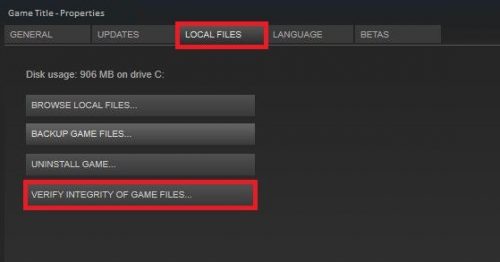
You can use the Steam client app to replace corrupted Game files with good ones. Follow the given steps to do the same.
- Open Steam.
- Go to LIBRARY.
- Right-click on the game and select Properties.
- Then go to LOCAL FILES and click VERIFY INTEGRITY OF GAME FILES.
Finally, check if the issue persists.
4] Run SFC
Your system files can get corrupted, causing the issue in question. Various reasons can make system files corrupt. You can fix them by running the SFC command. Open Command Prompt as an administrator and run the following command.
sfc /scannow
Wait for the process to complete and your issue will be resolved.
5] Allow Steam through Firewall
Sometimes, Windows Firewall or your antivirus can block Steam. They don’t usually do it, but sometimes, by mistake, they can block the functioning of your Steam. In that case, you should allow the Steam client app through Firewall. Follow the given steps to do the same.
- Search out “Windows Security” from the Start Menu.
- Go to Firewall & network protection.
- Click Allow an app through firewall.
- Then allow Steam through both Public and Private networks.
Finally, restart your computer and check if the issue persists.
Hopefully, you can resolve the issue with the solutions mentioned in this article.
Does Steam Family Sharing expire?
Yes, there are some constraints in the Steam Family Sharing feature. You can allow up to 5 users to be connected to 10 devices for a period of 90 days. Now, to add another user, you have to remove a link, wait for the cooldown period to expire, which is 90 days. And only then can you add another account.
Also Check:
