
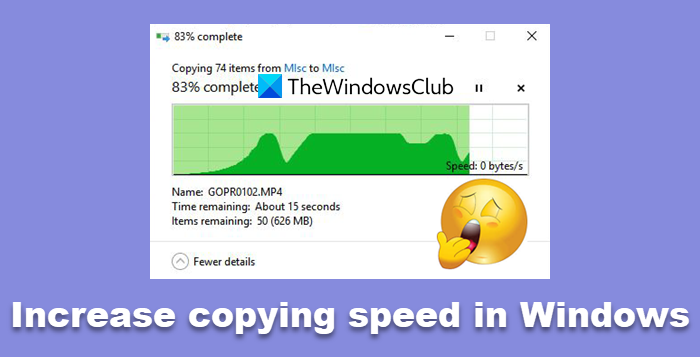
We copy and move a lot of files around on our computer. And most of the copying takes place to and from external devices. If due to some issues, you face slow copy or move speed, then this post may help you increase copying speeds on your PC. Well, this is a common issue some solutions are available for this. In this post, we’ve tried to address this issue by providing suggestions to increase copy-paste speed in Windows 11/10. You can see what works best for you.
Fix Slow file copy speed in Windows 11/10
How to increase copying speed in Windows 11/10
1] Try changing the USB Port
Modern computers have a variety of USB ports. So, if your USB drive supports USB 3.0/3.1, make sure you plug it into a USB 3.0/3.1 port. A USB 3 port is usually blue, or you can refer to your computer’s documentation to locate it. Switching ports would drastically improve copy speeds, making it the first thing to try when speeding up the entire copying or moving process.
2] Update USB Drivers
Slow copy speeds can also be a side-effect of faulty drivers. Given the numerous devices and corresponding drivers available, it is not difficult to install the wrong drivers. So, you can easily update the drivers by visiting your PC’s manufacturer’s website. The drivers can be found under the support section. Make sure you download and install the latest USB drivers. This would also resolve some other minor issues that you might be facing while using USB drives on your computer.
Read: Increase Data Transfer Speed in External Hard Drive
3] Fix Errors with Hard Drive
It might be a good idea to check your hard disk or external drive for errors by following these steps:
Open This PC. Right-Click the desired external drive and select Properties.
Go to the Tools tab and click on the Check button under Error Checking.
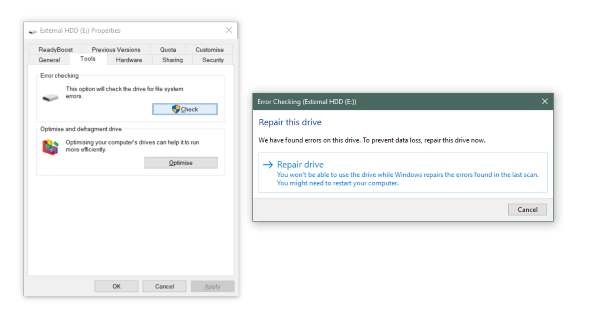
This will scan your drive for any errors and provide an option to fix them. Go ahead, fix all these errors, and check if the copy speed has improved or not. Again, following this solution will also fix many other small issues with your drive.
4] Format the Drive
Well, this solution has been known to work for some. Reformat your external drive in the NTFS format instead of FAT32. To format your drive to NTFS, follow these steps:
Take a backup of your data on the drive. Right-click and select Format from the menu.
Select NTFS as the file format and disable Quick Format.
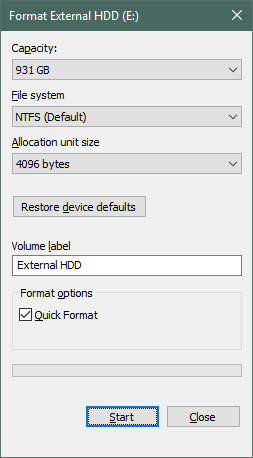
This will ensure that your drive is totally clean and free from all errors.
5] Disable Window Auto Tuning
Window Auto-Tuning feature is said to improve the performance for programs that receive TCP data over a network by dynamically adjusting the receive buffer size to the throughput and latency of the link. So, if you are copying some data over the network, the autotuning feature is playing a role here. And in some cases, completely disabling Windows Auto Tuning feature has resulted in faster copy speeds over the network.
However, you should know that Microsoft has published a statement stating that disabling Auto-Tuning may limit your internet speeds. The feature is consistent across all modern operating systems, not just Windows.
If disabling Auto Tuning did not help, make sure you switch it back to normal mode.
6] Change USB Removal Policy
Plug in your USB or external hard drive to your Windows computer. Open Computer folder, right-click on the device, and select Properties. Next, select the Hardware tab. Here, select the storage media that you want to make faster, and then click on the Properties button.
If you want better performance from your USB device, you can select the Better performance option. When this is selected, it enables write caching in Windows, but you have to use the Safely Remove Hardware option from the notification area, to disconnect the device safely, else it may result in data corruption.
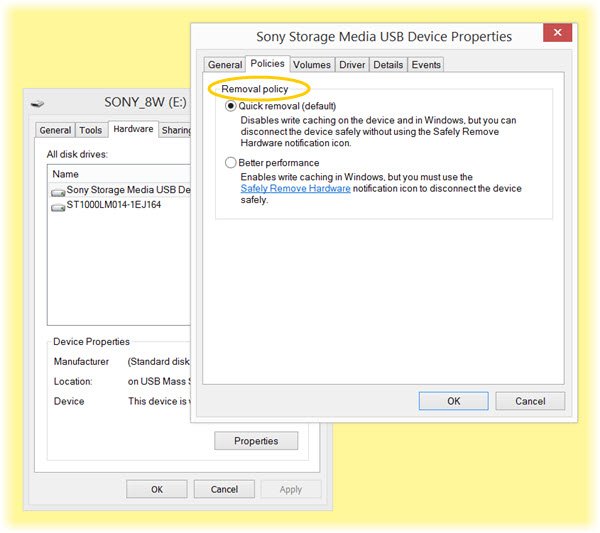
Windows, by default, disables write caching on your USB drive so that you can unplug it whenever you want. You can enable write caching to improve the performance of the device. But you must make sure that you always use the Safely Remove Hardware option from the system tray. If you have write caching enabled and did not safely remove the device, it may result in data corruption. Read here about how to change the Removal Policy of an external USB drive.
7] Use alternative file copy software
There are many good free file copy software that you can use. You can also use the built-in Robocopy Tool. It is a robust, flexible, configurable tool, with over 80 switches. It can handle any batch or synchronous copy.
Read: Play Lunar Lander game in Windows Copy dialog box
Let us know if you have any other ideas.
Why is Windows copying files so slowly?
File copying in Windows can be slow due to storage limitations, outdated drivers, or network issues. Optimize speed by updating your storage drivers, performing disk cleanup, and checking network connections.
What is the fastest file copier for Windows?
TeraCopy and FastCopy are considered the fastest file copier software for Windows. It utilizes multi-threading for efficient Read/Write operations and supports file pathnames over 260 characters.
