
Xbox allows you to record game clips. These game clips were restricted to be shared only on Xbox Live Feed. This recently changed; thanks for the Xbox Fan feedback. Before this, the only way was to use the Xbox Live App on a PC to download game clips and then save it on your phone. Post this; the clips will be available for sharing.
Share Xbox game clips to social networks
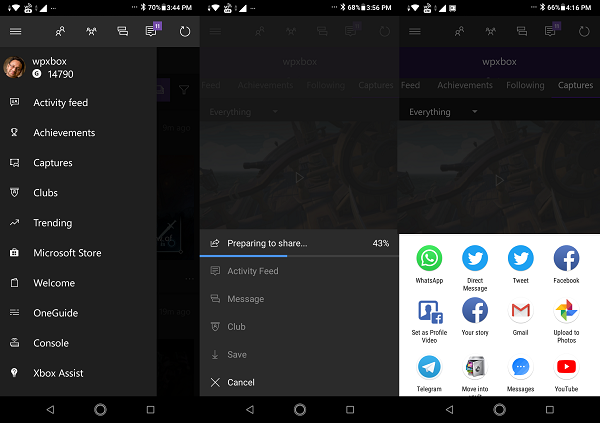
The Xbox App is available on both Android and iOS. It only made sense for the app to enable direct sharing on favorite social networks like X, Instagram, or Facebook. The recent Xbox App has enabled that feature. Here is how you can do it.
- Open the Xbox App, and sign in with your Microsoft account. It must be the same account you use in the Xbox App.
- Tap on the menu bar(three horizontal lines), and tap on the Captures section. It will list all the clips which you have uploaded to Xbox Live. So the only condition is that those clips are available on Xbox Live.
- All your clips will have a share icon action button. Tap on it, and then tap on “Share to.”
- It will first download the clip and then open the share menu.
- Select an app or social network, and it will be uploaded as a simple video or image file.
It’s a simple, much-needed and fantastic feature that has finally arrived. However, the function doesn’t offer a smooth experience. The downloads take a long time, and if your phone’s display times out, you will need to redownload it. If you plan to share the same video again, it will redownload it again. It’s not the kind of user experience one wants.
The same applies when you plan to share to multiple networks one by one. It is best that you download the video on your phone and then share it wherever you wish to until they improve the performance.
How do you like using this feature?
Read: How to Capture, edit, share, delete, and manage Game Clips on Xbox One.
