
Sending large files to business associates, families, and even friends can be a huge problem because not every service supports sharing files under 10GB, which can be a problem for some. The issue is, then, what are the best ways to get this done, taking all things into account? Well, the web is filled with apps for this purpose, but today we’re focusing on a free Windows tool called Send Anywhere.
What we have here is an app designed for sending files of any size across multiple platforms. With Send Anywhere, any Windows desktop user can send files to folks on Android, iOS, Amazon Kindle, Mac, Linux, and other platforms using a Windows PC. There’s even an add-in for MS Outlook and Outlook 365, so wherever you spend most of your time, Send Anywhere is readily available to you.
It should be noted that Send Anywhere free version supports a maximum file size of 10GB. If you’re looking to send more, the free version isn’t the tool you should be using right now.
Share or transfer files from PC to Phone
The first step is to download the tool, install it, then prepare to send your file to anyone you want. Make sure they have Send Anywhere installed on their systems as well, for only then will you gain the mighty power to send files. We will take a look at the following functions:
- Send Files
- Receive Files
- Settings.
1] Send Files
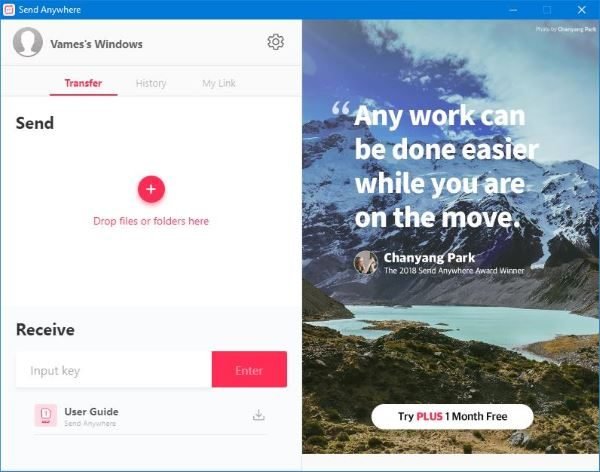
To send files to anyone, simply fire up the tool and click on the red plus sign button. Alternatively, you could drag and drop the files in the available space. Once that is done, copy the special numeric code and send it to the receiving party.
If that’s not your thing, then copy the unique link for them to use. Bear in mind that the numerical code expires in 10 minutes, while the regular shareable link expires in 48-hours, so keep that in mind before moving forward.
2] Receive Files
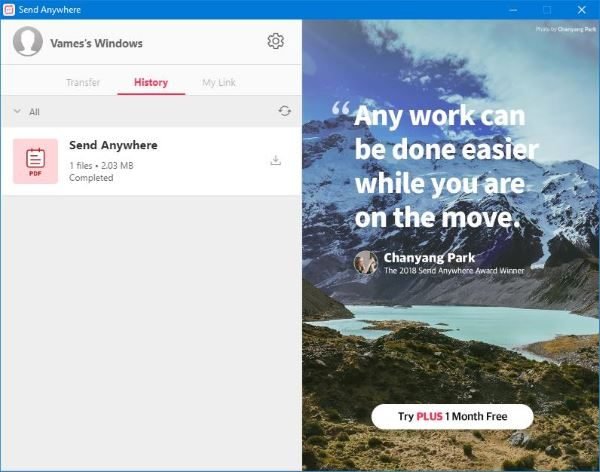
Receiving a file is easy. Simply copy the code given to you by the sender who is also using Send Anywhere, then paste it in the Receive box. Now, hit the Enter button and follow the instructions from there.
3] Settings
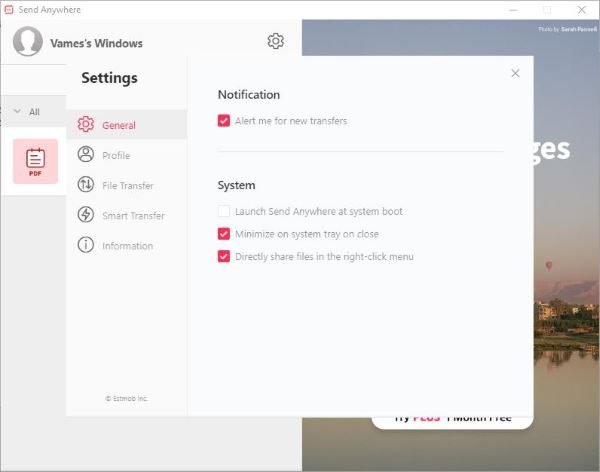
When it comes to Settings, just click the gear icon. Here, users will find several options to improve the tool. For example, it’s possible to get an alert for new transfers and share files from the right-click menu.
Additionally, this is where users can sign up for the service to track files sent to third parties. Furthermore, we like the Smart Transfer feature because it ensures the download continues at a reasonable speed if the server is running slowly due to heavy traffic.
Send Anywhere for PC download
Basically, it uses P2P transmission in addition to the server to maintain relatively fast speeds. Download Send Anywhere right now directly from the official website.
