
If you are trying to set a screen saver on your computer, but the Screen saver settings are greyed out in Windows 11/10, then this post will show you how to fix it. When this happens, you might not be able to set any screen saver, preview the screen saver, or make other changes related to the screen saver.
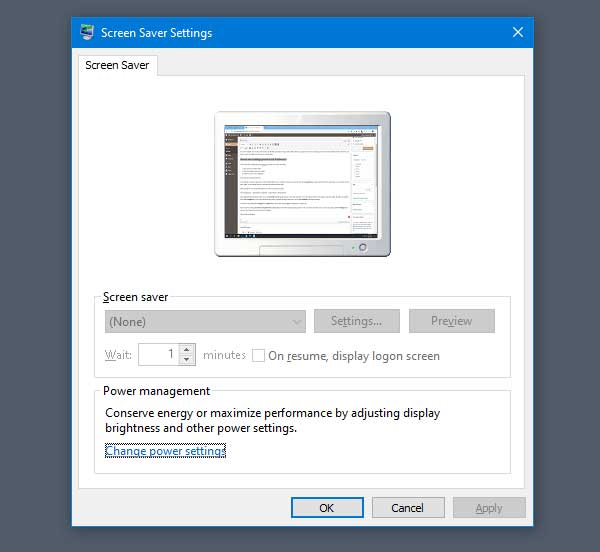
If you have multiple user accounts and someone has disabled a particular setting in Group Policy Editor, you might not be able to use the Screen Saver settings window. Therefore, you need to revert the change to get the options working again.
TIP: See this post if Screensaver is not working.
Screen saver settings greyed out in Windows 11/10
To fix the issue where your screen saver settings are greyed out in Windows 11/10, follow these steps.
Open the Local Group Policy Editor on your computer. To do this, press Win+R, type gpedit.msc, and then press Enter. Alternatively, you can search “group policy editor” in the Taskbar search box, and click the respective search result.
After opening the Local Group Policy Editor, you need to navigate to this path:
User Configuration > Administrative Templates > Control Panel > Personalization
After clicking the Personalization folder, you will find Enable screen saver settings on your right-hand side. You need to double-click on this setting to make the change.
By default, it should be set to Not Configured. As your Screen Saver Settings window’s options are already greyed out, you may find it set to Disabled.
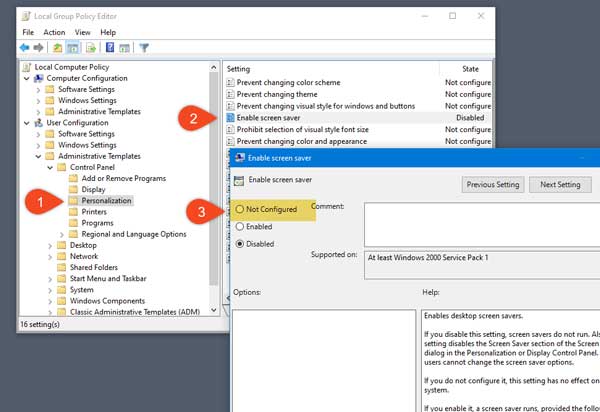
You need to select either Not Configured or Enabled from the list and click the Apply and OK buttons.
If the above-mentioned change doesn’t work, you need to check the Password protect the screen saver setting too. In this case, make sure Not Configured is selected. If not, choose this option and save the change. Also ensure that Force a specific screen saver policy to set to Disabled or Not Configured.
If your Windows does not support the Group Policy Editor, then use the Registry Editor.
Open REGEDIT and navigate to the following key:
HKEY_CURRENT_USER\Software\Policies\Microsoft\Windows\Control Panel\Desktop
If you see any of these keys on the right side, delete them:
- SCRNSAVE.EXE
- ScreenSaverIsSecure
- ScreenSaveTimeout
Restart your computer and see.
Hope this helps.
Related read: How to prevent Users from changing the Screensaver in Windows.
