
You may have noticed right margin changes randomly in a Word document. This can be frustrating but usually stems from specific formatting elements or settings and can be resolved. In this post, we will discuss this issue and explore potential solutions to resolve it.
Right margin changes randomly in Word document
Word doesn’t actually change the page margin randomly. Instead, the appearance of the right margin (where text lines end) shifts due to formatting applied to paragraphs, sections, or objects within the text flow. To resolve the issue, you can follow the solutions mentioned below.
- View hidden formatting marks
- Adjust text wrapping
- Check Hyphenation
- Use Ruler
Let us talk about them in detail.
1] View hidden formatting marks
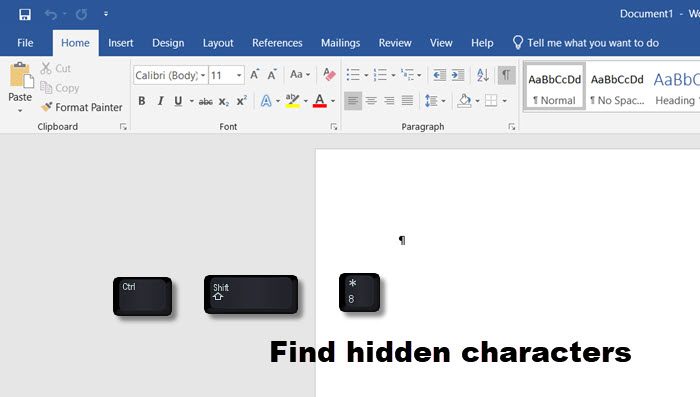
Random right margin shifts in Word occur when hidden formatting marks disrupt the text flow. Manual line breaks (created with Shift+Enter) force text to a new line without resetting paragraph formatting, causing inconsistent indentation. Tab characters push text unexpectedly sideways, creating irregular alignments. Section breaks divide documents into segments with independent margin settings, making text appear to jump positions when sections change.
Therefore, we recommend that you follow the steps mentioned below.
- First of all, hit Ctrl + Shift + 8 or click the ¶ icon in the Paragraph group on the Home tab.
- Scan the text near the shifted margin for these symbols:
- → (Right-pointing arrow) means Tab character.
- ↵ (Bent arrow) means a Manual Line Break (Shift+Enter).
- Dotted Line + Section Break marks a section boundary (e.g., Section Break (Next Page)).
- Now, you need to remove these symbols.
If the random margins are due to hidden formatting, this will do the trick for you.
2] Adjust text wrapping
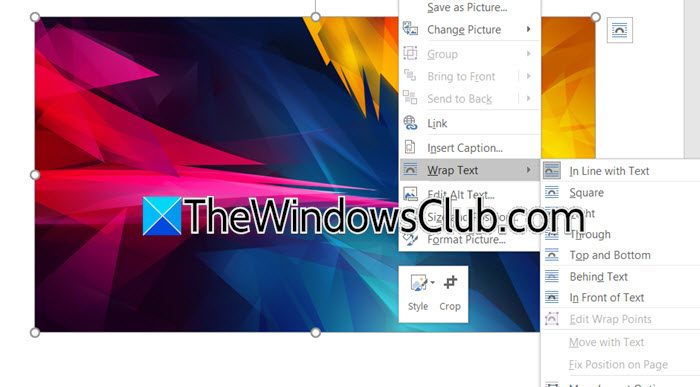
Adjusting text wrapping resolves random right margins because floating objects create invisible boundaries that force text to reflow around them. When an image, shape, or text box is placed near the right margin with Square, Tight, or Through wrapping, it acts like an obstacle, pushing text leftward to avoid overlapping the object. This creates a temporary new margin around the object, making lines appear shorter and uneven.
Follow the steps mentioned below.
- Click on any image, shape, or text box near the right margin.
- Now, right-click on the image (or anything else), and click on Wrap Text > In Line with Text. This places the object within the text flow like a giant character.
- If that isn’t possible, choose Top and Bottom to prevent text wrapping on the sides.
You basically need to adjust the wrapping to maneuver the line.
3] Check Hyphenation
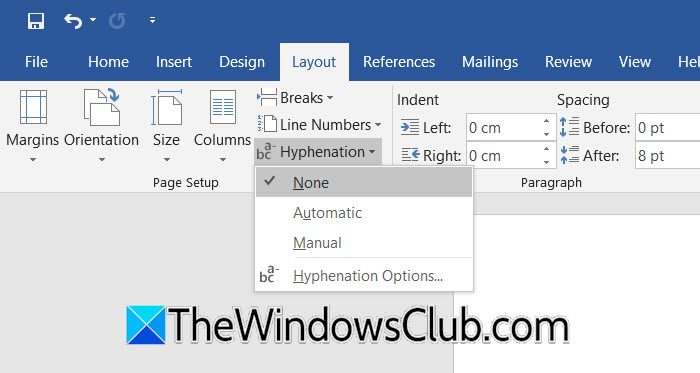
Hyphenation works by breaking long words at line endings, but aggressive hyphenation creates irregular gaps, disabling it forces cleaner line breaks, eliminating uneven margins. You need to go to the Layout tab, click on Hyphenation, and set it to None. If the unevenness disappears, experiment with Automatic or Manual hyphenation for better control.
4] Use Ruler
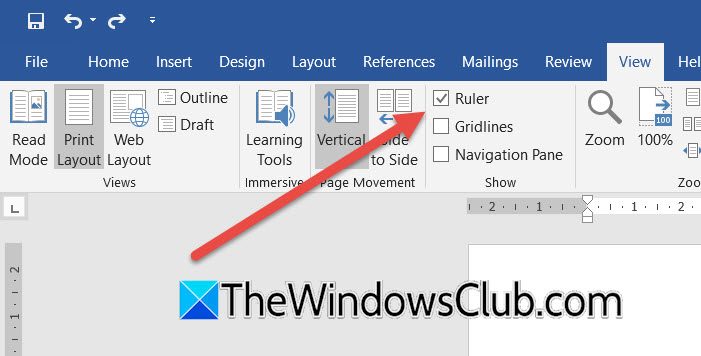
In this solution, we will use a ruler to create the proper indentation. This works because the right indent marker overrides page margins; realigning it removes paragraph-level indentation, forcing text inward. You need to first ensure that the ruler is visible – View > Ruler. Now, select the problematic paragraph(s), and look at the lower right triangle on the horizontal ruler. If it’s not aligned with the right page margin marker (usually the grey area ends), drag it back to align with the right margin marker.
Hopefully, with the help of these workarounds, your issue should be resolved.
Read: How to align Text vertically in Microsoft Word
How do I fix the right margin in Word?
To fix the right margin in Word, go to the Layout or Page Layout tab at the top of the screen, click on Margins, and then choose Custom Margins at the bottom of the list. In the dialog box that appears, you can adjust the value for the right margin under the Margins section. Once you’ve set the desired measurement, click OK to apply the change to your document.
Read: How to change default Gutter Margin size and position in Word
Why does Word keep changing my formatting?
Word often changes formatting due to features like automatic style updates, inconsistent use of templates, or pasting text from external sources that carry hidden formatting. This can also occur if Track Changes is enabled or if the document has style conflicts, where Word attempts to enforce default or dominant styles. Even using different devices or editing modes can trigger unexpected shifts in appearance.
