
In this article, we will discuss the features of the Resilient File System and learn how to enable or disable ReFS in the Windows Server and Windows 11 operating systems. We will also attempt to format a drive using this file system.

Since NTFS was devised and formulated in the Windows OS, data storage requirements have drastically changed. There was a dire need for a next-generation file system that could work well and address the issues in NTFS. That’s when Microsoft called the shots and developed ReFS (Resilient File System), which was introduced in Windows 8.1 and Windows Server 2012. ReFS was designed to maximize the data availability and reliability even if the concerned storage devices experienced a hardware failure.
Ever since storage devices came into play, the requirement of storage space has increased exponentially. Even multi-terabyte storage devices are common these days. Hence, a need for persistently reliable structure kept cropping up simultaneously. ReFS has an architecture designed to work well with extremely large data sets without any performance impact. In this guide, we will see how to enable or disable the ReFS File System in Windows and try to format a drive using it, but before that let’s have a look at some key features of this stately file system.
What is Resilient File System or ReFS?
Resilient File System or ReFS is a file system like NTFS, exFAT, etc. However, it is capable of working with large datasets without impacting performance. When NTFS and other formats fail to execute required high-end tasks fluently, ReFS does the job effortlessly.
ReFS ot Resilient File System Features
- Data Availability: ReFS File System proliferates data availability by showing resiliency to data corruption or failures. Automatic data integrity checks help keep ReFS online, and you experience minimal volume downtime.
- Tensile Scalability: Requirements for the increased amount and size of the data keep surging up with the changing technology. ReFS puts forth the ability to challenge extremely large data sets and work well with them without any performance issues.
- Acute Error Correction: ReFS File System comes coupled with an automatic data integrity scanner known as Scrubber which periodically scans the data volume, identifies the potential corrupt sectors, and processes them for repair.
UPDATES:
- Microsoft is introducing ReFS (Resilient File System) support in Windows 11, especially in Windows 11 Pro for Workstations editions.
- Microsoft has removed ReFS creation ability in Windows 10 Pro
- Please read the comments below first before you proceed. Dan Gul says: Post the Windows 10 Anniversary Update this will basically render the system unusable AND one still won’t be able to format in ReFS.
Enable ReFS File System on Windows 11
Now that you know that ReFS came into existence to cope with the limitations of the NTFS File System, let’s take a look at how you can enable it on your Windows 11 system and use it to format an external drive.
Before proceeding with the changes, please make sure to create a system restore point. If any issue comes up in future, then you can use this restore point to roll back the changes.
1] Press Windows Key + R on your keyboard to launch Run prompt. Type regedit.exe and hit Enter to open Registry Editor.
2] Navigate to the below path on the left side pane of Registry Editor.
HKEY_LOCAL_MACHINE\SYSTEM\CurrentControlSet\Control\FileSystem
3] Create a DWORD and name it RefsDisableLastAccessUpdate. Set its value as 1 to enable it.
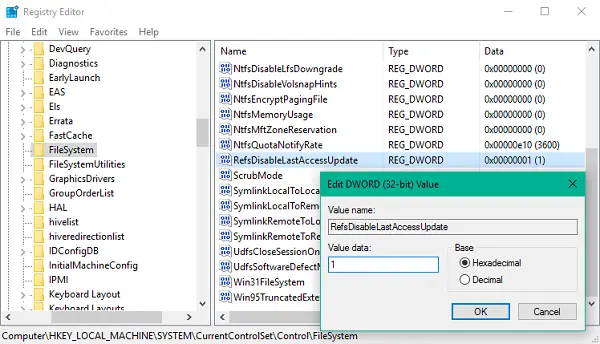
4] Up next, navigate to the below path in left side pane.
HKEY_LOCAL_MACHINE\SYSTEM\CurrentControlSet\Control\MiniNT
5] If the key MiniNT doesn’t exist, you can create it using Right-click > New >Key.
Now under this key, create a new DWORD and name it as AllowRefsFormatOverNonmirrorVolume and set its value as 1 to enable it.
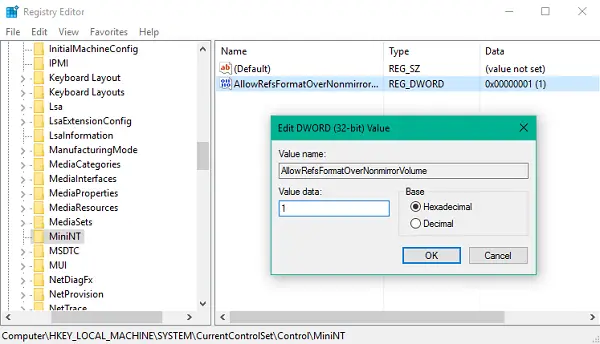
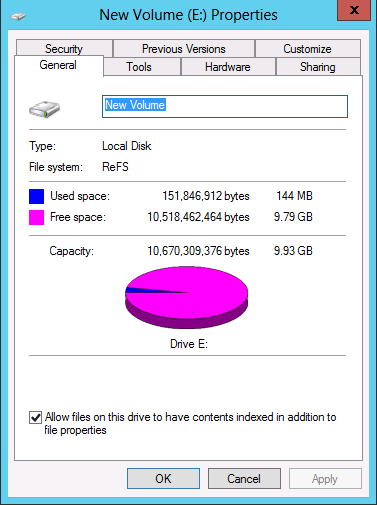
6] Sign out and sign in again to make the changes effective. Now you can plug in an external device and choose ReFS file system to format it. Also, you can open the Properties leaf of any drive to see what File System it is associated with.
How do I enable ReFS file system?
It is possible to enable or disable ReFS on Windows 11/10 with the help of the Registry Editor. Head to this location: HKEY_LOCAL_MACHINE\SYSTEM\CurrentControlSet\Control\FileSystem and created a DWORD (32-bit) Value named RefsDisableLastAccessUpdate. Then, double-click on it to set the Value data of 1. Once done, reboot your computer and try to format a partition in ReFS format.
How to format a Drive to ReFS in Windows 11?
You can use Disk Management, or run the following in PowerShell: Format-Volume -FileSystem ReFS
Which file system does Windows 11 use?
If it is a standard default installation, the OS uses the NTFS structures. With a failed Windows 11/10 operating system with Storage Space enabled, the file systems are ReFS and NTFS.
What are the benefits of ReFS in Windows 11?
- Data integrity: Built-in checksums and scrubbing to fix corruption
- Performance: Optimized for virtualization, tiered storage, and mirrored volumes
- Scalability: Handles massive volumes and files (up to 35 PB)
- Resilience: Self-healing when used with Storage Spaces.
You can read more about ReFS or Resilient File System on Microsoft.
