
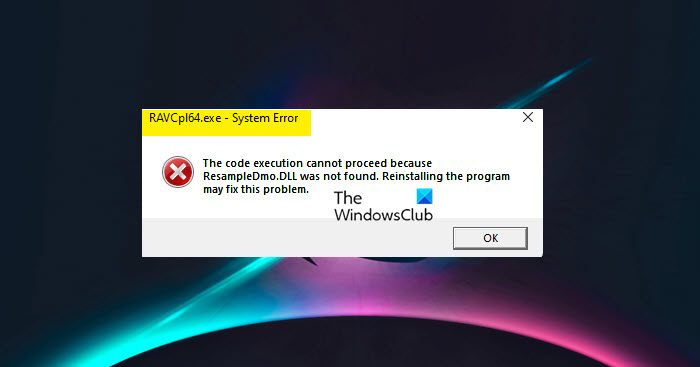
RAVCpl64.exe is a Realtek process. It will be present on all computers with Realtek drivers. However, it is not supposed to show any errors, which it has been doing on many computers. In this article, we are going to see what you need to do if RAVCpl64.exe System Error or Application Error on Windows computers.
What is RAVCpl64.exe?
If your computer has a Realtek High Definition Audio Driver, then it will have the RAVCpl64.exe process. The driver is the interface between your Operating System and the Realtek Audio Card in your system. RAVCpl64 is an abbreviation of Realtek Audio Volume Control Panel (64-bit), which, as the name suggests, is meant to control the driver.
It is usually located in this folder:
C:\Program Files\Realtek\Audio\HDA
Its Properties describe the file as Realtek HD Audio Manager and it has a size of around 18.6 MB.
How do I fix RAVCpl64 exe error?
There are a lot of errors caused by RACpl64.exe; the following are some of the most common ones.
- RAVCpl64.exe program error
- RAVCpl64.exe not valid
- RAVCpl64.exe quit
- Problem starting application: RAVCpl64.exe
- RAVCpl64.exe is not running
- RAVCpl64.exe encountered a problem and will close
- Cannot find RAVCpl64.exe
- RAVCpl64.exe can’t be found
- Software Path Fault: RAVCpl64.exe
What’s common in all the error messages is that they are caused by Realtek Audio Volume Control Panel. A very obvious reason for all the errors is corruption. Either the Audio Driver got corrupted or some system files. Whatever the case may be, it can be resolved.
RAVCpl64.exe System Error or Application Error in Windows 11
Before going to the troubleshooting guide, you should update your OS. You can do that from Windows Settings. If updating does not help, see the solutions below for what to do if RAVCpl64.exe is not working or is causing system or application errors.
- Check if RAVCpl64.exe is a virus
- Reregister RAVCpl64.exe
- Download the latest Realtek drivers
- Run SFC
- Perform System Restore
Let us talk about them in detail.
1] Check if RACVpl64.exe is a virus
Open Task Manager and locate the RACVpl64.exe file that is running on your computer. Right-click on it and select Open file location.
Now upload this RACVpl64.exe file to a free online malware scanner like virustotal.com or jotti.org to get it scanned with multiple antivirus engines.
The legit RACVpl64.exe is, as mentioned, located in the following folder.
C:\Program Files\Realtek\Audio\HDA
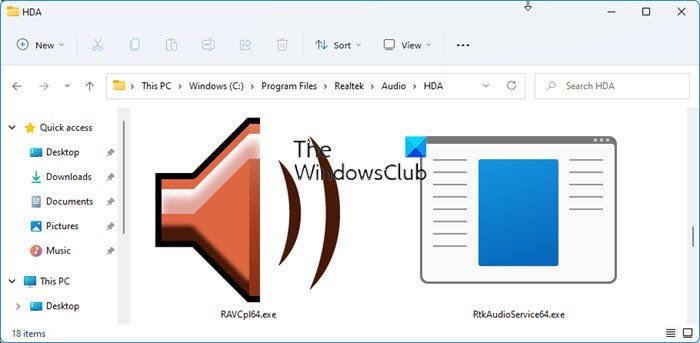
If it is not located in the folder, it could well be malware.
2] Reinstall Realtek HD Audio Manager
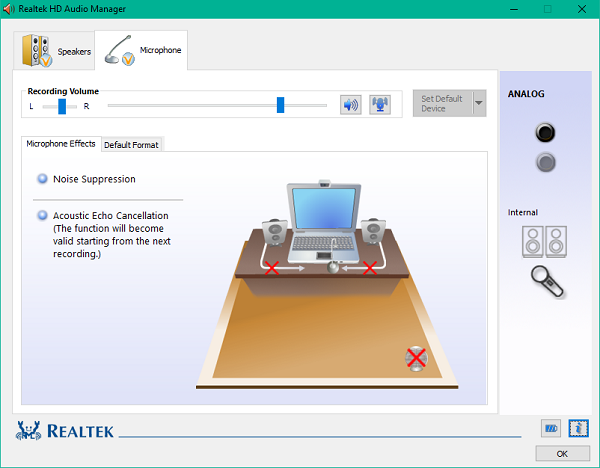
You should download and reinstall Realtek HD Audio Manager. That is very likely to work.
Read: Realtek drivers won’t install.
3] Download the latest Realtek drivers
Visit realtek.com to download and install the latest drivers for your system. That could also make the error go away.
4] Run SFC

Corrupted system files are another reason that could have caused the issue in question. Various situations can corrupt these files, such as abrupt shutdowns and malicious files. To repair those files, we need to run System File Checker. Open Command Prompt as an administrator and run the following command.
sfc /scannow
After executing the command above, restart your computer and check whether the issue persists.
5] Perform System Restore
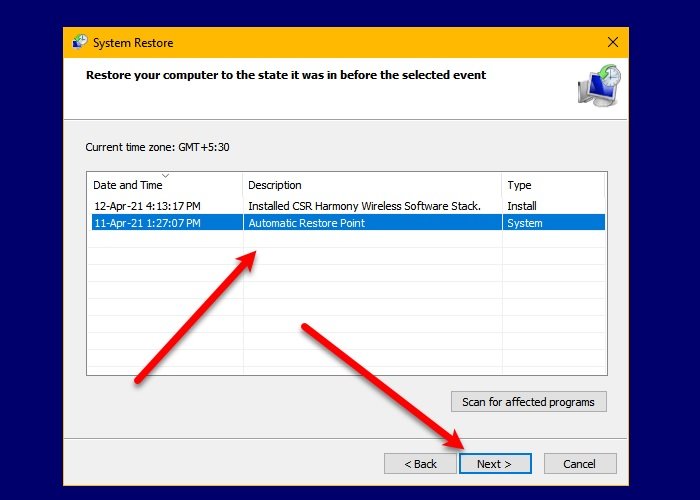
If you have created a system restore then this might be the right time to use it. System Restore will dial your computer to a state when you were not facing this issue. To perform System Restore, follow the prescribed steps.
- Search out System Restore Point from Start.
- Click System Restore.
- Follow the on-screen instructions to do the task.
Hopefully, it will do the job for you.
How do I fix Realtek audio not opening?
If Realtek Audio Console is not opening on your Windows 11/10 system, then manually start the RtkAudioUniversalService, and then open it. Open the Services window, look for RtkAudioUniversalService, and double-click on it. In the Properties box of this service, press the Start button. Also, reset the Realtek Audio Console in the Settings app, and see if that solves your problem.
Also Check: Realtek HD audio manager not working or showing.
