
If your printer displays an error message saying Printer not activated, error code -30 on your Windows 11/10 computer, this post will help you resolve the issue.
Printer not activated, Error code 30 in Windows 11/10
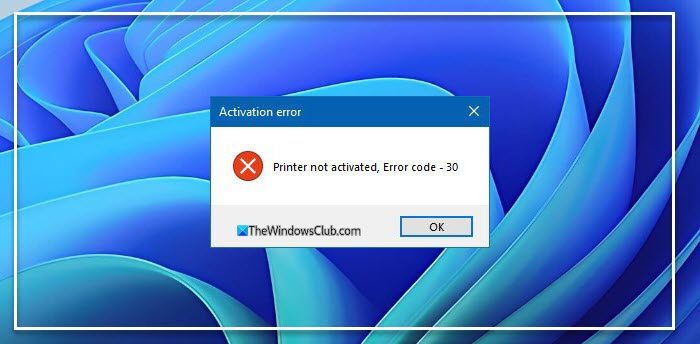
Here are a few things you could try to fix the issue.
1] Run Printer Troubleshooter
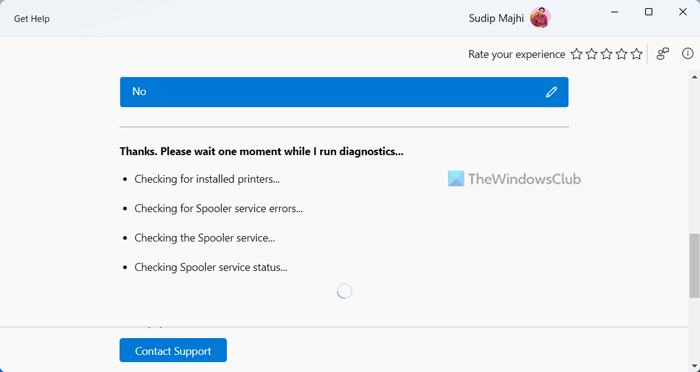
The first option to take, is to open and run the Printer Troubleshooter.
From here, follow the instructions to fix your printer, hoping it works well throughout.
2] Make sure the desired printer is set as the default printer
Your printer is probably not working because it is not set as the default. Don’t worry; this tends to happen quite often, so you’re not alone in this regard.
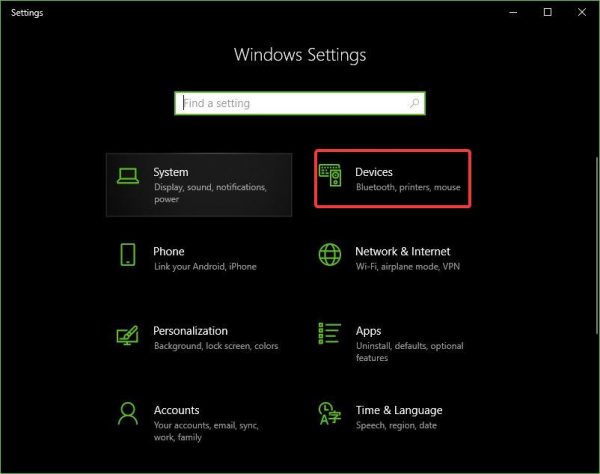
The first thing to do here is to click on the Windows key + I to fire up the Settings app, then select Devices from the menu.
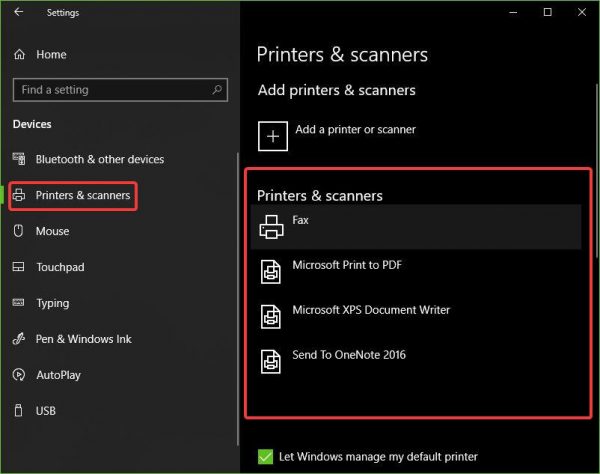
Click on Printers and scanners, then look for your printer among the list of options. Once you’ve found it, click on the printer and select Manage, then click on Set as Default.
3] Update driver for USB Composite Device
Chances are, your printer is not working because the USB Composite Device is acting up, so what should you do? We suggest removing and reinstalling it, which is a relatively simple task.
Here’s what you need to do. Click on the Start button, then type Device Manager. When it appears in the search results, just click on it to launch the Device Manager.
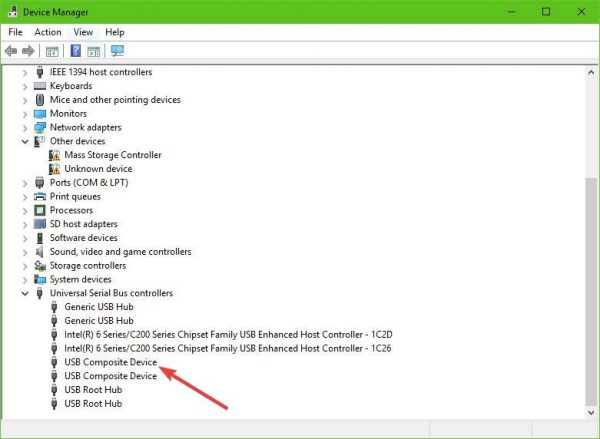
Locate the option that says “USB Composite Device,” right-click it, and then select “Update Driver” from the menu. Restart your computer. The final thing to do here is to click on Search automatically for updated driver software, and you’re done.
Uninstall the printer, remove the printer driver software, reinstall all, and then refresh.
4] Update the drivers for your Printer
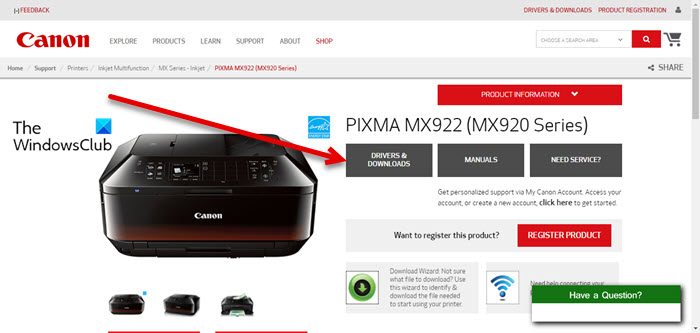
Usually, whenever your printer’s manufacturer releases a new driver, it’ll get downloaded and installed automatically. However, if this doesn’t happen, then it’s up to the user to manually complete the task.
We suggest visiting the official website of the brand and search for the section that allows the downloading of the latest and older drivers. If you come across the latest driver, download the Printer driver to your computer and install it.
Restart the computer system, then attempt to print a document and ensure the message, “Printer not activated, error code -30,” is no longer displayed.
That’s about it, so go ahead and test your printer once more to see if everything has returned to normal.
