
PowerToys is an incredible tool that introduces advanced features, such as FancyZones, PowerRename, PowerToys Run, Keyboard Manager, and Awake, to help customize Windows and streamline everyday tasks. While it works without issues most of the time, some users have reported that PowerToys is not working, not opening, or failing to run at startup on their Windows 11 PCs.
If you are experiencing the same issue, continue reading. In this post, we will discuss the scenarios in which PowerToys may not work, explain the causes of the issue, and show you how to fix it effectively.
PowerToys not working in Windows 11
To fix PowerToys if it is not opening or functioning properly, use these solutions:
- Run PowerToys as Administrator
- Delete corrupted PowerToys settings files
- Update or downgrade PowerToys
- Reinstall PowerToys.
Let us see these solutions in detail.
1] Run PowerToys as Administrator
PowerToys normally does not require administrator privileges. However, if it needs to interact with applications that are already running with elevated permissions, some features may stop working unless PowerToys is also elevated. For example, PowerToys may fail to:
- Intercept certain keyboard shortcuts
- Resize or move elevated application windows
- Snap windows into zones
- Display PowerToys Run or Shortcut Guide shortcuts
In such cases, either run PowerToys as Administrator or launch the affected application normally without elevation.
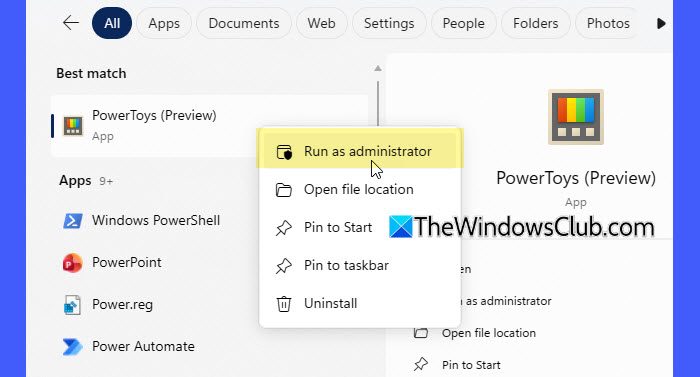
To run PowerToys as Administrator, press the Windows key and search for PowerToys. Right-click PowerToys and select Run as administrator. Click Yes if the User Account Control prompt appears.
Note: Before running PowerToys as Administrator, open Task Manager and close any existing PowerToys-related processes running in the background (right-click the process > End task.
Check if PowerToys is now working properly.
2] Delete corrupted PowerToys settings files
PowerToys stores its configuration data and module settings locally on a PC. Deleting the settings files forces PowerToys to create fresh configuration data, which can help resolve issues caused by corrupted or incompatible settings.
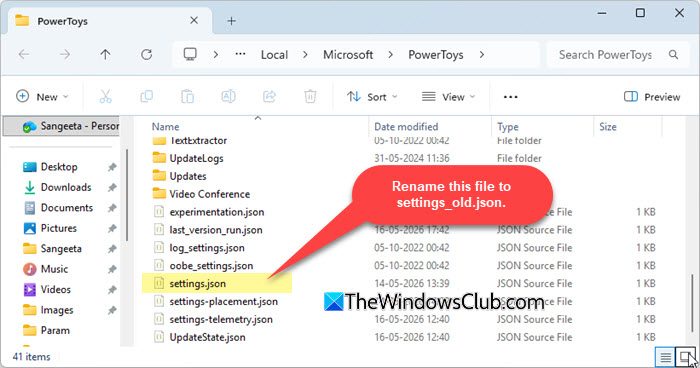
Press Win + R to open the Run dialog box. Type the following path and press Enter:
%localappdata%\Microsoft\PowerToys
Locate the settings.json file. Delete the file or rename it to something like settings_old.json.
PowerToys will automatically create a fresh settings file the next time it launches.
3] Update or downgrade PowerToys
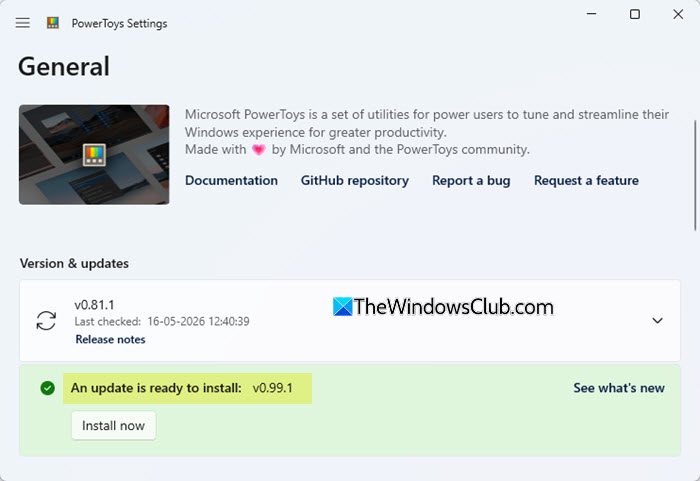
If PowerToys stopped working after a recent update, the installed version may contain bugs or compatibility issues with your current Windows 11 build. In such cases, updating to a newer release or downgrading to an older stable version may help resolve the issue.
To update PowerToys:
- Open PowerToys.
- Select General from the left pane.
- Click Check for updates.
- Download and install the latest available version.
If the issue started after updating PowerToys, try downgrading instead:
- Uninstall the current version of PowerToys.
- Visit the official PowerToys GitHub Releases page (link here).
- Download an older stable release.
- Install the older version and restart your PC.
Check if PowerToys is now functioning properly.
4] Reinstall PowerToys
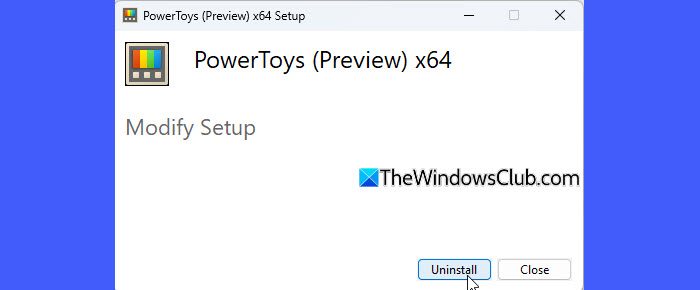
Corrupted app files or broken configuration data can sometimes prevent PowerToys from launching properly. Reinstalling the app brings it back to its default state and helps restore its normal functionality.
- Press Win + I to open the Settings app.
- Navigate to Apps > Installed apps.
- Locate PowerToys in the list.
- Click the three-dot menu next to PowerToys and select Modify > Uninstall (or simply Uninstall).
- Follow the on-screen instructions to remove the app, and then restart your PC.
- Download the latest version of PowerToys from GitHub or the Microsoft Store.
- Install PowerToys again and check if the issue is resolved.
I hope this helps.
PowerToys Run not working
If the issue is specific to PowerToys Run and you are unable to open the launcher using the assigned keyboard shortcut, use these fixes:
1] Change the PowerToys Run shortcut
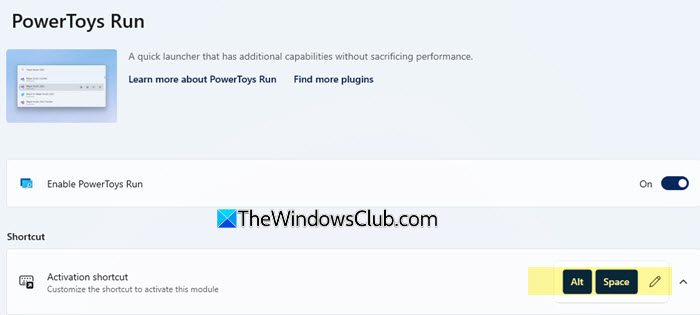
Sometimes the default shortcut to run PowerToys Run (Alt + Space) conflicts with another application or Windows feature. In such cases, changing the shortcut may help resolve the issue.
- Open PowerToys.
- Select PowerToys Run from the left pane.
- Under Activation shortcut, click the current shortcut.
- Assign a different keyboard shortcut that is not being used elsewhere.
- Click Save.
2] Enable centralized keyboard hook
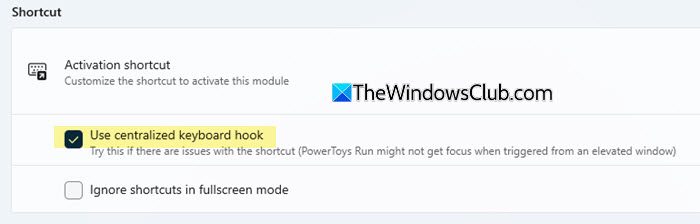
This issue may occur when another application intercepts the PowerToys Run shortcut before PowerToys can detect it, especially when elevated apps are in focus. The centralized keyboard hook is a system-level setting that helps PowerToys Run detect its keyboard shortcut more consistently across Windows.
- Open PowerToys.
- Select PowerToys Run from the left pane.
- Enable the Use centralized keyboard hook option.
- Restart PowerToys and check if the issue is resolved.
3] Check for Keyboard Manager conflicts
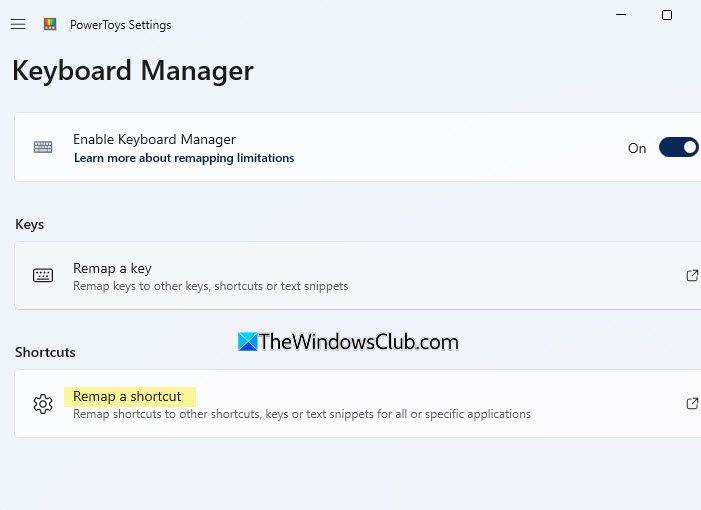
In some cases, Keyboard Manager remappings may conflict with the PowerToys Run activation shortcut and prevent the launcher from opening properly.
- Open PowerToys.
- Select Keyboard Manager from the left pane.
- Click Remap a shortcut.
- Look for any remapped shortcuts using the same key combination assigned to PowerToys Run.
- Temporarily disable or remove the conflicting remapping.
- Restart PowerToys and test the shortcut again.
4] Disable problematic plugins or modules
Some users have reported that certain PowerToys modules or plugins, such as Awake or Winget, interfere with PowerToys Run and prevent it from opening properly. If you have these modules enabled, try disabling them and check if the launcher starts working again.
PowerToys not working in game
PowerToys may sometimes stop working while you are playing games in full-screen mode. This is because some games intercept keyboard input differently or temporarily block background utilities during startup.
To fix this issue:
- Restart your PC and relaunch the game.
- Run PowerToys as Administrator if the game is running with elevated privileges.
- Temporarily disable keyboard-related modules such as Quick Accent.
- Switch the game from Fullscreen mode to Borderless Windowed mode, then check whether PowerToys starts working properly.
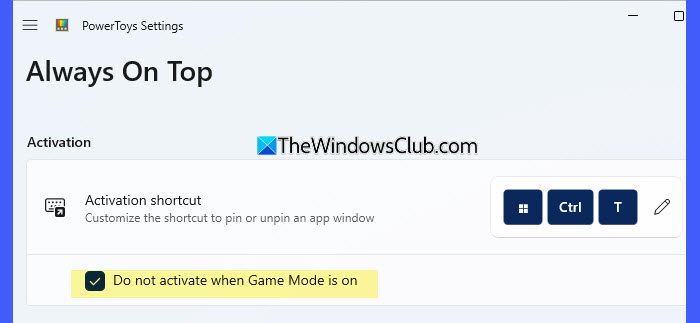
If the Always On Top feature is not working, open PowerToys and test toggling the “Do not activate when Game Mode is on” option.
PowerToys not opening or running at startup
If PowerToys does not start automatically after boot, the startup task responsible for launching the app may not be working correctly.
PowerToys uses a scheduled task to launch automatically at sign-in, rather than appearing in the normal Startup Apps list. If PowerToys is not starting automatically, open Task Scheduler (or run control schedtasks) and navigate to:
Task Scheduler Library\PowerToys
Verify that the startup task exists, is enabled, and shows the At log on trigger.
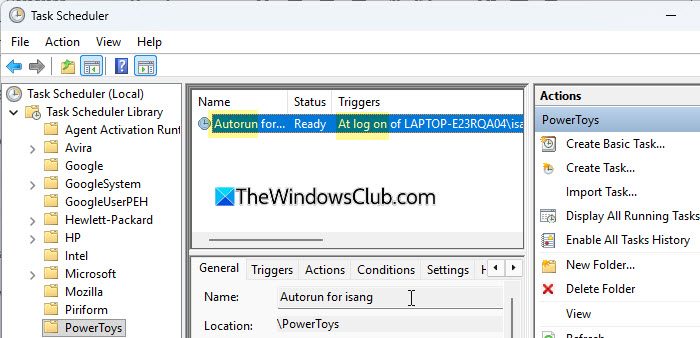
If the task is missing or disabled, toggle the Run at startup option in PowerToys Settings off and back on to recreate the task.
PowerToys stopped working
If PowerToys started fine but suddenly stopped working, the issue may be caused by a recent Windows update, a PowerToys update, corrupted settings, or a background process that failed to load correctly. For many users, restarting PowerToys or rebooting the PC helped resolve the issue. If that does not help, try deleting corrupted settings files or updating/downgrading PowerToys, as explained above.
PowerToys not showing in context menu
If PowerToys options such as PowerRename or Image Resizer are missing from the right-click context menu, the required shell extensions may have failed to load properly after a Windows update, PowerToys update, or installation issue. To fix this, use these solutions:
Note: Incorrect Registry modifications can cause serious system issues. Before proceeding, back up the Registry or create a System Restore point.
1] Enable UAC and reinstall PowerToys
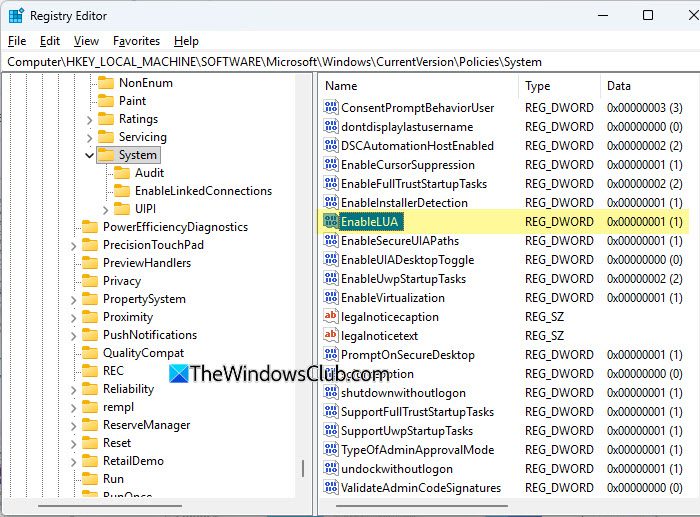
PowerToys context menu entries may disappear if User Account Control (UAC) is disabled in the Registry.
Open the Registry Editor and navigate to the following location:
HKEY_LOCAL_MACHINE\SOFTWARE\Microsoft\Windows\CurrentVersion\Policies\System
Change the EnableLUA value from 0 to 1. Restart your PC and reinstall PowerToys.
2] Remove corrupted shell extension entries and reinstall PowerToys
Sometimes, PowerToys context menu options disappear after an update because the required shell extension registry entries become corrupted. In such cases, try removing the related shell extension entries before reinstalling PowerToys.
For example, if PowerRename or File Locksmith is missing from the context menu, remove the following Registry entries:
HKEY_CLASSES_ROOT\CLSID\{51B4D7E5-7568-4234-B4BB-47FB3C016A69}
HKEY_CLASSES_ROOT\CLSID\{0440049F-D1DC-4E46-B27B-98393D79486B}
After deleting these entries, reinstall PowerToys and check if the missing context menu options reappear.
Read: How to back up and restore PowerToys Settings.
How to enable PowerToys in Windows 11?
After installing PowerToys, open the app and enable the modules you want to use from the left pane. You can also enable the Run at startup option from the General settings to launch PowerToys automatically when Windows starts.
Is PowerToys part of Windows 11?
No, PowerToys is not built into Windows 11 by default. It is a separate utility suite developed by Microsoft that users can download and install manually to add advanced productivity features to Windows.
Read Next: Free Ultimate Windows Tweaker for Windows 11.
