
In this digital era, every online account we have is secured with a password that only we know. Without it, we cannot access our accounts online. Microsoft has taken a step further and made an exciting feature available to all its users. In this guide, we explain the Passwordless feature in Microsoft Account and how to use it.
What is the Passwordless feature in Microsoft Account
The only thing that secures our online accounts or presence is the passwords we set. At the beginning of the Internet era, passwords were too simple and predictable. Nowadays, they are considered the least secure. After the simple passwords, the password generators and managers gained prominence among many users. However, many people remain unaware of them and use the least secure passwords.
Microsoft believed that the future is all about passwordless logins, where you don’t require a password to log in to your online account. To make Microsoft accounts the starting point for passwordless logins, they first introduced the passwordless login feature to commercial users, and it is now available to all users.
With the Passwordless feature, you can remove passwords from your Microsoft accounts and use the Microsoft Authenticator app, Windows Hello, a Security key, or a Verification code sent to your phone or email to log in to various Microsoft services like Microsoft Outlook, Microsoft OneDrive, Microsoft Family Safety, and other services. This feature is now available to select users and will be rolled out to all users in the coming weeks.
The new Passwordless feature is Microsoft’s vision to secure online accounts from the rampant attacks that happen every second throughout the world. Let’s explore how to utilize the passwordless feature and secure our Microsoft account.
How to use the Passwordless feature in Microsoft Account
To use Passwordless feature on Microsoft Account, you need to first install the Microsoft Authenticator app on your PC or phone and link it to your Microsoft Account. Then follow this procedure:
- Go to account.microsoft.com
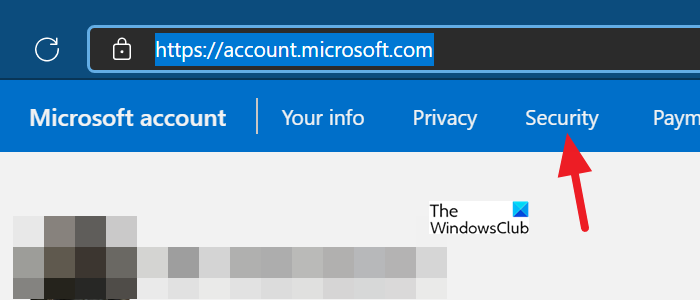
- Click on Security
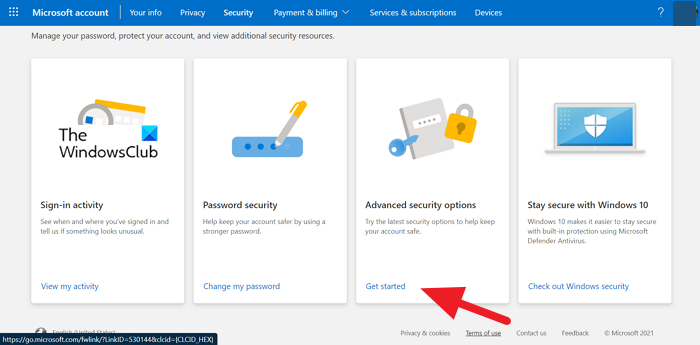
- Then, click on Get started under Advanced security options
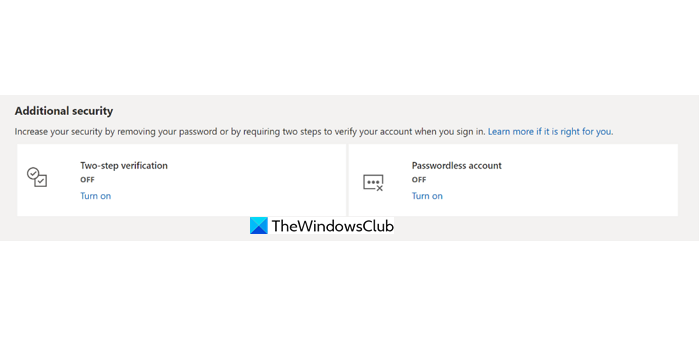
- Turn on the Passwordless account under Additional security
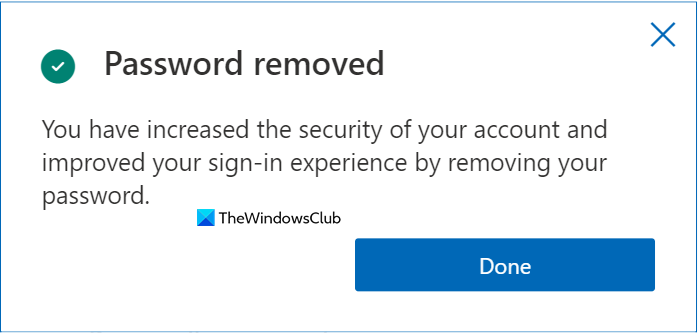
- Confirm and exit.
Let’s get into the details of the process.
Open account.microsoft.com on your web browser and log in to your Microsoft account. After logging in, click on Security at the top bar of the Microsoft account.
It will open the security features of your Microsoft account. Click on Get started under Advanced security options.
On the Advanced security options page, click on Turn on under Passwordless account in the Additional security section. This feature will only be activated if you have connected Microsoft Authenticator to your account.
After you have turned it on, it will remove the password from your account and make it a passwordless account. You will see a confirmation pop-up after the removal.
This is how you can use the passwordless feature on Microsoft account and make it more secure and future-friendly.
How do I use Microsoft Passwordless?
You can enable the passwordless feature by navigating to the security settings on your Microsoft account and turning on passwordless account access. Before doing this, you must connect Microsoft Authenticator to your account after installing it on your device.
Is Microsoft Passwordless safe?
Microsoft Passwordless is a new feature, and it is believed to be safer and secure than the passwords we set. The Passwordless feature uses the Microsoft Authenticator app, Windows Hello, a security key, or a verification code sent to your phone or email to log in to various Microsoft services.
Related Read: Find, add, remove, edit, backup, restore Stored Usernames and Passwords in Windows.
