
Digital Art is a rage nowadays; whether you want to keep it as a hobby or make it a profession, you need a good platform to work on. In this article, we will explore some of the best free online tools and software for creating Digital Art on Windows 11/10.
Free Online Tools & Software for creating Digital Art on Windows PC
Following are some of the best free Online Tools and Software for creating Digital Art on Windows 11/10.
- Psyko Paint
- The Gimp
- PictBear
- Queeky
- MyPaint
Let us talk about them in detail.
1] Psyko Paint
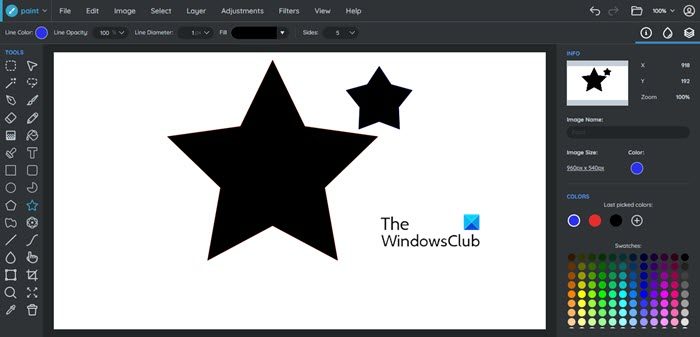
Let us start with our first app that caters to users who wants to download the app or an online tool. Psyko Paint is a great tool for Digital artists. It has all the default colors and options to create your own. It has some clip arts and tools that can not only excite a professional but will also be pedestrian for an amateur. Since it has both online and offline versions, we would recommend you try the online one first and then decide whether you want to download this on your system or not. However, the software is free. Go to pskyopaint.com and see for yourself.
Related: How to create NFT Digital Art?
2] The Gimp
The Gimp is not only a great Digital Art but is also something that you can use to edit photos. So, if you want a 2-in-one solution, it is the way to go. Talking about the Digital Art side of things, The Gimp has a great selection of tools, and the best thing is that you can use third-party plugins here as well.
Also, this tool is compatible with some of the major programming languages as well, such as C++, Python, C, etc. So, if you are a programmer and a digital artist, you should go to gimp.org and get the app.
3] PictBear
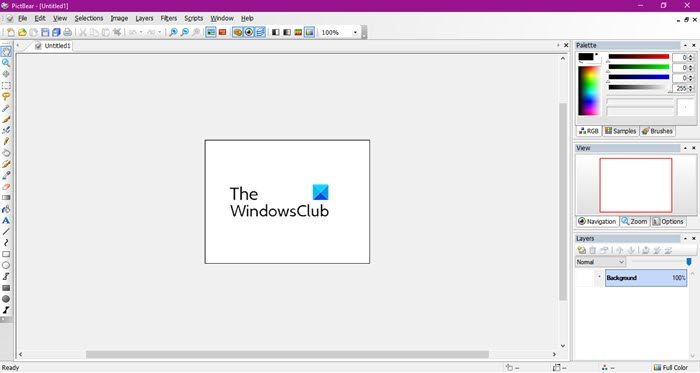
PictBear is an offline, open-source program you can download on any Windows computer without hesitation and start drawing. The best thing about this software is that is user-friendly. The UI is simple and intuitive and no matter how new you are in this arena you will not feel out of place when using this tool. It has a wide range of brushes, colors, and other tools to help you create a glorious painting. However, there is no support for the product and because of this, it can look outdated. Also, the app is not adequate for a professional. You can try PictBear from fenrir-inc.com.
4] Queeky
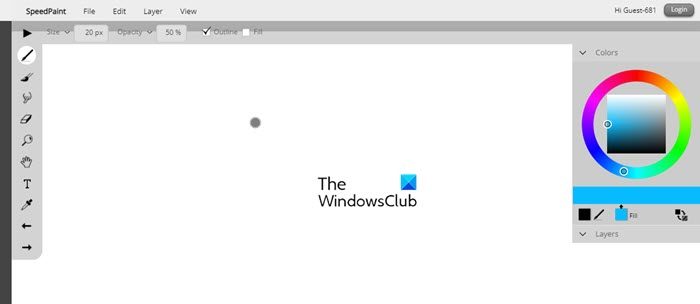
Queeky is a web application; you can also refer to it as an Online tool. You don’t have to download anything to use this app. Some users refer to it as a more advanced version of MS Paint, which is fair, because the app looks similar to the Paint on your computer, but there are a lot more to it than what you see. There are a lot of easter eggs that you will unravel as you use this tool. You should go to queeky.com to use this tool.
5] MyPaint
MyPaint is one of the best software for artists. If you are a professional, you may feel annoyed that most developers add features to their tools but don’t improve the quality or range of brushes, which is what a professional needs. Well, MyPaint dealt with this problem, and that’s it, MSP. Not only online brush types, but also the algorithm that detects your stroke’s speed and pressure has been improved leaps and bounds. However, we need to be real: you won’t get features or quality on par with Adobe or any other paid app. But MyPaint is miles ahead of the competition when it comes to nailing the basics. So, if that’s what you want, go to mypaint.org and download the app.
These were some of the best free apps and tools that you can use for Digital Art.
What software tools are used in Digital painting?
A professional Digital Artist will use a range of tools for different purposes. Some of the most common tools used by the artists are Adobe Photoshop, ArtRage, OpenCanvas. However, you should check the apps mentioned earlier, and see if any of them is doing the trick for you.
What is the best drawing app for Windows for free?
It is not possible to point to one app as the clear winner. Each and every application has some good qualities and some features inferior to others. And the beauty of free software is that you can test it and see how good or bad it is. We recommend reading descriptions of all the drawing apps and online tools, narrowing your choices, then installing them and seeing what works for you and what does not. We made sure these apps aren’t humongous in size so they don’t chug your data.
Read Next:
