
Microsoft Forms is a user-friendly tool that enables users to create various forms, including surveys, polls, and more. Microsoft Forms error – This form is currently not accepting responses, generally occurs when the form owner has closed the form for submission. Let us go through the various reasons this issue can happen, and the solutions for the same.
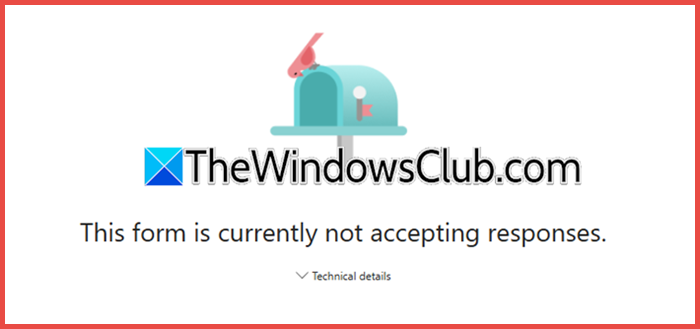
What does it mean when it says This form is currently not accepting responses?
This message means the form you are trying to access has been intentionally closed to new submissions by its owner. This is typically due to the creator manually turning off responses, the form’s active period having expired based on its start/end date settings, or your account not having the required permission to respond based on the form’s restricted access list. It is a configuration set by the form’s administrator and not a technical error on your end.
Fix This form is currently not accepting responses Microsoft Forms error
If Microsoft Forms says “This form is currently not accepting responses”, follow the solutions mentioned below.
- Check your date settings
- Check the “Accept Responses” Setting
- Verify Form Access and Permissions
Let’s discuss them in detail.
1] Check your date settings
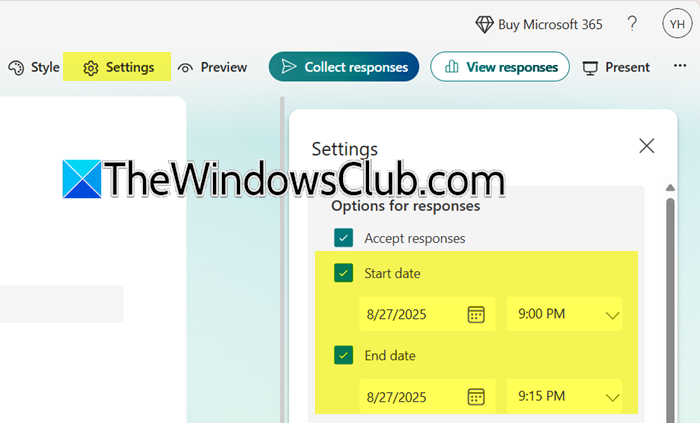
Incorrect date setting is one of the most common reasons for the issue. First, confirm that the submission deadline for the form has not passed. If that is not the case, confirm with the form owner if the start date and the end date of the form are set properly. To check this, follow the steps mentioned below.
- Go to the ‘Settings’ option on the form.
- Confirm that the start date and the end date are valid.
- Save the changes and try to respond again.
Finally, check if the issue is resolved.
2] Check the “Accept Responses” Setting
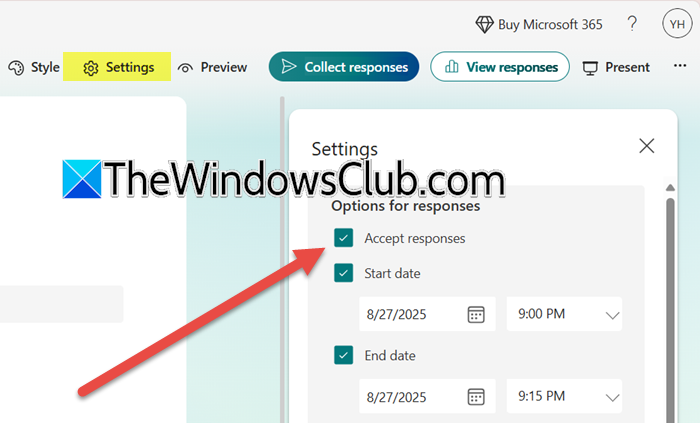
The “Accept responses” setting acts as a master switch that directly controls whether the form is open or closed for submissions. When this option is toggled off, Microsoft Forms intentionally blocks all incoming responses, regardless of other settings such as dates or permissions, and displays an error message. Simply turning it back on instantly re-enables the form’s core functionality of collecting data, making it the first and most critical setting to verify.
- Open your form in Microsoft Forms for editing.
- Click the Settings button (three dots) in the top-right corner.
- In the settings panel, ensure the checkbox for Accept responses is turned ON.
You can also customize the message respondents see when the form is closed.
Read: How to create a Survey with Microsoft Forms
3] Verify Form Access and Permissions
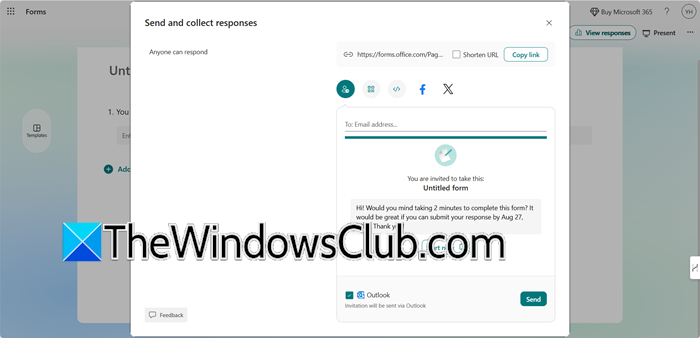
In this solution, we will ensure that the form’s sharing settings align with your intended audience. The error appears if a user’s account or access level doesn’t match the form’s restrictions. Selecting “Anyone with the link” grants public access, allowing responses from outside your organization without barriers.
- Navigate to Microsoft Forms and select the form you want to edit.
- Now, click on Collection Response.
- Make sure that it is set to Anyone can respond.
- Finally, share it.
We hope that you will be able to resolve the issue using the solutions mentioned in this post.
Read: How to add Themes to Microsoft Forms
Microsoft Form isn’t updating the responses in the linked Excel file.
This issue happens because advanced sharing and permission features are gated behind specific Microsoft 365 business or education licenses, and if your account lacks this license or your organization’s administrator has disabled external sharing, the option will not appear in your settings panel. Go over the solutions mentioned below to resolve the issue.
- Verify your account type and license: Ensure you are signed into Microsoft Forms with a valid work or school account from an organization that has an eligible Microsoft 365 subscription; personal accounts (e.g., @outlook.com) do not have access to these organizational sharing features.
- Contact your IT Administrator: This is often the most direct solution, as they can confirm if your user account has the proper license assigned and check the admin center to ensure external sharing for Forms is enabled for the organization.
- Check the form’s ownership: If the form was created within a Microsoft Team or Group, its permissions may be managed by the Group’s settings instead of the individual form’s settings; try creating a new form under “My Forms” rather than a group tab.
- Use the Forms website directly: Avoid creating forms through integrated apps like Outlook, which may have limited options; instead, always create and manage your forms directly on the official forms.office.com website for full functionality.
Hopefully, this will do the trick for you.
Read: Add new forms in Microsoft Forms
