
While working on Microsoft Access, encountering Error 53 can disrupt the workflow. The error typically occurs when Access tries to load a file that Windows cannot find. In this guide, we are going to identify the reasons and find solutions to them.
What is Runtime error 53?
Runtime error 53 is a file not found error that occurs when a program, such as Microsoft Access, tries to access a file that Windows cannot locate. It can also occur if Windows does not support the version of software you are trying to run.
Microsoft Access, error 53, file not found
If you encounter File not found runtime Error 35, execute the solutions mentioned below.
- Locate the missing file path and fix the broken VBA reference
- Reset Webbrowser control issues
- Repair database corruption
- Verify linked tables and network paths
- Re-register Access Wizards and ActiveX Controls
Let us get started with the troubleshooting guide.
1] Locate the missing file and fix the broken VBA reference
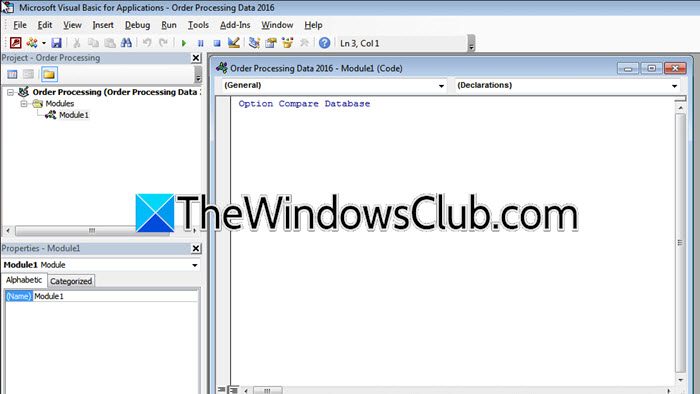
The error often means that something in the background is pointing to a file that no longer exists or has been moved. This usually comes from broken VBA references, which Access needs to run code properly. To ensure that Access can correctly locate all required libraries and files, we will locate the missing file and fix the broken VBA preference.
- Open the Access database, press Alt + F11 to open the VBA Editor, and navigate to Tools.
- Click on References and look for any that are marked as Missing. Note the file path or library name and either uncheck the missing reference or browse and reselect the correct file location.
- Click OK, then select Debug from the top menu bar, and click on the Compile VBA Project to confirm no errors remain.
Check if the error message persists. If it does, see the next solution.
2] Reset WebBrowser control issues
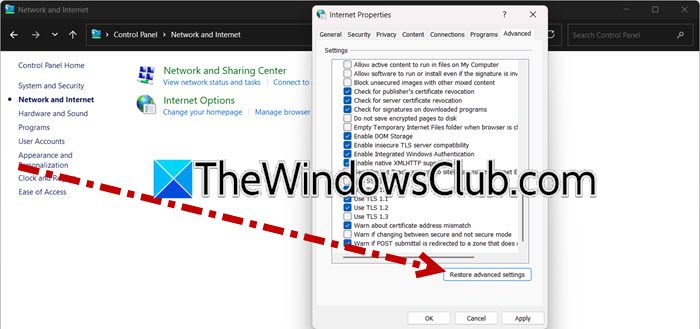
The WebBrowser control in Access depends on system components like Internet Explorer settings. Access may fail to locate the required file if these components are misconfigured or corrupted. Follow the steps mentioned below to do the same.
- First and foremost, close Microsoft Access completely, then press Win + R to open the Run dialog box, type Control, and press Enter.
- Navigate to Network and Internet.
- Click on the Internet Options option, and navigate to the Advanced tab.
- Click on Restore advanced settings.
Once done, restart the device and reopen Access. If the problem persists, continue with the next solution.
3] Repair database corruption
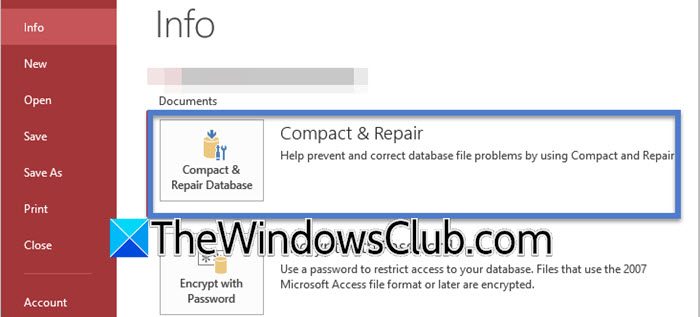
Sometimes the issue isn’t external but within the database itself. Any corruption can break internal links or file references, which leads Access to look for files that aren’t actually missing. Rebuilding the database rebuilds its structure and clears these inconsistencies.
- Launch Microsoft Access, go to File, and select the Info option.
- Click on Compact and Repair Database. This will make Access create a temporary copy of the database, compact it, and then repair and replace things.
- If you cannot open the database, create a new blank database, and then go to External Data > New Data Source > From File > Access.
- Select the problematic database, choose Import tables, queries, forms, etc into the new database. Once the import is complete, go to File > Info > Compact and Repair Database.
Proceed to the next solution if you still encounter error 53.
4] Verify linked tables and network paths
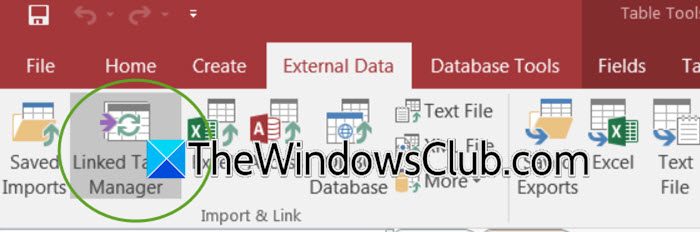
One of the reasons for Error 53 is when linked tables point to a back-end database or SQL Server that has been moved or renamed, or to a network drive that is unavailable. To fix this, we need to correct these links to ensure that Access can find the actual data source.
- Open the database, go to External Data, and click on Linked Table Manager.
- Check the Always prompt for new location box, select all linked tables, and click OK.
- Navigate to the correct back-end database file, select the file, and click OK.
- To eliminate drive letter issues, use a UNC path instead of mapped letters.
- If your tables are linked to a SQL server or another ODBC, select the appropriate DSN from the list, or click New to create one, then provide any required credentials and click OK.
After the location is confirmed, Access will refresh the link, then display a status dialog indicating success or failure for each tab. If any table fails, note its name and repeat the process for that table individually. Slide to the next solution if the issue persists.
Read: Fix Microsoft Access Runtime Errors
5] Re-register Access Wizards and ActiveX Controls
Access uses Wizard libraries and various ActiveC controls for form, reports and functionality. If these files become unregistered, Windows returns error 53 when Access attempts to load them. Therefore, we are going to reregister to restore the proper registry entries.
- Save any work, close Microsoft Access, and press Win + R to open the Run dialogue box.
- Type CMD, and press Ctrl + Shift + Enter to launch it with administrative rights.
- Execute the following command to navigate to the MS Office installation folder:
cd "C:\Program Files\Microsoft Office\root\Office16"
- To re-register the Access Wizard library, run the following commands one after the other:
regsvr32 accwiz.dll
regsvr32 accwiz.dll /i
- If error 53 references a specific third-party file .ocx or .dll file, we need to register those files as well. For that, note the full path from the error message and then run the following command:
regsvr32 "full\path\to\the\file.ocx"
Note: Replace “full\path\to\the\file with the path noted before. For example: regsvr32 “C:\Program Files\Common Files\MyCompany\mycontrol.ocx”
Confirm the success message, click OK, type Exit, and press Enter or simply close the Window. Once done, open the Access database, perform the action that triggered the error, and see if the error is resolved. If it is, the missing DLL or control is now correctly reassigned. Hopefully, this will resolve the issue.
Read: How to Create, Edit and Delete a Table Relationship in Access
What if a file was not found where specified?
If a file is not found where specified, users will continue to be plagued by error 53. To resolve it, users need to update the path, re-register the file, or repair broken references.
Also Read: Microsoft Access is not responding.
