
This post will show you how to enable or disable visual touch feedback, or make the circle darker and larger, on your touchscreen device using Settings or the Registry in Windows 11/10. When you touch your device’s touchscreen, you get visual feedback indicating that your touch has been recognized. You can disable this touch feedback or make it darker and larger, if you wish, by following the steps laid down in this post.
Make the Touch circle darker and larger in Windows 11
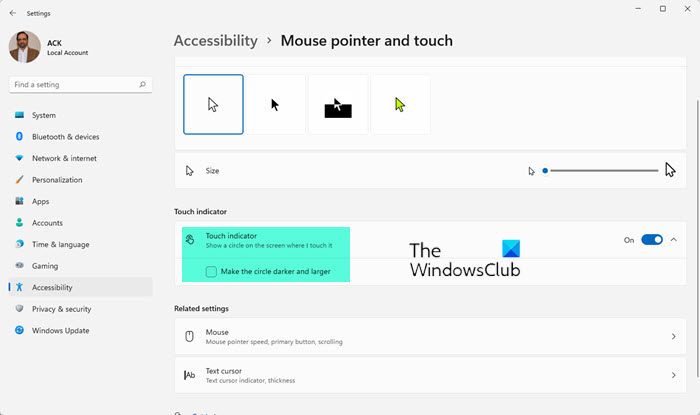
- Open Windows Settings
- Click open Accessibility settings
- On the right side, click on Text cursor
- Scroll down and click on Mouse pointer and touch
- Now under Touch indicator, select Make the circle darker and larger
Darker feedback improves visibility in bright environments, whereas larger feedback improves tracking of touches during presentations, tutorials, or accessibility needs.
That’s it.
Make visual feedback for touch points darker & larger in Windows 10
To disable touch feedback or make it darker and larger on your Windows 10 touchscreen device, follow these steps:
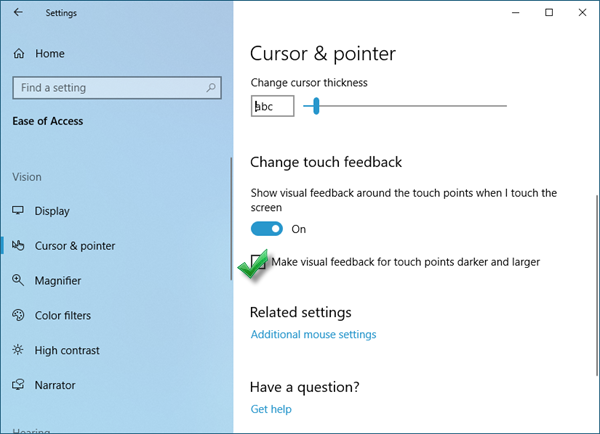
- Right-click on Start to open the WinX menu
- Open Settings
- Navigate to Ease of Access > Vision > Cursor & pointer
- To disable touch feedback, toggle the Change touch feedback to the Off position
- To make touch feedback darker and larger, make sure that the toggle is On and select the Make visual feedback for touch points darker & larger option.
Now check and see if you got it working.
This short clip illustrates the disabled, normal and darker options.
Make the Touch circle darker and larger using Registry
You can also make the changes using the Registry:
Open the Registry Editor and navigate to the following key:
KEY_CURRENT_USER\Control Panel\Cursors
Look for the ContactVisualization DWORD and set its value as follows:
- 0 – Disable visual feedback.
- 1 – Enable visual feedback.
- 2 – Make visual touch feedback darker and larger.
If you do not see the ContactVisualization DWORD value, create it.
All the best!
How to adjust touch screen sensitivity in Windows 11?
To adjust touch screen sensitivity in Windows 11, go to the Control Panel and select “Hardware and Sound.” Then click “Pen and Touch” and navigate to the “Touch” tab. From there, you can adjust the sensitivity settings to your preference.
How do I show visual feedback when I touch the screen?
To show visual feedback when touching the screen on Windows, press Windows + I to open Settings. Navigate to “Ease of Access,” select “Other options,” and enable “Show visual feedback when I touch the screen.”
