
Many times, emails don’t get a response, and it leaves the sender with complete confusion as to whether the person has actually read it or not. Chances are, it was read, but the recipient didn’t reply. So the basic question is, how do you track them? While there are many expensive tracking solutions out there, today we are talking about MailTag, which works like a charm even with their basic version.
MailTag offers unlimited email tracking, scheduling, and auto follow-up. It works with Gmail, and Google Workstation, and offers a Chrome extension which integrates well with Gmail right from the browser. It hooks up it features everywhere in Gmail, making it much easy for you to use it. It also offers a dedicated dashboard for analytics of open rates, links to emails, and so on.
One thing I could say MailTag after using it for four days that it works. It simply works and is probably one of the easiest solutions you can use for Email tracking without any cost. The best part is the real-time notifications you get, which I haven’t seen with other services.
MailTag for Gmail Features
There are two major things you can do here. First is email tracking, and second is email scheduling with follow-ups.
Email Tracking
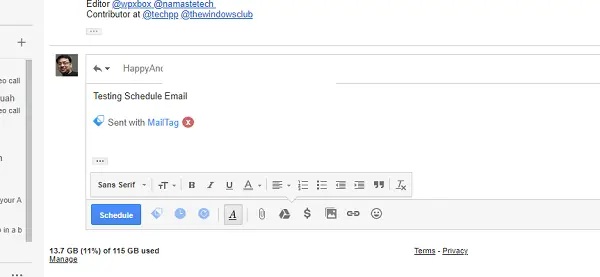
Whenever you write an email, it attaches a small image to it. Then, when your email is opened, the image loads, and it knows your email has been read. This is how it knows exactly when recipients open your emails. Apart from this, you also get real-time desktop alerts, links opened in your email.
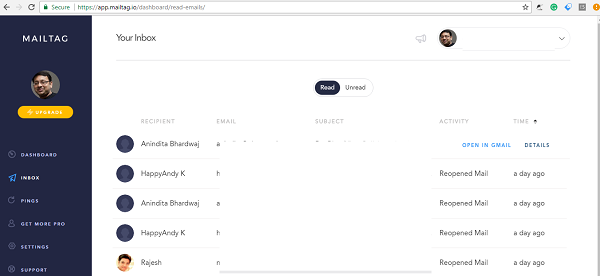
This is how the dashboard looks like. You have access to stats, inbox listing all the emails sent using MailTag, Pings, settings and so on. You can filter by Read or Unread emails which gives you a clear idea of all the emails.
Email Scheduling
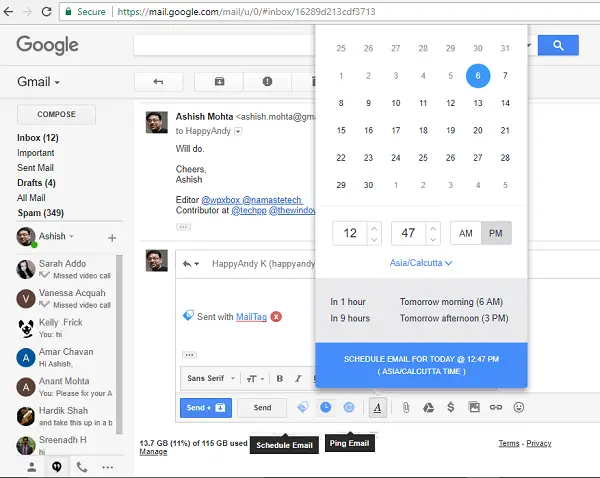
If you want to send an email in future, but want to set it up right away, it’s possible using this tool. You can select a date, time, and even a time zone based on your recipient. The extension adds the following controls in your compose box:
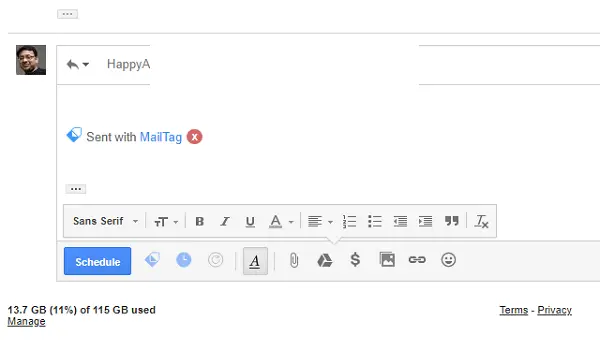 When you set up MailTag for the first time, it will ask for all permissions needed to send, receive, and read your emails. This is necessary for automation.
Automate your email follow-up process
This makes email tracking one step ahead. If you need to follow up with others who don’t reply with the predefined text, you can do that too. It’s called Pings. The free version allows you to send 3 pings per email. I would suggest using it smartly if you are not into email marketing.
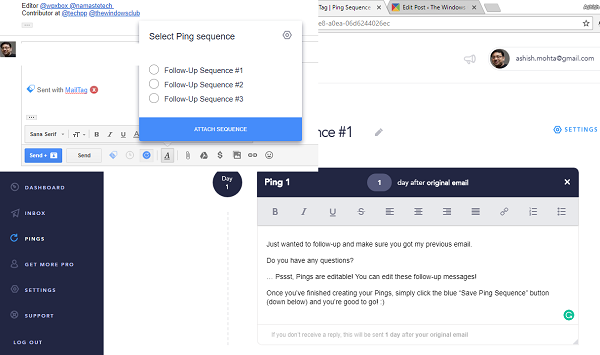
You get more details, such as which device was used to read the email, how many times it was read, the status of follow-up emails, and the timeline of all emails. This makes it a perfect tool to know a lot of things about the person who reads your email. MailTag supports multiple accounts as well.
MailTag offers paid services as well which might be useful for advanced users. Let’s first take a look at what it has to offer in the free version.
- Unlimited real-time email tracking.
- Real-time push notifications when your emails are opened.
- Real-time push notifications when links in your emails are clicked.
- Know how many times your emails have been reopened.
- Email scheduling (send your emails later).
- Email Pings (automate your email follow-ups).
- Simple and easy-to-use dashboard (view all of your read and unread emails).
- 24/7 email and live-chat support.
- Removable MailTag watermark.
In the paid version, you can remove or hide “Sent with MailTag” signature to make sure nobody blocks it. There is no limit to pings, removes MailTag ads, and lets you view data beyond 30 days. If this looks interesting, you can download the MailTag Chrome extension from the Chrome Store.
I hope this extension helps you.
How do I enable MailTag in Gmail?
To enable and use MailTag in Gmail, follow the aforementioned steps. This guide will help you enable MailTag in Google Chrome and Microsoft Edge. Next, you can track your emails, generate signatures, schedule emails, etc., right from the Gmail interface. All of these things can be done using the free account.
How do you use MailTag?
For your information, MailTag is a Google Chrome extension. In other words, you can use it in Gmail while using Google Chrome or Microsoft Edge. A detailed guide is provided in this article; it is recommended to follow it to use MailTag in Gmail. No matter whether you use Gmail or Google Workspace, you can use this extension without any issues.
